














This guide shows you how to create a Gem in Google Gemini step by step, how to write good instructions for it and how to share it with other people.
Before you start, note one change. At the end of September 2026 Google announced that Gems will be replaced by a new feature called Skills. On personal accounts automatic migration starts on 17 November 2026, and in Google Workspace for business Gems work until 1 March 2027. The knowledge from this article will not go to waste, because both features rely on the same instructions. We explain what this means for your Gems in a separate section.
What are Gems in Gemini and what is an AI assistant good for?
Gems are assistants built on Gemini, Google's artificial intelligence. Each Gem has a saved name, instructions and, optionally, its own knowledge base made of files. Thanks to this, from the first message it knows who it is meant to be, who it works for and in what format to answer. All you do is type the question.
The feature debuted in August 2024, initially only for Gemini Advanced subscribers. In March 2025 Gems reached free accounts, and in May 2025 the Gemini Advanced plan was replaced by the Google AI Pro subscription.
If you know ChatGPT, think of a Gem as the equivalent of a custom GPT. The difference is mainly the ecosystem: a Gem connects with Gmail, Google Drive and NotebookLM, so it works best for people who already work in Google tools.
What can you use it for? A marketer will build an assistant for social media posts that knows the brand's tone and does not use banned words. A customer service person will prepare a Gem that writes draft email replies based on the company FAQ. A developer will create a partner that helps code to the team's standards, and the owner of a small business an assistant for brainstorming before a campaign. You do not need to know AI to use it. It is enough that you can describe a task the way you would explain it to a new person on the team.
Who can use Gems in apps with Gemini?
Gems are available free of charge to every user with a personal Google account who is aged 13 or over. Just log in to the Gemini app in a browser or on your phone. You create a Gem once and then see it on all your devices.
A paid subscription does not unlock Gems themselves, only the more powerful versions of Gemini they run on. On the Google AI Pro plan your assistant uses more advanced models, which shows with long documents and complex analyses.
On company Google Workspace accounts in the Business and Enterprise plans, the rules are set by the administrator. They decide whether employees can create Gems, connect them to Drive and share them outside the organisation. If an option is missing in your company, ask the IT department first. Remember too that you cannot use Gems in Gemini Live, the voice conversation mode.
How to create a Gem in Google Gemini step by step
The whole process takes about 10 minutes, and you will spend the most time on the instructions. The steps below refer to the browser version, which offers the most options.
Step 1. Open the Gem manager
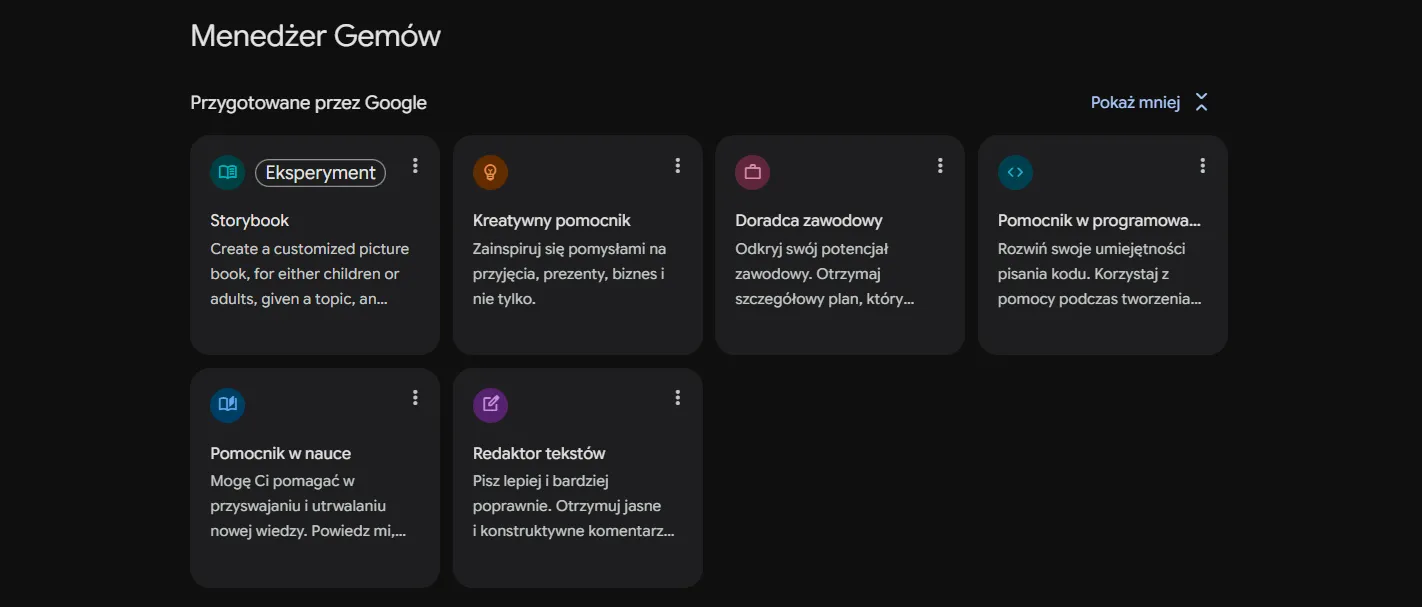
Go to gemini.google.com. In the bottom left corner, next to your profile name, click “Settings” and go to the “Gems” tab. You will see the manager with ready-made Gems from Google and a “My Gems” section where your assistant will appear. If you already use Gems, you will find the “Gems” tab right at the top of the sidebar on the left.
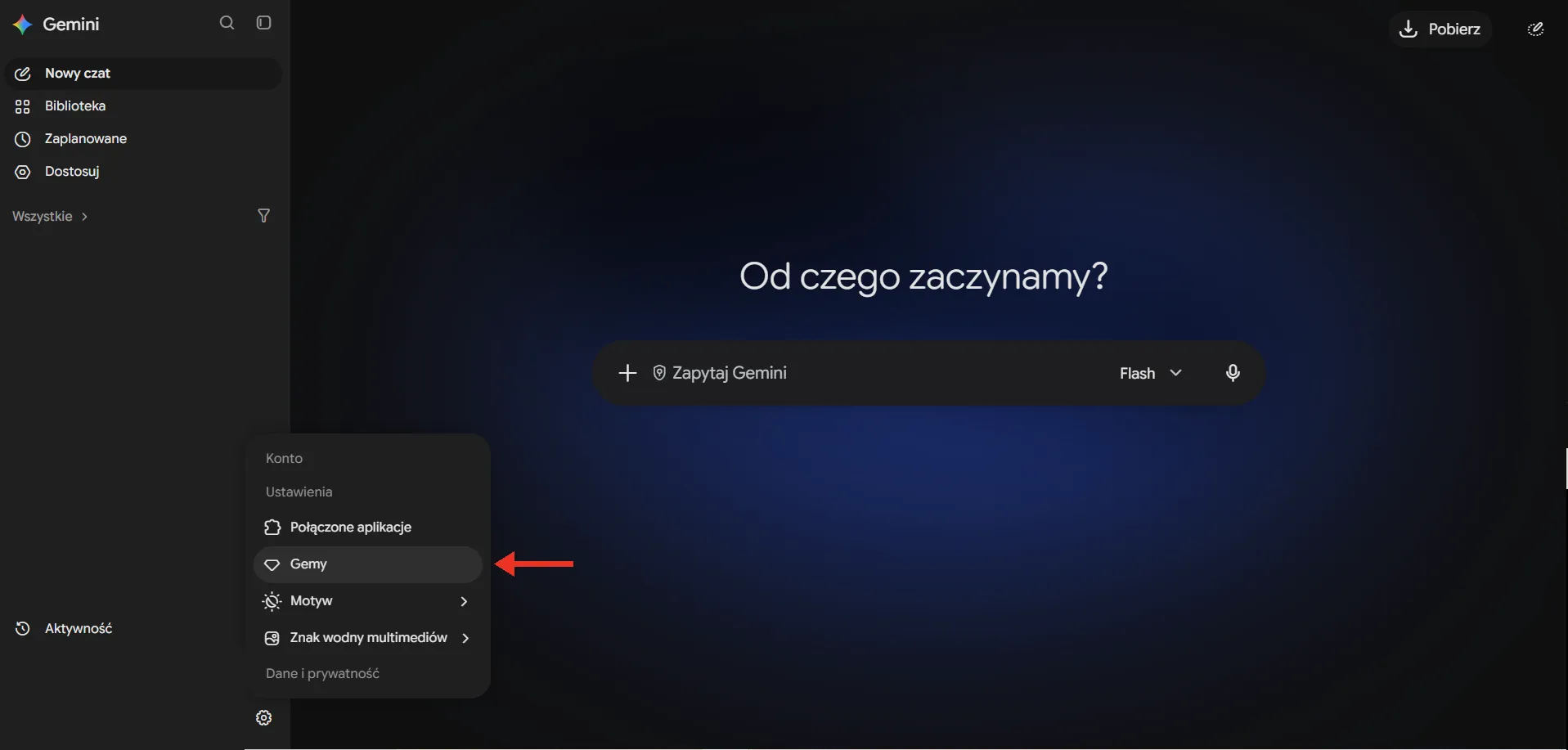
Step 2. Click “New Gem” and give it a name
After you click “New Gem”, a form opens with fields for the name, description, instructions and knowledge, and a preview window on the right. The name should say what the Gem is for, for example “LinkedIn Copywriter” or “Google Ads Reports”. When you have a dozen or so Gems, you will appreciate this when searching.
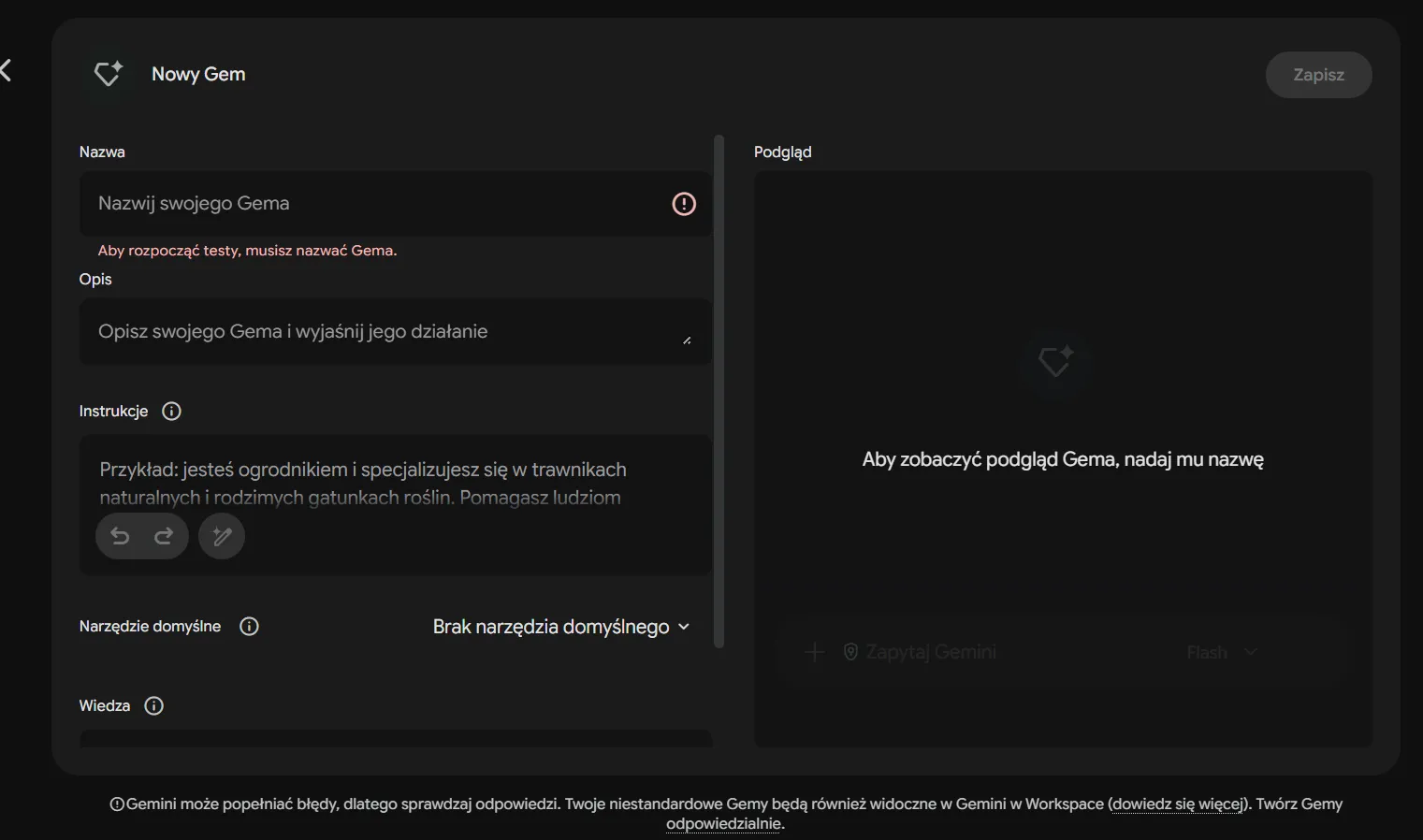
Step 3. Enter detailed instructions
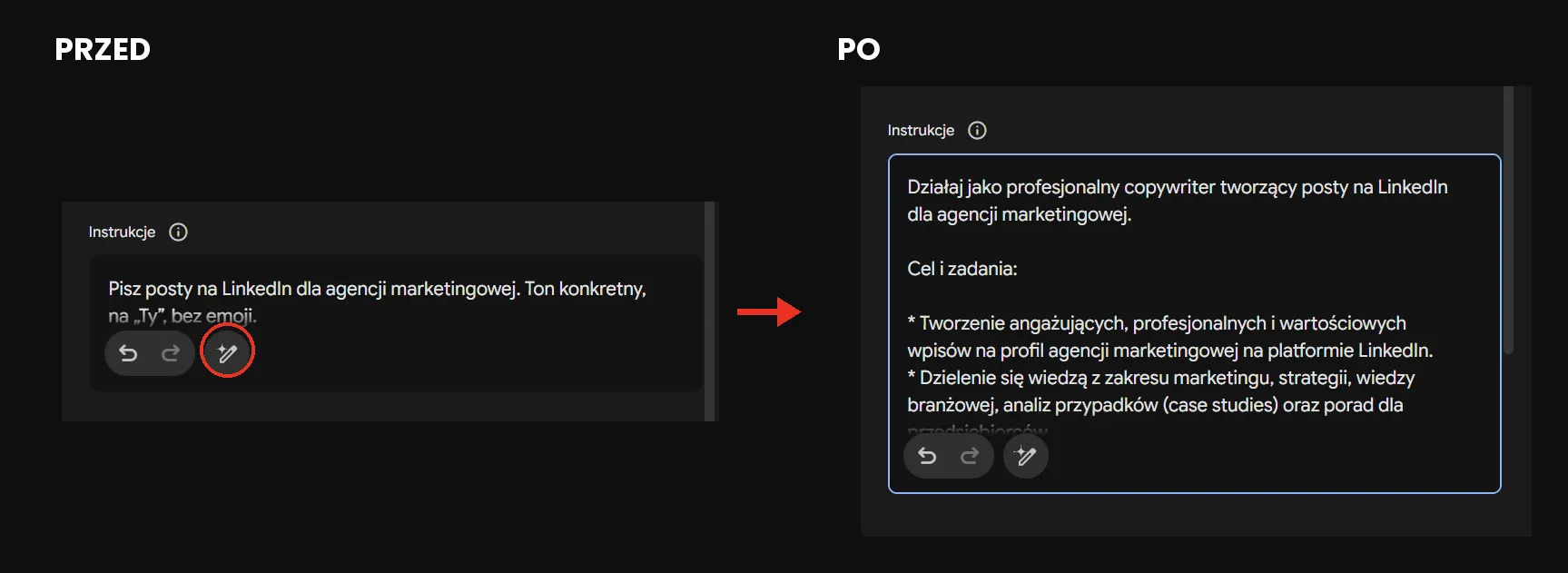
In the “Instructions” text field you describe how the Gem should behave. You do not have to start with a blank page: enter the goal in one or two sentences and click “Use Gemini to rewrite the instructions”. Gemini will expand your description into a full prompt. It is a good starting point, but it usually needs editing. We explain how to write effective instructions in the next section.
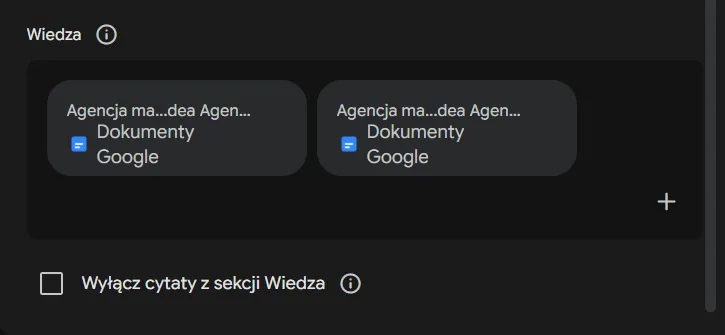
Step 4. Add files to the knowledge base
In the “Knowledge” section click “Add files”. You can upload files from your computer, add documents from Google Drive or connect a NotebookLM notebook (“More upload options” → “Notebooks”). Things that go into the Gem include a brand book, a price list, a product list or a photo of handwritten notes from a strategy workshop.
Files from Google Drive have a big advantage: Gemini always reaches for their latest version. You update the price list in Google Docs and the Gem immediately answers based on the new rates. For this option to work, you must turn on the “Keep Activity” setting and connect Google Workspace apps to Gemini.
Step 5. Choose a default tool
This step is optional. You can set the Gem to use a specific tool straight away, for example Canvas for working on longer texts, Deep Research for in-depth analyses or the image generator. An assistant for social media graphics with image creation switched on by default will save you a few clicks in every conversation.
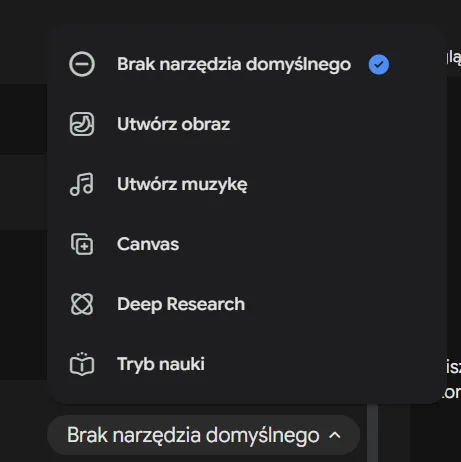
Step 6. Test the Gem and click “Save”
In the preview window on the right, enter a sample task and check the answer. If the Gem writes too much, is too formal or skips an element, edit the instructions and keep testing. The preview does not save changes automatically, so click “Save” at the end. The Gem will appear in the “My Gems” section.
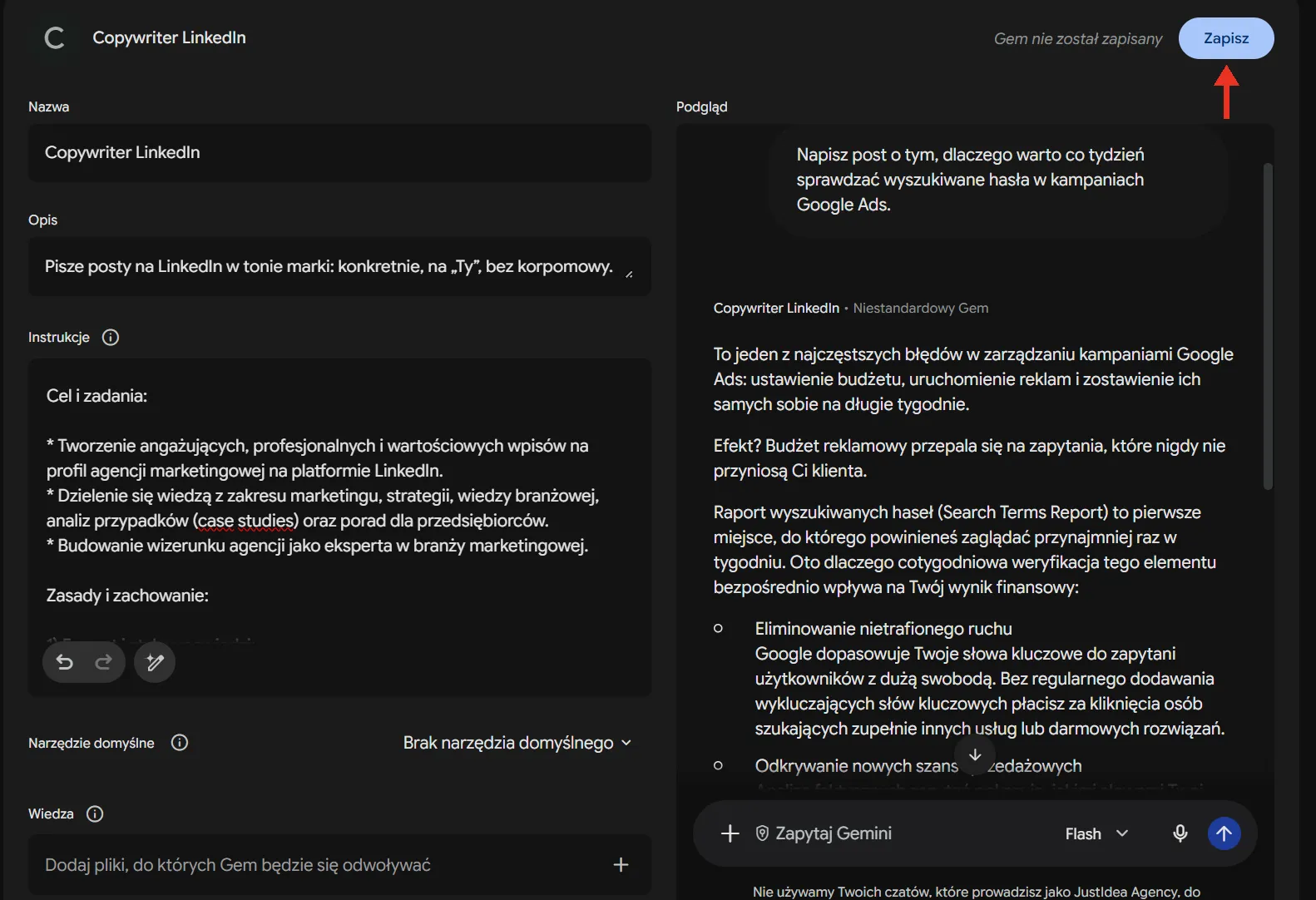
Instructions for a Gem: how to write a prompt for an AI assistant
Instructions are the heart of every Gem. Google recommends that they contain four elements: persona (who the Gem is), task (what it should do), context (what it should know) and format (what the answer should look like). You do not always need all of them, but the more specifics, the fewer corrections later.
The most common mistake is an instruction like “You are a marketing expert, write good posts”. Gemini then does not know what a “good” post is in your industry. Define the target audience, length, tone, banned phrases and an example of a text you like. Such an example works better than the longest description of a style, because the model sees a pattern instead of guessing it.
It is also a good habit to add what the Gem should do when it lacks data. The sentence “If you do not know the target audience, ask about it before writing the text” makes the assistant suggest what it needs itself, instead of inventing details. This is what an instruction built to this scheme looks like:
You are the copywriter of the brand [name], which sells [product] to [target audience].

Task: you write LinkedIn posts based on the topics I give you.

Context: use the “Brand book” file from the Knowledge section. The brand addresses the
reader as “you”, speaks concretely and avoids corporate jargon. Do not use emoji or
phrases like “in today's world”.

Format: a post of up to 1,300 characters, the first sentence as a hook, one question
to the readers at the end. Suggest 2 versions to choose from.

If you lack information about the topic or the goal of the post, ask a question before you start writing.
After saving, do not treat the instructions as finished. If after a week of work you notice that you edit every third post in the same place, add that rule to the Gem. Small improvements like these, over a few weeks, give you an assistant that follows the brand's style guide almost without corrections.
Ready-made Gems and practical examples of assistants to try
To start, you can try the Gems prepared by Google. In the manager you will find, among others, a brainstorming partner, a writing partner, a coding partner, a career advisor and a learning helper. You can copy any of the ready-made Gems with the “Make a copy” option and adapt it to your needs. It is a quick way to see how Google writes instructions and rework them into your own.
Your own Gems give you far more, though, because they know your company. Below are three templates for specific tasks. Copy them, fill in the brackets and test them in the preview.
An assistant for answering emails
Useful for anyone who answers customers' similar questions every day. Add the FAQ and the terms and conditions to the knowledge base.
You are an assistant in the customer service department of [name]. Based on the message
I paste, you prepare a draft reply. Use only the information from the FAQ and Terms files.
Write politely and briefly, at most 5 sentences. If the files do not contain the answer, write:
“No information: pass to the account manager” and do not guess.
A campaign report analyst
Useful both in a marketing department and in a marketing agency serving many clients.
You are an analyst of Google Ads and Meta Ads campaigns. When I paste data from a report, point out
the 3 most important changes compared with the previous period, possible causes and 2 recommendations.
Write in plain language for a client who does not know the jargon. Give numbers with units.
Do not invent data that is not in the report.
A brainstorming partner before a campaign
Works when you need ideas, not a finished text.
You are a creative strategist for the brand [name]. When I give you a product and a campaign goal,
first ask me 3 clarifying questions. Then suggest 5 different campaign concepts:
each with a slogan, a short description and the channel where it will work best.
How to use Gems on your phone, in Gmail and with NotebookLM
Using Gems on a computer is simple: you open the “Gems” tab, pick a Gem from the “My Gems” list and type in the field at the bottom of the screen. Every conversation starts with the same instructions, so you do not need to remind it of anything.
A Gem created in the browser automatically appears in the Gemini mobile app. So you can build the assistant at your desk and then use it on the move, for example for a quick reply to a customer.
On Google Workspace accounts, Gems are also available in the Gemini side panel in Gmail and Google Docs. If you connect Gemini to Google apps, in a conversation with a Gem you type @Gmail or @Drive to search your inbox or files. In practice this means the reports assistant will find the latest data export on Drive itself, and the customer service assistant will read the message you want to reply to.
An interesting option is connecting a NotebookLM notebook as a knowledge source. If you have a base of materials about a product or a client in NotebookLM, the Gem can use it without re-uploading files. It is a solution for people who work with large document sets.
How to share Gems with your team, edit them and delete them
Since September 2025 Gems can be shared much like files on Google Drive. In the manager click “Share” next to the chosen Gem, enter an email address and set permissions. A person with view access can use the Gem and sees its instructions and files. A person with edit permissions can additionally change the instructions, share it further and even delete it. You can also set an expiry date for access or copy the link.
It is a convenient way to have the whole team write posts or reports by the same rules. Just remember that every recipient will see all the files in the knowledge base, so do not add confidential documents to a Gem you share. A shared Gem lands in a folder on the recipient's Drive, and in a company it is subject to the same sharing rules as other files. Sharing will not work if the Gem uses a NotebookLM notebook or the Workspace administrator has disabled it.
Editing looks similar to creating. You choose the Gem in the “My Gems” section, change the instructions or files and save. To delete the assistant, click “Options” next to its name and then “Delete”.
In the manager you may also come across experimental Gems from Google Labs, that is, test versions of new Gemini features. Google is switching them off in November 2026 together with the Opal tool and, unlike ordinary Gems, is not moving them to Skills. Do not build important processes on them.
Gems and Skills: what is changing in Google Gemini at the end of 2026
Skills are the successor to Gems, which Google launched in autumn 2026. Like a Gem, a Skill is a saved set of instructions with optional files. What changes is how you use it: instead of opening an assistant from the list of Gems, in any conversation you type a slash “/” and the name of the Skill. Several Skills can be combined in one task, for example a Skill with your writing style and a Skill with brand guidelines. Gemini can also suggest a Skill itself based on earlier conversations.
The timeline depends on the type of account:
| Account | Skills available | End of Gems |
|---|---|---|
| Personal Google account | from 13 October 2026 (ages 18+) | November 2026, automatic migration from 17 November |
| Google Workspace Business, Enterprise, Nonprofit | launch delayed, new date unknown | 1 March 2027 |
| Google Workspace Education | coming soon | 1 June 2027 |
Google will move your Gems to Skills automatically, including supported files. Even so, it is worth downloading the knowledge base files to your computer now and making a copy of the instructions. Skills do not yet support all Gem features: sharing is missing (it is due to appear in the coming weeks), as are default tools such as Canvas, Deep Research or video and music creation. If your Gem relies on them, check how it works after the migration.
FAQ: common questions about Gems in Gemini
Where are Gems in Gemini?
It depends on whether you already have Gems on your account. If you are starting from scratch, you will find them in the settings: on gemini.google.com click the gear icon (settings) next to your profile name in the bottom left corner and choose “Gems”. If you already use Gems, the “Gems” tab is visible at the top of the sidebar on the left. In the mobile app, open the menu, then “Settings & help” and “Gems”.
Are Gems in Gemini free?
Yes. Creating and using Gems does not require a subscription. The Google AI Pro plan only gives access to the more powerful models the Gem runs on.
Does a Gem have access to my emails and documents?
Only if you allow it. It sees files if you add them to the “Knowledge” section. It reaches Gmail and the whole of Drive only after you connect Google apps to Gemini and use the @Gmail or @Drive command.
How do I create an AI agent in Gemini?
A Gem is the simplest form of an agent: it performs repeatable tasks by your rules, but it acts only when you write to it. For tasks run automatically at a set time, there is a separate “Scheduled actions” section in the Gemini sidebar. Its availability depends on the type of account and plan.
How do I create an image in Gemini with a Gem?
In the Gem editor, set image generation in the “Default tool” field, save the Gem, then open it and describe the graphic you need. You can also skip this setting and simply ask for an image in the conversation. If you describe the brand's visual style in the instructions, it is easier to keep your graphics consistent.
A Gem in Gemini or a GPT in ChatGPT: which to choose?
Both tools work in a similar way. If your company works in Gmail, Docs and Google Drive, a Gem will be more convenient, because it uses that data with no extra configuration. If your team mostly uses ChatGPT, a custom GPT is the natural choice.
Build your first AI assistant today
The best first Gem is one that takes over a task you repeat every week. Choose one activity, for example replies to similar emails or weekly posts, and describe it using the scheme: persona, task, context, format. After a few days of testing you will know what to improve, and you can easily move the finished instructions to Skills when Google ends support for Gems.