














In short
- A 500 error is a generic HTTP code from the 5xx group: the server hit an unexpected problem and did not complete the request. The message describes the effect, not the cause, which you have to establish on the server or application side.
- The most common sources are code errors, a faulty .htaccess file, a plugin or theme conflict, an incompatible PHP version, file permissions, the database and exceeded limits. Start diagnosis with the logs and make fixes one at a time.
- A single, short 500 error does not have to mean lost rankings, but regular or long unavailability makes it harder for crawlers to fetch your content. During technical work the site should return 503 with a Retry-After header.
You open a website, but instead of its content you see the message “500 Internal Server Error”. That message does not say exactly what broke. It does tell you where to look, though: on the side of the server or the application that handles the request.
A 500 error is a generic HTTP error code. It means the server encountered an unexpected problem and did not complete the request.
For a visitor it usually ends with no access to the page or to one of its functions. If you manage the site, however, a 500 error should start a diagnosis. The cause may be a faulty server configuration, a PHP code error, a plugin conflict, a corrupted .htaccess file, a database problem or exceeded resources.
In this article you will learn what an HTTP 500 error actually means, how to find its cause and in what order to check the individual parts of your site. We will also explain what you can do as an ordinary user and what you can do as the owner or administrator of the site.
What does the 500 Internal Server Error mean?
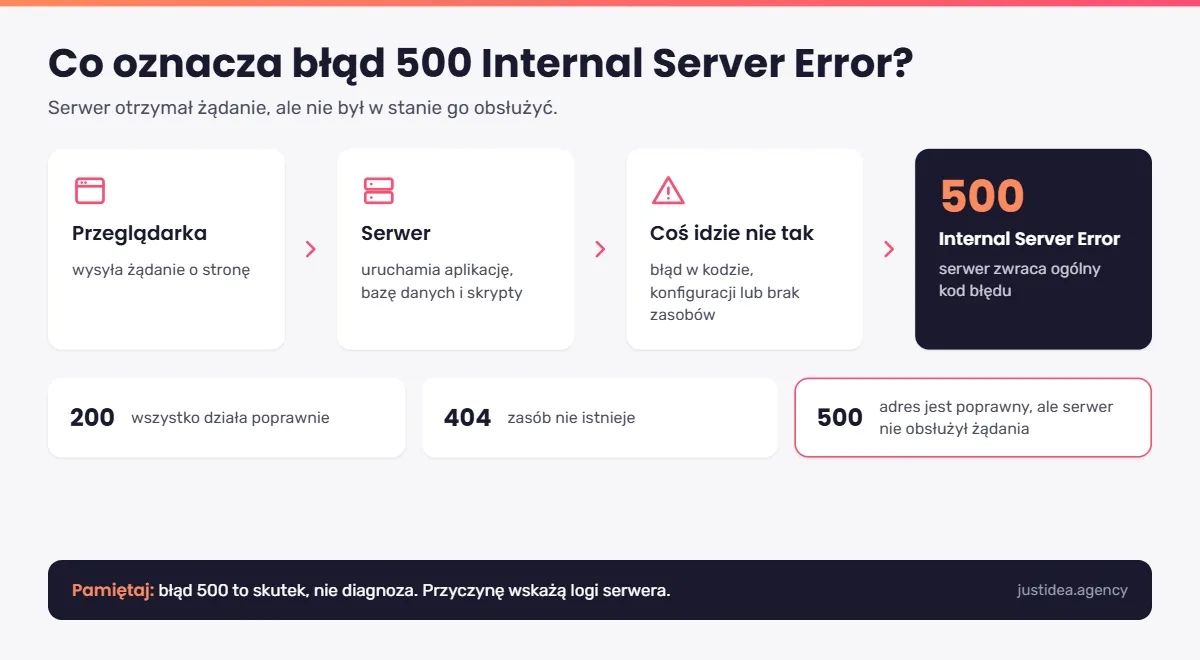
A 500 error, or 500 Internal Server Error, belongs to the group of 5xx HTTP response codes. Codes from 500 to 599 refer to errors on the server side. That does not mean every such code describes the same problem. Code 500 is special because it is generic: it signals an unexpected situation that the server could not describe with a more precise code.
In practice it works like this. Your browser sends the server a request, for example to display a specific subpage. The server receives it, runs the relevant parts of the application, queries the database or executes a script, and prepares a response. If a problem during this process prevents the operation from finishing correctly, the server may return status 500.
If everything goes well, the server returns 200 OK. If the resource does not exist, you will see, for example, 404 Not Found. A 500 error means something else: the URL may be correct and the resource may exist, but the server was unable to generate it or to handle a particular operation.
That is why the “Internal Server Error” message alone does not answer the question of what exactly broke. It reports an effect, not a diagnosis.
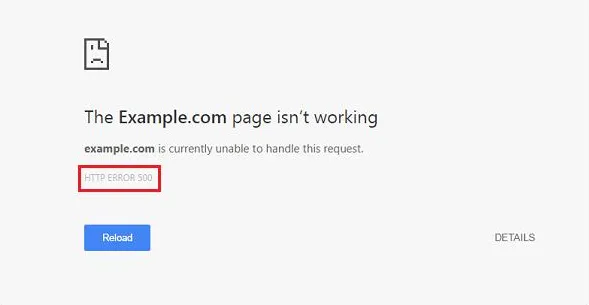
On different sites you may meet the messages “HTTP 500”, “Error 500”, “Server Error”, “500 Internal Server Error” or “internal server error”. How it is displayed depends on the server configuration and the design of the error page, but the substance of the problem stays the same. In Chrome the error usually appears as “This page isn't working” with the code HTTP ERROR 500. WordPress may instead show a message about a critical error on the site.
500 vs 502, 503 and 504: what is the difference?
All these responses belong to the 5xx group, but they describe different situations.
502 Bad Gateway refers to a situation where a server acting as a gateway or proxy received an invalid response from an upstream server. 503 Service Unavailable means the service is not ready to handle the request at that moment, for example because of overload or maintenance. 504 Gateway Timeout appears when a gateway or proxy does not receive a response from the upstream server in time.
The distinction matters during diagnosis. Do not solve every 5xx code in the same way, because each of them points to a different stage of request handling.
What can you do as a user when you see a 500 error?
If you do not administer the site, your influence on solving the problem is limited. You can reload the page, because a one-off error may have happened during a brief server problem. If the message keeps coming back, return to the page after some time.
You can also open it in a private window or another browser to rule out local problems with stored data. Do not treat clearing the cache and cookies as the basic “fix for a 500 error”, though. A genuine Internal Server Error arises on the server, so its source has to be removed by the site owner, an administrator or the infrastructure provider. MDN also notes that 500 errors require analysis on the side of the site owner or server administrator. It is also worth checking whether the page is down only for you, by opening it over a different network, for example mobile data instead of Wi-Fi.
If the problem lasts a long time and you can contact the site owner, pass on the page address and the time the error occurred. That information helps them find the right entry in the logs.
What are the most common causes of a 500 error?
The same 500 Internal Server Error message can hide completely different problems. That is exactly why you should not start the repair by randomly changing site settings. First check the logs and the circumstances in which the failure appeared, and only then touch the configuration.
Errors in the site code
If the application runs code on the server, a programming error can interrupt the handling of a request. This includes syntax errors, unhandled exceptions, references to unavailable resources and problems that appear after a new version of the application is deployed.
The moment the problem occurs is particularly important. If the site worked correctly until the last deployment, start the diagnosis with the changes made right before the HTTP 500 appeared. Comparing the error with the change history often lets you find its source much faster.
Incorrect .htaccess configuration
The .htaccess file lets you control selected settings of the Apache server for a given directory. With it you configure, among other things, URL rewriting rules, redirects and access to resources.
A syntax error, a disallowed directive or an incorrect rule can lead to an Internal Server Error. The Apache documentation states explicitly that problems with .htaccess directives can generate HTTP 500, and the detailed cause should appear in the server error log.
If you suspect .htaccess, do not delete its contents straight away. Make a copy, temporarily rename the file (for example to .htaccess_old) and check whether the site starts responding correctly. If it does, generate a new, correct file. In WordPress it is enough to go to Settings → Permalinks and click Save Changes, and the CMS will create a default .htaccess itself. Then move the recently added rules from the old file back one by one, testing the site after each of them.
Plugin or theme conflict
If you use WordPress, plugins and the active theme are among the first leads. Updating one plugin can introduce a conflict with another, with the theme, with the WordPress version or with PHP.
Do not automatically assume, though, that every WordPress failure is the plugins' fault. Check the error log first. If it points to a specific plugin or theme file, you have a much stronger basis for further diagnosis.
If you cannot enter the admin panel, you can also disable plugins via FTP, SFTP or the hosting file manager. We describe this in the section on WordPress. WordPress.org recommends deactivating plugins and then activating them one at a time to pinpoint the source of the conflict. If the problem does not go away, the next step is to check the theme and the .htaccess file.
Incompatible PHP version
WordPress, other CMS platforms, themes and plugins have specific PHP requirements. If the server uses a version that one of the application's components does not support, executing the code may end in an error.
The problem often shows up after a PHP version change or a plugin update. If HTTP 500 appeared right after such an operation, check the technical requirements of the CMS, the theme and the installed plugins. Do not change PHP “at random”. Choose a version compatible with the software you use, and make a backup of the site before changing it.
Incorrect file and directory permissions
The server must have appropriate rights to read and execute resources. Wrongly set permissions can block access to a file or prevent a script from running.
On typical Unix/Linux servers you will often see permissions 644 for files and 755 for directories, but do not treat these values as a universal recipe. The correct configuration depends on the server, the way PHP is run, the file owner and the hosting provider's policy. If you are not sure, check the provider's documentation instead of mass-changing permissions across the whole site.
Database problems
A dynamic site needs data from the database to generate many subpages and to carry out user operations. If the application cannot connect to the database, runs a faulty query or the database stops responding in time, the result may take the form of a server error.
In WordPress the connection details are in the wp-config.php file. Check the database name, user, credentials and database host if the logs point to a connection problem. With an overloaded database, also analyse resource usage and query execution time.
Exceeded server limits
Another cause is resource limits. PHP has, among other things, a memory_limit parameter that sets the maximum amount of memory available to a script. When the application needs more resources than the configuration allows, its execution can be interrupted. The same applies to execution time, the number of processes, disk space and limits imposed by the hosting provider.
Server overload or failure
If the site works correctly under light traffic but starts returning errors at peak hours, the problem often comes from insufficient infrastructure resources or from an overloaded application or database.
Not every HTTP 500 means a configuration error on your site, however. A failure of the hosting infrastructure also affects how the site works. If the application logs do not point to the source, and in the hosting panel you see service problems or exceeded limits, contact technical support.
What do the symptoms of a 500 error say about its cause?
The way the failure occurs gives important hints. It does not replace the logs, but it lets you decide which area to start the analysis with.
| Symptom | Probable problem area | What to check first |
|---|---|---|
| The whole site returns 500 | server configuration, PHP, application | server and PHP logs |
| The WordPress admin panel works, but the front end does not | theme, front-end code, cache | logs and the active theme |
| Only one subpage returns 500 | a specific script, template or module | the log for that specific URL |
| The error appeared right after an update | conflict or version incompatibility | the latest change, plugins, theme, PHP |
| The error occurs when a form is submitted | script, integration or database write | PHP log and database log |
| The error appears during checkout | checkout code, integration, database | application and integration logs |
| The error occurs only under heavy traffic | limits or overload | RAM, CPU, PHP processes, the database |
| The error occurs irregularly | timeout, resources or an unstable service | timestamps in the logs and monitoring |
Where to find error logs and why to start with them
The message displayed in the browser only says that the server did not complete the request. The error log, on the other hand, can point to a specific file, function, plugin or type of problem.
Where you find the logs depends on the type of server and hosting. On shared hosting the panel usually provides them (for example cPanel, DirectAdmin or the provider's own panel) in a “Logs” or “Errors” tab. On an Apache server look for them most often in /var/log/apache2/error.log (Debian, Ubuntu) or /var/log/httpd/error_log (CentOS, RHEL), and with Nginx in /var/log/nginx/error.log. The exact paths depend on the server configuration. If you do not have access to the logs, ask the hosting technical support for them.
In WordPress, when the server logs are not enough, enable error logging in the wp-config.php file by adding the following before the line “That's all, stop editing!”:
define( 'WP_DEBUG', true );
define( 'WP_DEBUG_LOG', true );
define( 'WP_DEBUG_DISPLAY', false );
If the file already contains the line define( 'WP_DEBUG', false );, change its value to true instead of adding it a second time.
Errors will be saved to the wp-content/debug.log file and will not be shown to visitors. When you finish diagnosing, turn WP_DEBUG off and delete the debug.log file, because it may be publicly accessible and reveal information about the site.
If the admin panel works, for example when the error affects only the front end of the site, you can use a plugin such as WP Debugging, which enables these settings with one click, instead of editing the file by hand. When the error blocks the whole panel, you are left with editing wp-config.php over FTP.
How to diagnose a 500 error step by step
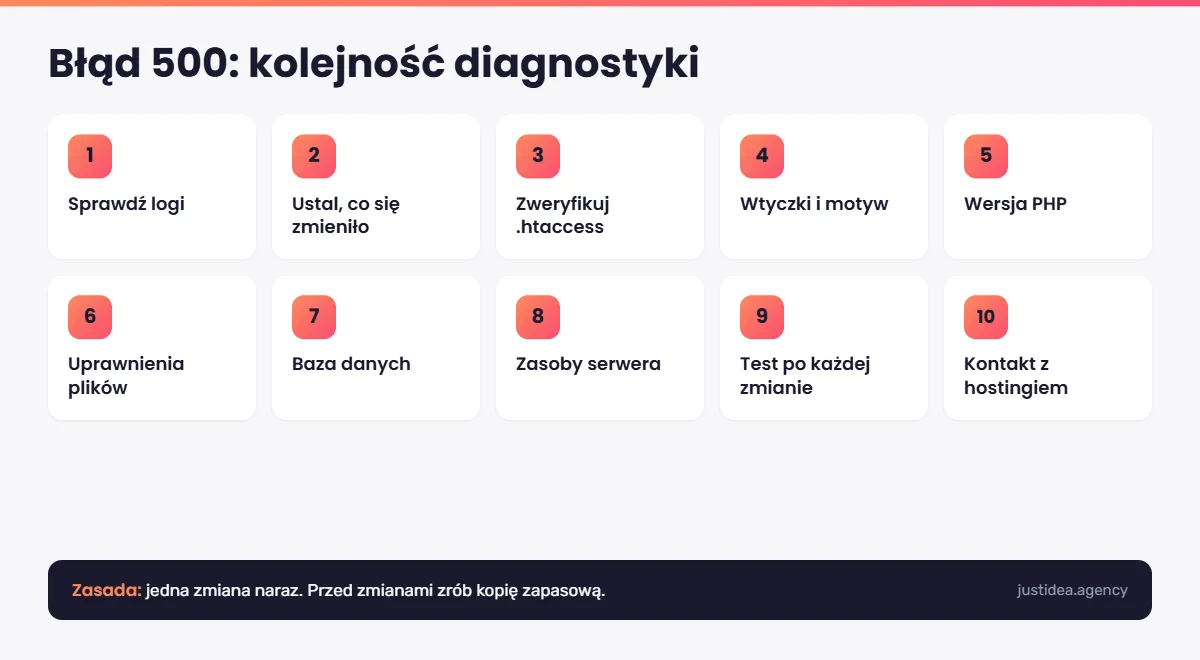
The most effective diagnosis does not involve making many changes at once. If you change .htaccess, PHP, permissions and plugins at the same moment, then even after the site is restored you will not know what caused the failure.
Stick to this order:
- Check the server and PHP logs. Reproduce the error, note the time and find the entry generated at that moment.
- Establish what changed before the failure. Review deployments, updates of plugins, theme, CMS and PHP, and configuration changes.
- Verify the .htaccess file. We described a safe way to check it in the section on causes.
- Check plugins and theme. If the problem concerns WordPress, disable the plugins and then activate them one at a time.
- Compare the PHP version with the application's requirements. Also verify the PHP extensions the site uses.
- Check file and directory permissions. Make sure they match the hosting provider's recommendations.
- Verify the database. Check the connection, the database logs and query errors.
- Analyse resource usage. Pay attention to memory, CPU, the number of processes, disk space and PHP limits.
- Test the site after every change. Make one change at a time and record the result.
- Contact the hosting provider if the problem remains unsolved. Give technical support the exact time of the failure, the URL, messages from the logs and a description of the tests you ran.
This order saves time and reduces the risk of introducing further errors during the repair.
How to fix a 500 error
The way you fix it should always match what the diagnosis showed. If the log points to .htaccess, correct the configuration of that very file. If the error appeared in a specific plugin, deactivating or updating it solves the actual problem. Increasing PHP memory makes no sense when the source of the failure is a typo in a server rule.
Here are the most common messages that appear in the logs with a 500 error, and how to react to them.
The message “Allowed memory size of … bytes exhausted” means the script exceeded the PHP memory limit (memory_limit). First check which file or plugin uses so much memory, because raising the limit helps only when the demand is justified. It is similar with the entry “Maximum execution time of … seconds exceeded”. The operation took longer than the configuration allows, so before you increase max_execution_time, check whether it can be optimised or split up.
The entry “PHP Fatal error: Uncaught Error: Call to undefined function…” means the code refers to a function that does not exist. This is usually a bug in a plugin or theme, or an incompatibility with the PHP version. The log will show the path to the file to start with. “PHP Parse error: syntax error…”, in turn, is a syntax error, most often after manual editing of a file or a failed update. In that case correct the indicated line or restore the previous version of the file.
The message “Invalid command 'RewriteEngine'” means the server does not support a directive from the .htaccess file because the mod_rewrite module is disabled. Enable it or ask the hosting provider to do so. “Permission denied”, on the other hand, means the server has no access to a file or directory, so compare the permissions with the hosting provider's recommendations.
If the error appeared right after an update and the log gives no clear answer, go back to the last working version from a verified backup and introduce the changes again, one after another.
500 error in WordPress: what to check
In WordPress the principle is the same as in any application: start with the logs. We described how to enable error logging in the section on logs. The CMS itself, however, has a few mechanisms that make diagnosis easier.
- Critical error message. Since version 5.2, WordPress shows a critical error message instead of a blank page. It also sends an email to the administrator, which usually points to the plugin or theme responsible for the failure.
- Recovery mode. The link in that email lets you log in to the panel despite the failure and disable the problematic plugin or theme.
- Disabling all plugins via FTP. If you have access neither to the panel nor to the email, rename the wp-content/plugins folder (for example to
plugins_old). WordPress then deactivates all plugins. Next restore the original folder name and enable the plugins one at a time in the panel, checking the site after each. - Theme. If plugins are not the cause, temporarily switch the site to one of the default WordPress themes.
- Re-uploading WordPress files. If the core files were corrupted, for example during a failed update, download a fresh package of the same WordPress version from wordpress.org. Then upload the wp-admin and wp-includes directories over FTP, overwriting the existing ones. Do not overwrite the wp-content directory or the wp-config.php file, because they hold your content, plugins and settings.
- Memory limit. WordPress has its own
WP_MEMORY_LIMITparameter, which you set in wp-config.php, for exampledefine( 'WP_MEMORY_LIMIT', '256M' );. It will work only if the server configuration allows it.
Do not skip the backup. Before you edit WordPress files, the PHP configuration or the database, make sure you can return to a working version of the site.
Does a 500 error affect SEO?
Yes, if the problem limits search engine crawlers' access to the site. In SEO, what matters is not only the content and structure of the site but also its technical availability.
Googlebot has to fetch a page before it can crawl it and process its content. If it gets a server error instead of the proper response, it has no access to the content for that request. Google Search Central notes that availability problems limit crawling, and that Googlebot reduces its fetch rate when the server cannot keep up with requests.
That does not mean a single, short-lived HTTP 500 automatically causes lost rankings. Regular or long-lasting unavailability is far more serious. If the crawler repeatedly hits server errors, new and updated content is harder to fetch and the crawling of the site becomes less efficient.
If you are planning technical work, for example an update, a migration or a maintenance break, do not let the site return a 500 error in the meantime. Set the code 503 Service Unavailable, preferably with a Retry-After header that says when the site will be available again. For Googlebot it is a signal that the unavailability is temporary and it is worth coming back later.
After you remove the failure, check the “Pages” and “Crawl stats” reports in Google Search Console. This will show you whether Googlebot ran into availability problems and whether the most important URLs return the correct response again.
How does a 500 error affect users and business results?
A server error is not only a technical problem. If a user hits a 500 error on their first visit, they will not see your offer, an article or the contact form. If the error appears in an online shop while an order is being completed, it can break the purchase process.
The more important the subpage, the higher the cost of the failure. A broken contact page blocks leads. An error on a product page limits sales. A problem when logging in stops customers from using their accounts. Repeated failures also weaken trust in the brand, because the user cannot be sure the site will work on the next attempt.
That is why reaction time matters. It is not about quickly hiding the message, but about finding the cause, fixing it and checking that the problem will not return.
How to monitor 500 errors
The server and application logs remain the most important source, but do not wait to analyse them until a customer reports a failure. Availability monitoring lets you detect a problem earlier.
In Google Search Console you can check the problems Googlebot encountered, while uptime monitoring checks the availability of the site independently of user traffic. For more complex applications, also use application error and performance monitoring. That way you get notified of a failure together with its technical context, before the problem turns into a larger number of failed visits.
Good monitoring should answer not only the question “is the site working?” but also “which element stopped working and when?”. So monitor separately the availability of the most important URLs, the critical functions of the site and the infrastructure resources.
How to prevent further 500 errors
You cannot guarantee that a server will never return HTTP 500, but you can significantly reduce the risk and the time needed to detect a failure.
Test updates and larger changes in a test (staging) environment before deploying them to production. Make regular backups and make sure you can restore them. Remove unused plugins and make sure the CMS, theme, other plugins and PHP version are compatible with each other.
For an application under development, also take care of the deployment process. A change history lets you quickly establish what happened right before the error appeared. If after every release you know exactly which files and components were changed, diagnosis takes much less time.
Do not ignore warning signs either. Growing memory use, ever longer database queries and occasional errors in the logs often appear before the site becomes completely unavailable.
FAQ: common questions about the 500 error
What does a 500 error mean?
A 500 Internal Server Error means the server encountered an unexpected problem and was unable to complete the request correctly. It is a generic server-side error code and does not point to the exact cause by itself.
Is a 500 error a problem on my side?
If you are a visitor to the site, most often no. Code 500 refers to a problem on the server or in the application running on it. As a user you can try again later and report the failure to the site owner.
What does “HTTP ERROR 500” mean in Chrome?
It is the way Chrome displays a 500 error. The message “This page isn't working” with this code means a problem on the server side, not in your browser.
Will clearing the cache fix a 500 error?
Usually not. The error arises on the server, so clearing the browser cache and cookies can at most rule out a local problem. The cause has to be removed by the site owner or administrator.
Why does a 500 error appear on only one subpage?
Most often the problem concerns a script, template or module used only on that subpage. Reproduce the error and check the log entry from the moment you open that URL.
Can a 500 error go away on its own?
If the source is a brief overload or a temporary infrastructure problem, the site may start working again without your intervention. If the 500 comes from faulty code, configuration or a plugin conflict, though, the problem needs fixing. The fact that the site came back after a moment does not release you from analysing the logs if the failure repeats.
How do I check the cause of a 500 error?
Start with the server and application logs. Reproduce the error, note the exact time and check the entries generated at that moment. Then compare them with recent changes in the code, plugins, PHP and configuration.
Does a 500 error mean data loss?
No. The 500 code itself reports a failure to handle the request and does not automatically mean data loss. The cause of the error may, however, concern the database, the disk or the application, so check the logs instead of drawing conclusions from the response number alone.
What is the difference between a 500 and a 503 error?
500 Internal Server Error is a generic message about an unexpected server problem. 503 Service Unavailable indicates that the service is currently unavailable, for example because of overload or maintenance.
What is the difference between a 500 and a 504 error?
Code 500 refers to a general server problem. 504 Gateway Timeout covers the situation where a server acting as a gateway or proxy did not receive the required response from the upstream server in time.
Fix the 500 error at its source, not by trial and error
The 500 Internal Server Error message gives very little information, so the most important part of the repair is proper diagnosis: logs, one change at a time and a test after each.
After the site is working again, do not stop at checking the home page. Test the most important subpages and functions, review the logs, check Google Search Console and turn on monitoring. A one-off fix removes the failure, but only availability checks and a well-thought-out deployment process reduce the risk of it coming back.
Have a 500 error you have not managed to track down? Get in touch. We will help establish the cause and assess whether the failure affected your search traffic.


