













Cowork is a good fit for business tasks, and if you need to work on a repository, access code or do a more technical setup, choose Claude Code. Since September 2026, Cowork on the Pro and Max plans has been merging with chat into a single Claude window, but for clarity this article keeps calling it Cowork.
In practice, you can use this to automate campaign monitoring, prepare a short Slack summary, analyse new leads, go through an inbox or create a recurring report. You don't have to open a new session and paste the same prompt every time.
Claude is a large language model, but in automation the agent layer matters too. Claude uses tools, files, connectors, skills and a schedule, so it doesn't stop at a single chat reply. It performs repetitive tasks, pulls context from connected sources and carries out subsequent steps according to set instructions.
What are recurring tasks in Claude and how does an AI agent work?
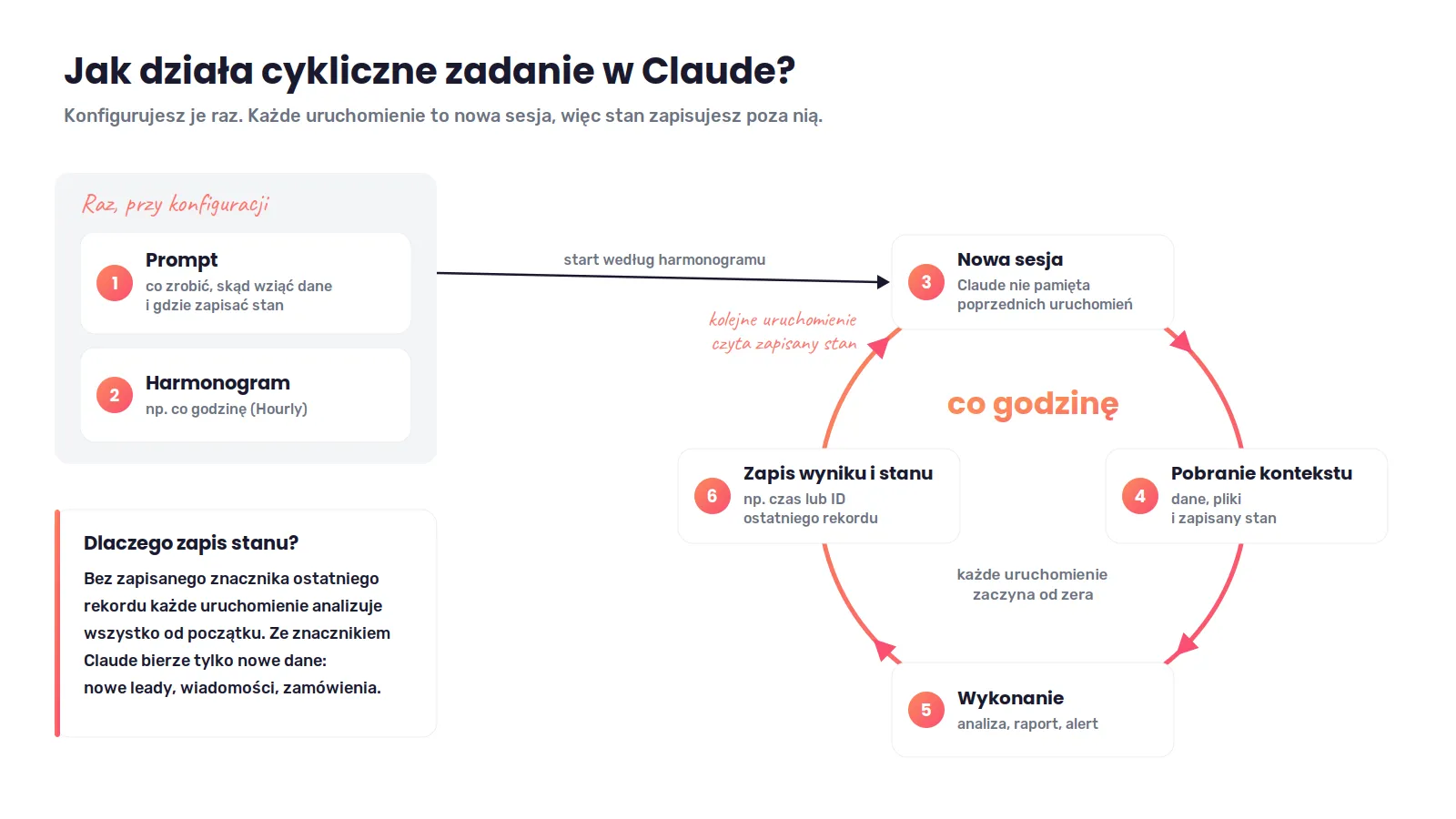
A recurring task in Claude is a set of saved instructions tied to a specific schedule. Instead of giving the same command every time, you configure the task once and Claude runs it automatically later.
So you can set up an AI agent that checks new messages every hour, prepares a report, analyses data from a connected tool or reacts to a new pull request or release in a repository.
That doesn't mean Claude simply “remembers” the previous run, though. In Cowork each scheduled run works as a separate session. Similarly, Cloud Routines in Claude Code create a new session on every run. So the context needed to perform the task should be in the prompt, project, files or a connected data source.
If, for example, you ask Claude to analyse new leads every hour, the instruction “analyse only new leads” isn't enough. The agent must know where the information about the last processed record is kept: a timestamp, a CRM identifier, a file in the working folder or a status in an external system (you'll find an example prompt below).
This is exactly what separates a properly designed automation from a task that does the same work from scratch every hour.
Cowork or Claude Code: which AI automation should you set up?
Claude offers several ways to schedule work. The choice depends mainly on whether you need a simple business process, access to local files, a GitHub repository or work inside a Claude Code session.
Correct as of October 2026.
| Option | Who it's for | Where it runs | Minimum interval | Best use cases |
|---|---|---|---|---|
| Cowork / Scheduled Tasks | marketer, manager, sales, operations | cloud (locally, if the task needs files or apps from the computer) | 1 hour | reports, Slack, research, meeting notes, content creation |
| Claude Code Cloud Routines | developer, technical team | cloud | 1 hour | repository, PRs, documentation, code monitoring |
| Claude Code Desktop Local | developer who needs local files | the user's computer (app open, computer not asleep) | 1 minute | local working folder, files, developer tools |
| /loop | developer working in the CLI | inside an open session, expires after 7 days | 1 minute | temporary monitoring and short repetitive tasks |
Cloud Routines run on Anthropic's infrastructure and keep working even when your laptop is closed. A routine can have access to a specified repository (along with the skills saved in it), an environment and connectors. Remember, though, that routines are still in research preview. This means their behaviour, limits and API may change, so check the current documentation before you roll them out.
How do you set up recurring tasks in Cowork without coding?
Since September 2026, Cowork and chat on the Pro and Max plans have been gradually merging into a single Claude window. If you no longer see the “Chat/Cowork” switch in the message field, you simply create the recurring task in the conversation.
Cowork is the simplest choice when you don't code and want to automate a repetitive business process.
All you need to do is describe the task, for example:
Check the sales channel on Slack for new messages every hour. Analyse only messages posted since the previous run. Give each matter a high, medium or low priority and prepare a short summary.
Claude may then ask for details and suggest a task name, schedule and instructions. After you review them, you approve the configuration with the “Schedule” button.
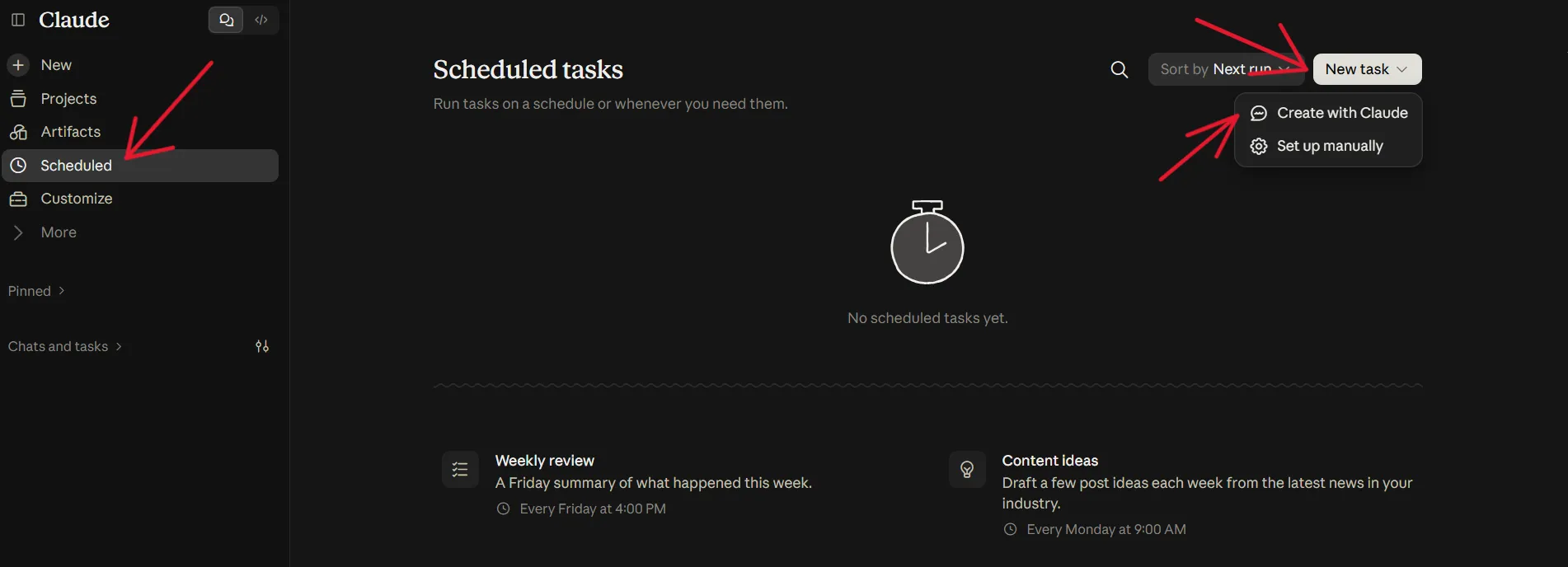
If you're still using the classic Cowork view, go to the Scheduled section, click New task, then choose creating with Claude or manual setup. In the form you set the task name, prompt, approval mode, frequency (hourly, daily, weekly, on weekdays or manually) and, optionally, the model and working folder.
Since 6 October 2026, new scheduled tasks on the Pro and Max plans run in the cloud. They run on schedule even when your computer is asleep or the Claude Desktop app is closed.
There are two exceptions, though. Tasks created before 6 October that ran on your computer still run locally. And a task that needs local files or apps installed on the computer always runs locally. It will then run only when the computer is on and the Claude app is open. If you want cloud execution, base the task on connectors and files stored in your Claude account rather than a folder on your disk.
This matters because older material about Cowork may describe the earlier operating model, in which a task depended more on the user's computer.
Skills, plugins and context: how to extend what Cowork can do
Scheduling is only one part of automation. The other is access to the right information and tools.
In Claude you can use skills, plugins and connectors. Connectors are based on MCP (Model Context Protocol), an open standard through which Claude connects to external tools. A plugin can combine several elements: a skill describing how to perform a task, a connector to an external system and additional agents. This way you don't have to paste long instructions every time.
For example, a skill can contain a standard for preparing a marketing report: the order of sections, table formatting, the way data is assessed and the rules for assigning priority. A scheduled task then runs the same process every hour.
Claude can also use connected tools. Anthropic provides a Microsoft 365 connector on all plans, which lets you work with SharePoint, OneDrive, Outlook and Teams. The connector requires a Microsoft Entra tenant linked to a Microsoft Business plan, and write functions (e.g. sending emails, managing the calendar, creating files) work only when an administrator enables them.
In practice, this means an AI agent can, for example, go through an inbox and pick out emails that need a reply, pull data from an Excel sheet, prepare a recurring report and save it in a set place.
Similarly, you can use Claude to create content, format documents or generate ready-made Excel spreadsheets.
How to set up automation in Claude Code: Routines, the repository and the session
For work with code, Claude Code is the natural choice.
Cloud Routines are saved Claude Code configurations that can run on a schedule, through the API or after an event on GitHub. A routine contains a prompt, a repository, an environment and selected connectors.
To set up an hourly task, open Routines, create a new routine and set the trigger Schedule → Hourly. The minimum interval for a Cloud Routine is one hour. Anthropic notes that a run may start a few minutes after the scheduled time.
A Cloud Routine requires a GitHub repository. On every run Claude clones the specified repository and works on the project's current state. It can also use the skills saved in it and the connectors assigned to the routine.
This opens up far more use cases than just generating code. A Claude agent can check fresh pull requests, update documentation, analyse errors or react to events in a project.
Pay attention to security. A routine runs fully autonomously: during a run it doesn't ask for permission for any action. By default all your connectors are attached, and Claude can use any of their tools, including write ones. Commits, pull requests or Slack messages then appear as sent by you. So when creating a routine, remove the connectors it doesn't need.
Claude Code Desktop: the working folder and local recurring tasks
The cloud isn't always the best choice. When an agent needs direct access to files stored on your computer, you can use Claude Code Desktop.
In the Code tab you click Routines, then New routine, and choose Cloud or Local. The Local option creates a task that runs on your computer, with access to local files and tools. It runs only when the app is open and the computer isn't asleep, however. If the computer is asleep at the scheduled time, the run is skipped.
The working folder matters especially when recurring tasks involve files generated by local programs. That could be a folder with reports, CSV exports, documents or files needed for further processing.
Example: you export a report to a folder every hour. You can configure Claude to read the latest file, compare it with the previous one and prepare an alert only when a given value exceeds a threshold.
/loop in Claude Code: a recurring AI agent inside a session
Not every repetitive task needs permanent automation.
When you work with Claude Code on the command line and want to monitor a specific process as you go, you can use /loop.
Example:
/loop 1h check the deployment status and tell me only if a new error appears/loop repeats a prompt within an open session. Tasks are tied to a specific conversation and disappear when you start a new one, and recurring tasks expire automatically after 7 days.
So /loop works well during a developer's active work, but it doesn't replace Routines for processes that should run continuously without your computer.
Cron in Claude Code: how to set a more precise schedule
Cloud Routines also support custom cron expressions. In the form you can choose a standard frequency and set a more precise schedule later from the CLI with /schedule update.
| Cron | What it means |
|---|---|
0 * * * * |
every hour |
7 * * * * |
every hour, 7 minutes past the hour |
0 9-17 * * 1-5 |
every hour from 9:00 to 17:00 on weekdays |
Cron is useful when scheduling has to take specific working hours into account. Don't treat Claude's schedule as a real-time system, though. Also remember the start delay of a few minutes mentioned above.
How to write a good prompt for a recurring Claude task?
The biggest problem in automation is usually not the schedule itself but a badly written prompt.
A good prompt should describe exactly the data source, the time range, the trigger condition, the expected output format and the way of establishing which records have already been processed.
An example prompt might look like this:
GOAL:
Check for new leads from the CRM every hour.

SCOPE:
Analyse only leads created since the time saved as the last successful run.

PRIORITY:
Rate each lead as high, medium or low according to the criteria saved in the instructions.

RESULT:
Prepare a short summary containing the company name, lead source, priority and suggested next action.

FORMAT:
Format the result as a readable table.

NO NEW DATA:
If no new records have appeared, do not create an empty report.

STATE:
When finished, save the time of the last successfully processed record.
Such a prompt is self-sufficient. It doesn't assume the next session will remember the previous one.
For a more complex process, you can move some of the instructions to a skill or to project instructions. A project has its own instructions, which Claude reads in every task run in that project. You can also set Global instructions, which apply in all sessions. Be careful with folder instructions, though: they apply to a local folder, so a task that uses them will run on your computer, not in the cloud.
Claude use cases: 5 repetitive tasks worth automating
1. Claude and Slack: a short summary every hour
Claude can analyse new Slack messages, tell information apart from tasks and point out matters that need your reaction. At an agency, this process works well for project, sales and support channels.
2. Campaign monitoring and budget alerts
If Claude has access to the right data source, e.g. Google Ads campaigns, you can set up an alert that fires when an anomaly is detected. Instead of checking the panel every hour, you get a message only when a value departs from the accepted norm.
3. Excel, Microsoft 365 and a recurring report
An AI agent can pull information from connected sources and prepare a report in a format convenient for the team. An example is a sales summary in Excel, updating data in OneDrive or a digest of the most important changes from the last hour.
4. Shopify and operational monitoring
If Shopify data is available through a suitable connector, plugin, API or intermediate integration, Claude can analyse new orders, flag unusual events or prepare a report for the e-commerce team.
If you need more elaborate flows between many applications, n8n can also be the answer. In that case n8n handles passing data and triggering the process, and Claude handles analysing it, interpreting it or generating a response.
5. Meeting notes and knowledge management
A recurring task can collect new meeting notes, organise decisions, assign task owners and save knowledge in a set place. This applies both to company systems and to file-based workflows or Obsidian, as long as Claude has access to the right data.
The most common problems with recurring Claude tasks
| Problem | Cause | What to do |
|---|---|---|
| Claude analyses the same data several times | no persistent state between sessions | save the ID or timestamp of the last record |
| The task doesn't start exactly on the hour | the schedule may have a small delay | don't use it for processes that need second-level precision |
| The agent has no access to the data | missing connector, plugin or permission | check the scope of access before running |
| Cloud Routine doesn't see the project | wrong repository or environment configuration | check GitHub, the branch and the environment |
/loop stopped |
it is designed to work inside an active session | use a persistent Routine for a permanent process |
| Usage cost is growing | every run uses up plan resources | reduce the frequency or the scope of the analysis |
Scheduled tasks use your plan's available limit. For complex processes involving files, connectors and many steps, a single run can use more tokens, and so more of the limit, than an ordinary answer to a question.
FAQ: Cowork, Claude Code and task scheduling
Does Claude run every hour when the computer is off?
Yes, if the task runs in the cloud. Scheduled tasks in Cowork and Cloud Routines in Claude Code run without an active laptop. The exceptions are tasks that use local files or apps, tasks on the Pro and Max plans created before 6 October that ran on the computer, and local tasks in Claude Code Desktop. Those need the computer to be on.
Can you set a task more often than every hour in Claude?
The shortest schedule in Cowork is hourly, and Cloud Routines have a minimum interval of one hour. You can run tasks more often, even every minute, with local tasks in Claude Code Desktop and /loop in Claude Code, but both work only when the computer is on.
Can a scheduled task use skills and plugins?
Yes. Scheduled tasks in Cowork have the same capabilities as ordinary tasks, including access to connected tools, skills and installed plugins.
Can Claude work with Microsoft 365 and Excel?
Claude can create Excel spreadsheets, and the Microsoft 365 connector lets it use selected Microsoft resources, such as mail, calendar, OneDrive or SharePoint, depending on the configuration and the permissions granted.
How do you check the results and errors of scheduled Claude tasks?
Each run is a separate session that you can open and review. In Cowork you'll find them by opening the task in the Scheduled section. The list shows successive runs, and in each one you can see what Claude did, what result it gave and whether anything went wrong. In Claude Code, a routine's history is on its details page. For local tasks you'll also see skipped runs there, e.g. when the computer was asleep. You'll find more information in the Claude help centre.
How do you pause or delete a recurring task?
In the Scheduled section you can open a specific task, edit its instructions and schedule, pause it, resume it, run it on demand or delete it. Cloud Routines have similar management options on the routine's details page.
The future of AI agents starts with well-designed processes
The most practical use of Claude isn't about telling it to do everything. You'll get a much better result if you pick one specific, repeatable process, describe its context clearly and set controlled rules of operation.
For a marketer, this could be a Slack summary or campaign monitoring. For sales: qualifying new leads. For a developer: repository checks and automatic documentation updates. For a manager: a report generated from Microsoft 365 or other team tools.
Cowork, Claude Code, skills, plugins and Routines show a broader direction for AI tools: agents get context, tools, files and a schedule, and then carry out the subsequent steps on their own.
If you want to use Claude, ChatGPT, n8n or other AI and automation tools to streamline processes in your company, start with one well-defined task. Check its result, set the safety rules and only then widen the agent's scope. At JustIdea we can help you analyse the process and choose the right tools. If your automations concern communication with customers, e.g. email and CRM scenarios, take a look at our marketing automation offer too.