














In short
- Cloudflare configuration covers SSL/TLS, security and speed. For SSL, Full SSL (Strict) mode is recommended, and a certificate for a new domain can take up to 24 hours to be issued on the free plan, and about 15 minutes on paid plans.
- For security, use firewall rules (log, skip, allow, Captcha, JS Challenge, block) and managed rules against XSS and SQL injection. Start the security level at Medium.
- Speed is improved by Brotli, Polish with WebP conversion, Auto Minify and caching, among others. Cloudflare has no lazy loading in the form PageSpeed Insights expects, and Mirage is only available in the PRO plan.
Introduction to Cloudflare: how to configure a new service
Cloudflare is an excellent tool that speeds up your site and boosts its security. Its configuration, however, can be tricky for less advanced users. This article covers the features Cloudflare offers and suggests which options to choose to get the best results for security and page loading speed. Read on!
1. SSL/TLS
SSL / TLS overview
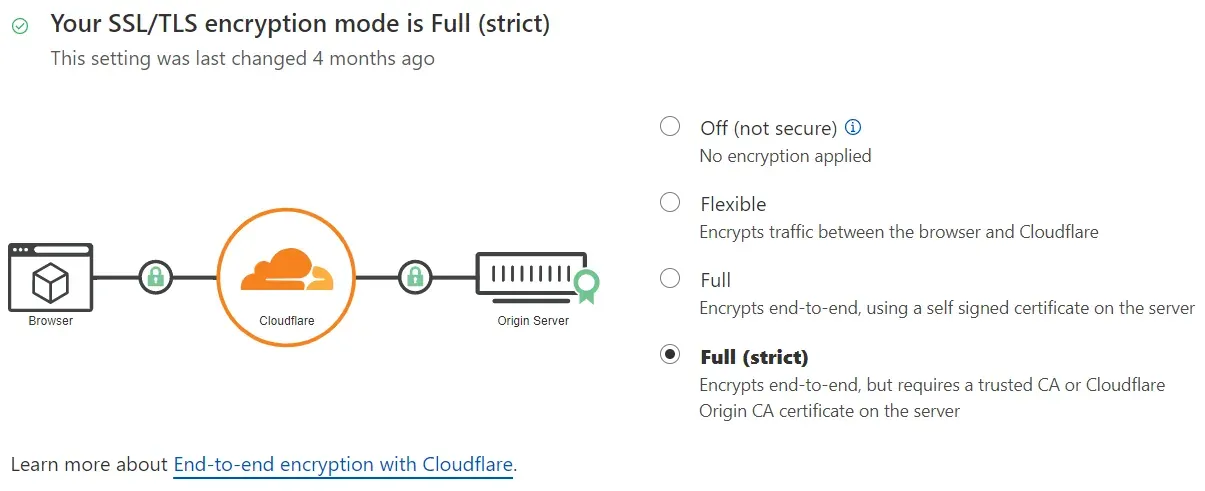

If you've recently signed up with Cloudflare and your certificate status shows “Authorizing Certificate”, it means HTTPS isn't available for your site yet, because Cloudflare doesn't have a certificate for it.
For paid plans, provisioning usually takes around 15 minutes; for free plans, it can take up to 24 hours.
Which SSL setting should I use?
This setting controls how Cloudflare's servers connect to your origin for HTTPS requests. Where possible, we recommend enabling Full (strict). Here are the available SSL settings:
- Off
- Flexible
- Full
- Full (strict)
About the SSL/TLS Recommender
Once the SSL/TLS Recommender is enabled, the owner will get an email whenever a recommendation for a more secure SSL/TLS mode becomes available. If no email arrives, it's best to keep your current mode. You don't have to follow the recommendation. The Recommender runs periodically and sends notifications when new recommendations appear. A recommendation is never lower than your current SSL/TLS mode.
The SSL/TLS Recommender isn't designed to fix functionality issues with your site or domain. If your site isn't working in the current mode, you won't get a recommendation.
Edge Certificates
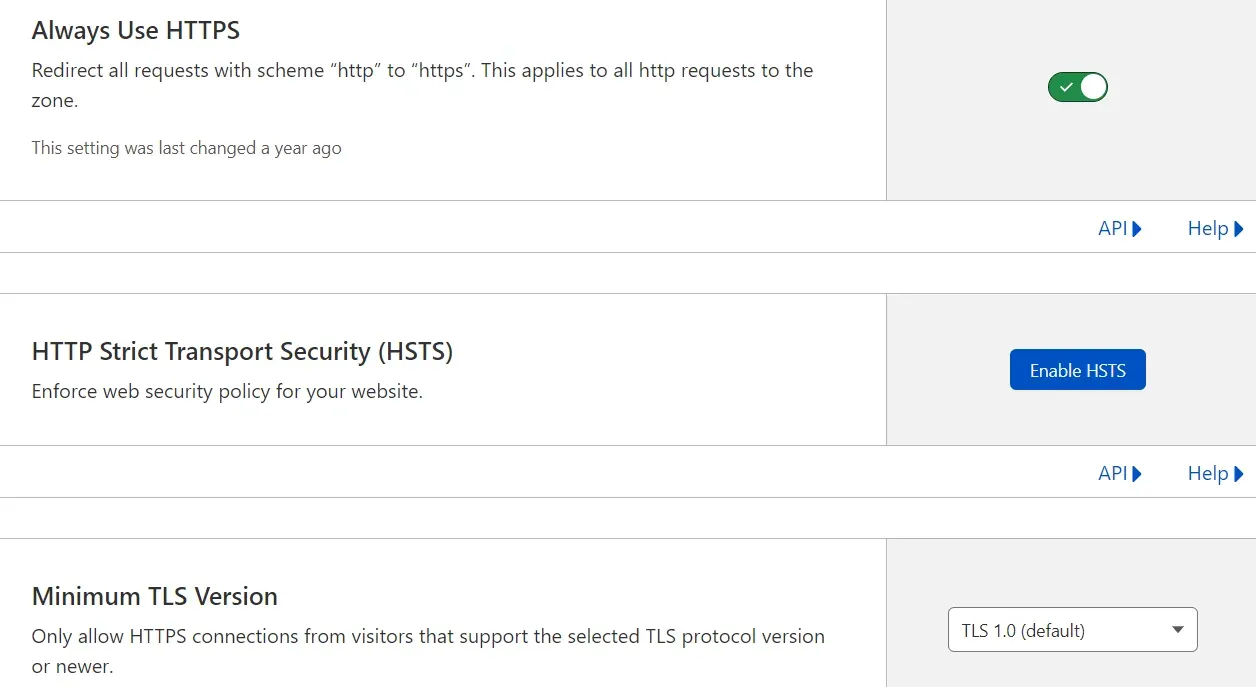
Always Use HTTPS
Respond to all URL requests using “http” with a 301 redirect to the matching “https” URL. If you only want to redirect a subset of requests, consider creating an “Always Use HTTPS” page rule.
HTTP Strict Transport Security (HSTS) is a header that lets a website define and enforce a security policy in clients' web browsers. This policy enforcement protects secure sites against downgrade attacks, SSL stripping and cookie hijacking.
HSTS behaves as follows in users' web browsers:
- Insecure HTTP links become secure HTTPS links
- SSL certificate warnings or other errors show an error message that the user can't click through
Minimum TLS Version
The Minimum TLS Version setting sets the earliest TLS version a visitor must support to connect to your domain over TLS. For example, if you select TLS 1.1, visitors trying to connect with TLS 1.0 will be rejected, while visitors trying to connect using TLS 1.1, 1.2 or 1.3 (if enabled) will be able to connect.
Why would I set a minimum TLS version?
Some security standards, such as PCI DSS 3.2, enforce strong cryptography standards, where strong cryptography is defined as TLS 1.1 or newer. For example, setting TLS 1.1 can help your domain achieve PCI DSS 3.2 compliance.
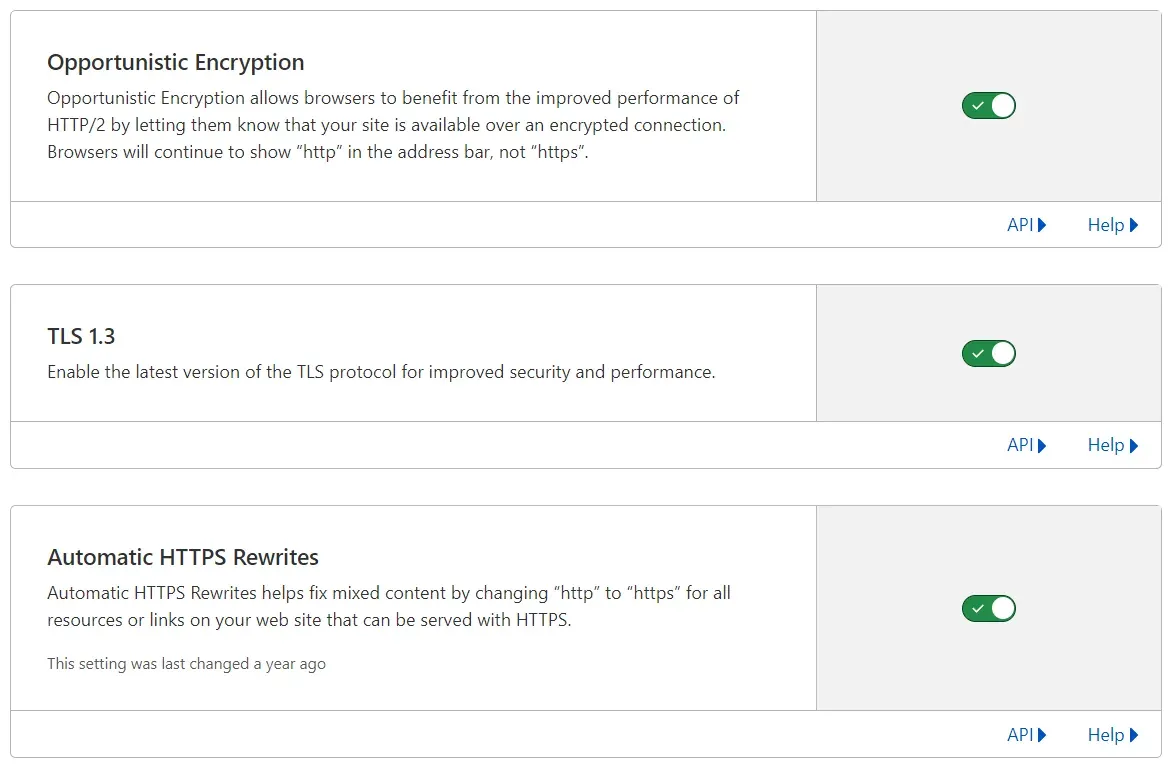
Opportunistic Encryption
Does Opportunistic Encryption replace HTTPS?
No. HTTPS should still be used whenever both strong encryption and authentication are required. Opportunistic Encryption for HTTP lets you enable TLS when it's needed for other protocols, such as HTTP/2. It doesn't provide the same security cues as HTTPS (the green padlock icon shown in most browser address bars).
TLS 1.3
TLS 1.3 is the latest, fastest and most secure version of the TLS protocol. SSL/TLS is the protocol that encrypts communication between users and your site. When network traffic is encrypted with TLS, users will see a green padlock in the browser window. Once TLS 1.3 is enabled, traffic to your site will be handled by TLS 1.3, provided it's supported by the client.
Automatic HTTPS Rewrites
If your site contains links or references to HTTP URLs that are also securely available over HTTPS, Automatic HTTPS Rewrites can help. If you connect to your site over HTTPS and the padlock icon is missing or shows a yellow warning triangle, your site may contain references to HTTP resources (“mixed content”).
Mixed content is often caused by factors outside the site owner's control, such as embedded third-party content or complex content management systems. By rewriting URLs from “http” to “https”, Automatic HTTPS Rewrites simplifies the task of serving your whole site over HTTPS, helping to eliminate mixed content errors and ensuring that all the data your site loads is protected from eavesdropping and tampering.
Does Automatic HTTPS Rewrites fix all mixed content errors?
No. Only URLs known to support HTTPS will be rewritten. We use data from the EFF's HTTPS Everywhere list and Chrome's HSTS preload list to determine which domains support HTTPS. If your domain isn't on either list, only active content will be rewritten. Passive content (such as images) won't be rewritten and will still trigger mixed content errors.
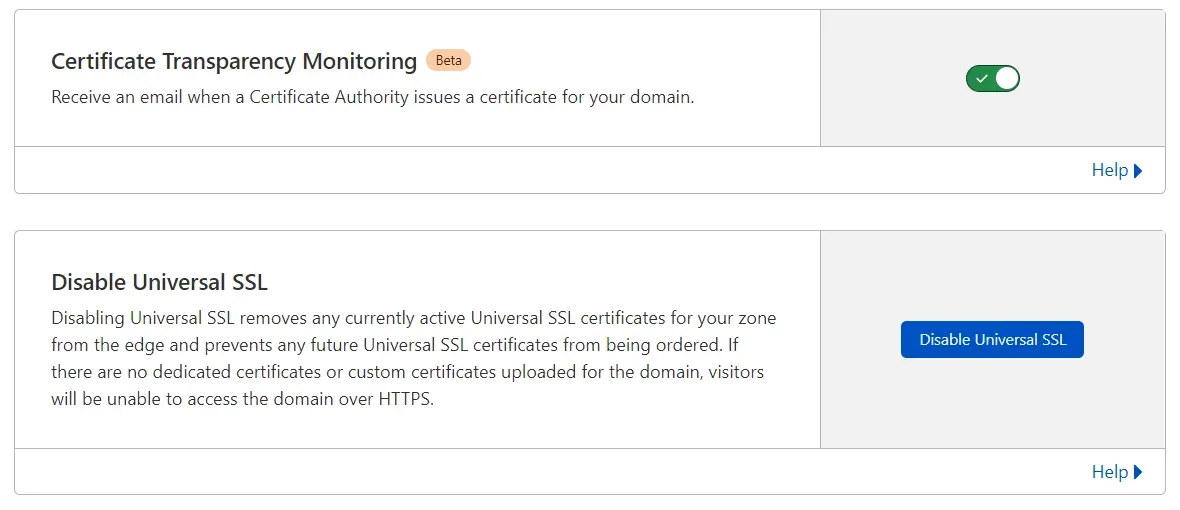
Certificate Transparency Monitoring
What is Certificate Transparency Monitoring?
Millions of certificates are issued for domains every day. Every certificate is logged in a set of public logs for transparency. With Certificate Transparency Monitoring, we index these logs and send you an email whenever we find a certificate for your domain. If you manage the domain example.com, we'll capture *.example.com to help you spot malicious or unexpected certificates.
Why should I enable Certificate Transparency Monitoring?
In rare cases, attackers obtain certificates for sites they don't own. If an attacker gets a certificate for your site, they can publish content in your name that looks legitimate but is actually malicious. Some customers also lose track of their certificates and like to be notified whenever new ones are issued.
Who will get the email notifications?
If you're on a Free or Pro account and have enabled this feature, we'll send alerts to your Cloudflare account email address (and to anyone with access to a shared account). If you're on a Business or Enterprise account, we'll only send alerts to the emails you specifically register above.
Disable Universal SSL
What is Universal SSL?
Universal SSL is a set of certificates that Cloudflare freely orders for every domain on Cloudflare, so visitors can securely access domains on Cloudflare using the latest technologies.
Why would I disable Universal SSL?
Some site owners may want to manage their own SSL certificates to stay compliant with their own standard operating procedures or policies. Alternatively, others may only want to trust specific certificate authorities (CAs) other than the ones Cloudflare currently works with to issue Universal SSL certificates.
What happens when I disable Universal SSL?
Any available Universal SSL certificates will be removed on our side and will no longer be available for the domain. No new Universal SSL certificates will be ordered for the domain until Universal SSL is re-enabled.
The following Cloudflare features, when enabled after disabling Universal SSL, can stop visitors from reaching your domain unless you upload a custom certificate or purchase a dedicated certificate:
- HSTS
- Always Use HTTPS
- Opportunistic Encryption
- Any page rules redirecting traffic to HTTPS
Similarly, any HTTP to HTTPS redirect, while the Cloudflare proxy is enabled, will prevent users from visiting your site without a valid certificate at the Cloudflare edge.
Origin Server tab
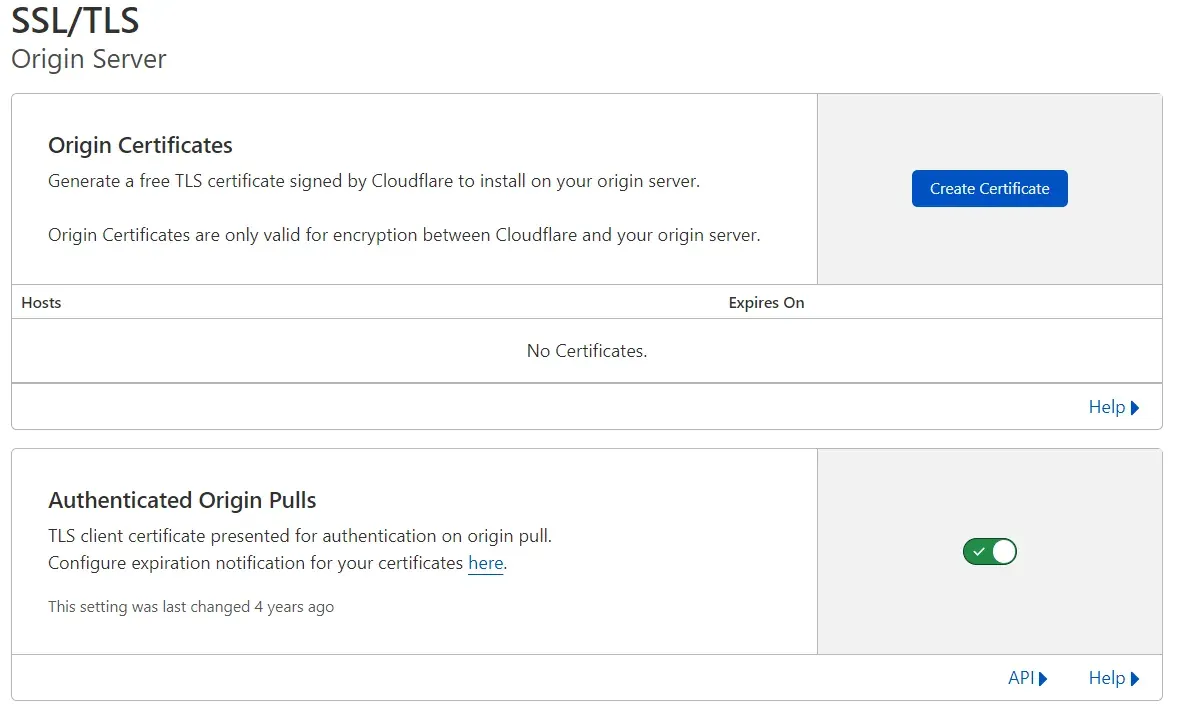
Origin Certificates
Cloudflare Origin Certificates are free TLS certificates issued by Cloudflare that you can install on your server to make end-to-end encryption for visitors over HTTPS easier. Click “Create Certificate” and follow the instructions to generate and install the certificate. If it's not already set, you can now optionally change your SSL setting to use “Full (strict)” mode.
Hostname / Wildcard Scope
Certificates can be generated with up to 100 individual subject alternative names (SANs). A SAN can take the form of a fully qualified domain name (www.example.com) or a wildcard (*.example.com); IP addresses aren't allowed as SANs on Cloudflare Origin certificates. Wildcards can only cover one level, but you can use several on the same certificate for wider coverage (for example, *.example.com and *.secure.example.com can coexist).
Expiration
Keep in mind that, by default, newly generated certificates are valid for 15 years. If you want to generate certificates with a shorter lifespan (as short as 7 days, for example), you should use the API or CLI tools provided.
Revocation
If you lose your key material or want to indicate that a certificate should no longer be trusted, you can click the “x” icon to the right of the Origin Certificate and click “OK”. This process can't be undone.
Automatic Issuance
If you want to automate origin certificate issuance, click the CLI or API links to the right of the Help link for further instructions.
Authenticated Origin Pulls
Authenticated Origin Pulls lets you cryptographically verify that requests to your origin server come from Cloudflare, using a TLS client certificate. This stops clients from sending requests directly to your origin, bypassing the security measures Cloudflare provides, such as IP and web application firewalls, logging and encryption.
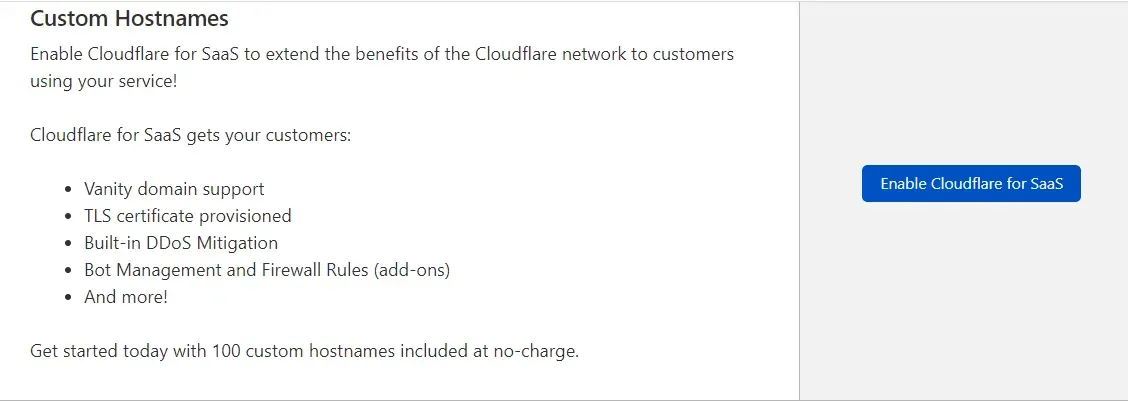
Custom Hostnames are third-party hostnames that CNAME to your domain to get Cloudflare's performance and security benefits. Before you can use this feature, your account needs to be set up with Cloudflare's help.
How do I set up Custom Hostnames?
For help setting up and verifying Custom Hostnames, see the SSL for SaaS documentation.
2. Security
Security tab
Security WAF
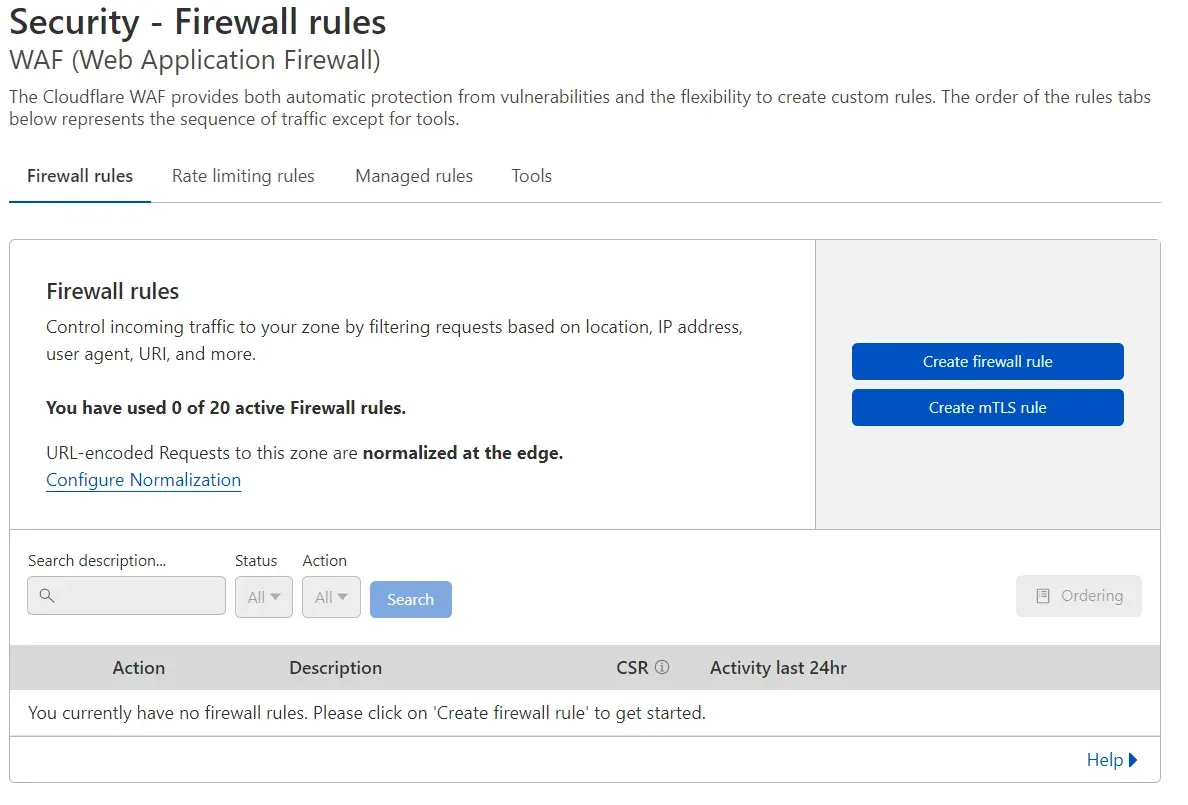
Firewall rules offer power and flexibility by targeting HTTP traffic and applying custom criteria to block, challenge, log or allow specific requests.
Essentially, firewall rules let you inspect traffic coming into your site. Requests matching the criteria you define are subject to a specific action in response.
- Log: records matching requests in Cloudflare's logs.
- Skip: lets you dynamically turn off Cloudflare security features for a request. NOTE: requests matching a Skip action are still subject to evaluation (and so to challenge or blocking) under other firewall rules, based on execution order.
- Allow: matching requests are exempt from challenge and block actions triggered by other firewall rule content. NOTE: the scope of the Allow action is limited to firewall rules; matching requests aren't exempt from other Cloudflare Firewall products, such as IP Access Rules, the WAF and so on.
- Challenge (CAPTCHA): the client that sent the request must pass a CAPTCHA challenge.
- JS Challenge: the client that sent the request must pass a Cloudflare JavaScript Challenge before continuing.
- Block: matching requests are denied access to the site.
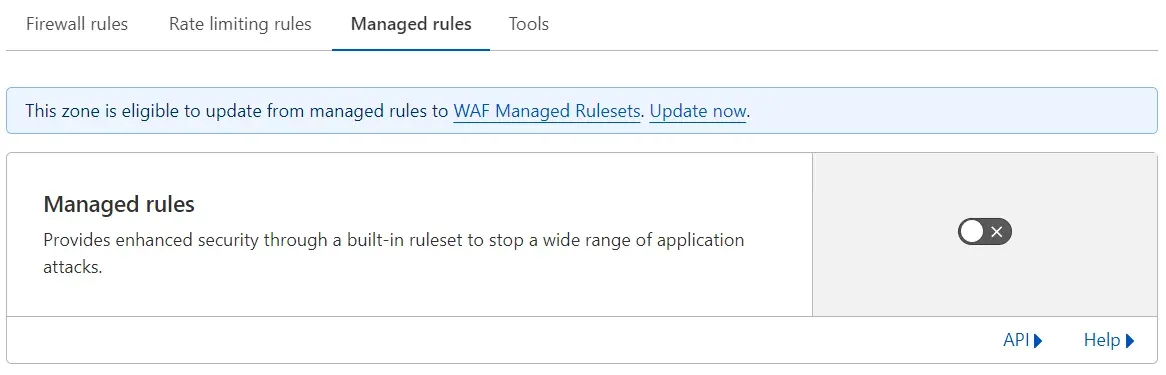
Managed Rules
A managed rule blocks requests that contain malicious content. Managed rules are state of the art and provide strong protection without affecting performance.
Note: turning off Managed Rules will disable all rulesets, including OWASP, the Cloudflare Ruleset and any custom rules you've set. We don't recommend doing this. If you run into issues caused by managed rules, this guide explains how to diagnose and fix them by adjusting your WAF configuration.
How do managed rules protect my site?
Managed rules use rulesets to block common attacks such as cross-site scripting (XSS) and SQL injection. What's more, the company constantly patches and updates the Cloudflare Ruleset's rule sets, so if a new vulnerability is disclosed, simply having managed rules enabled is enough to protect you against it. Our engineers take care of the rest.
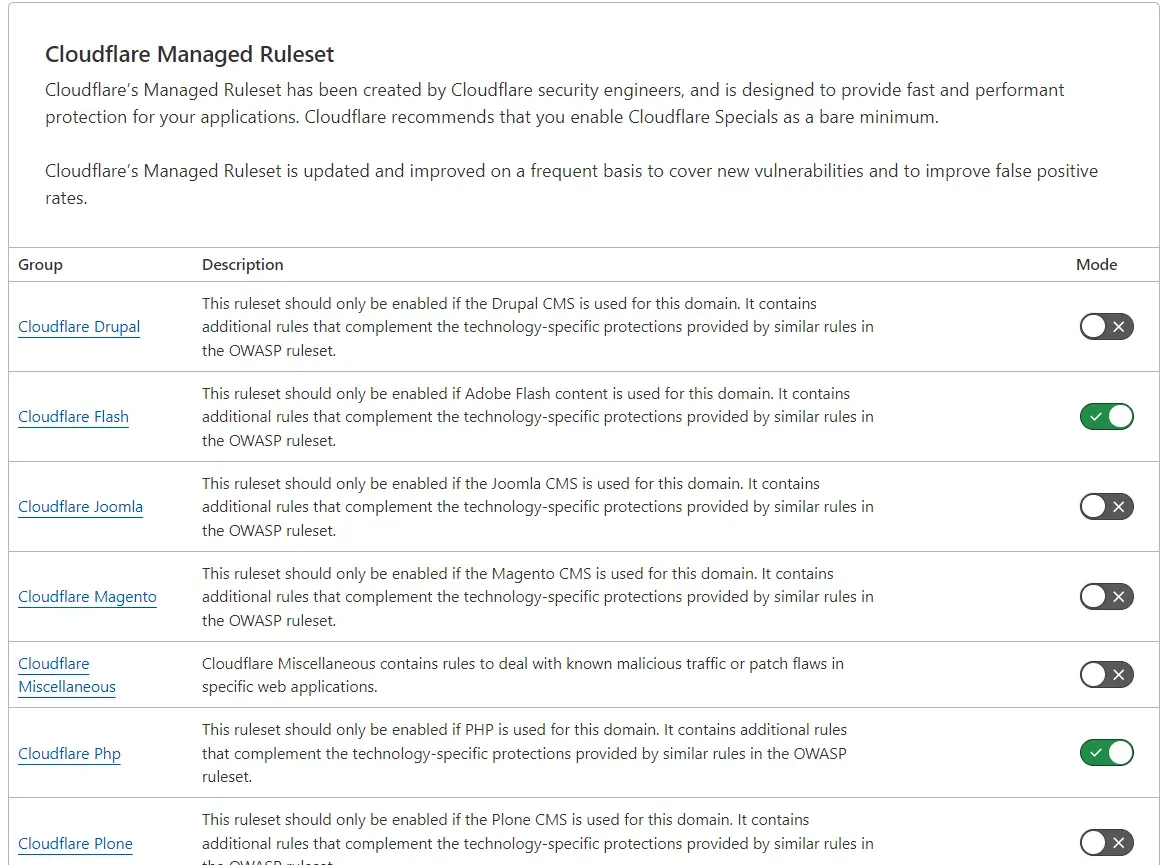
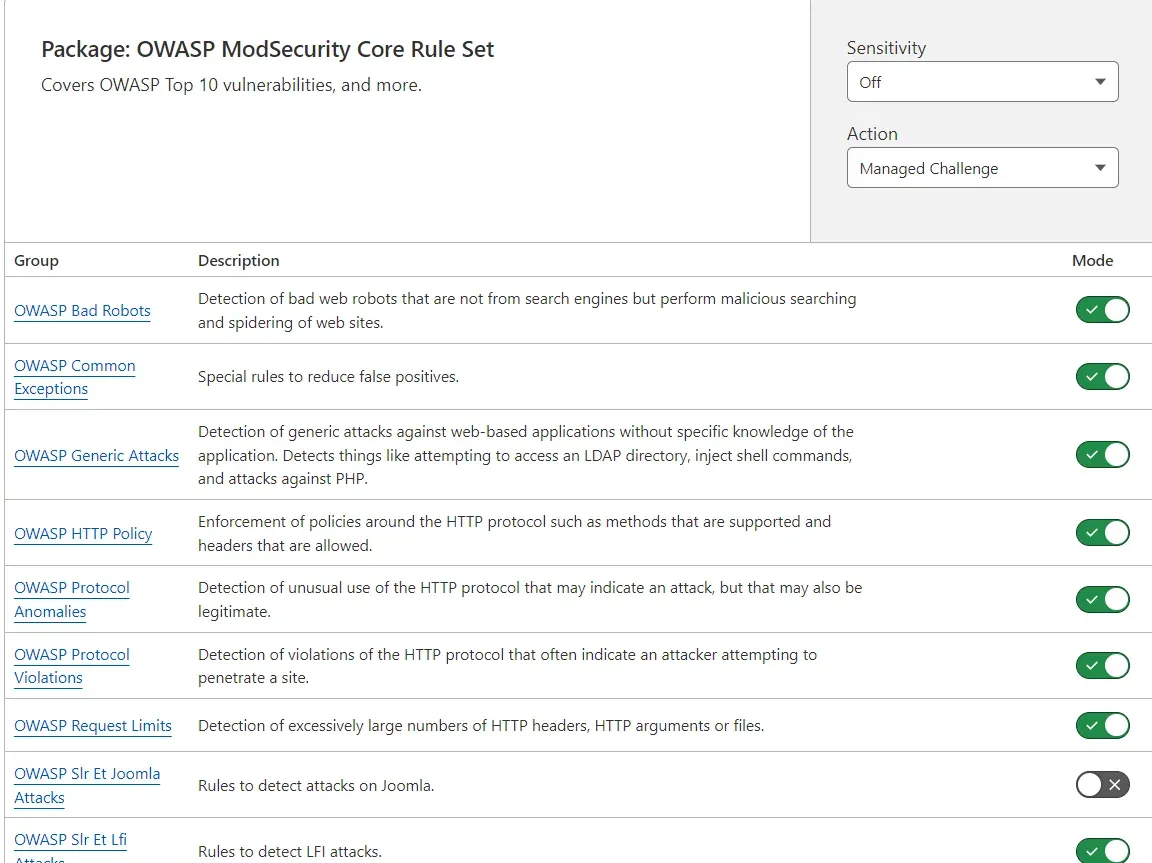
Security Settings
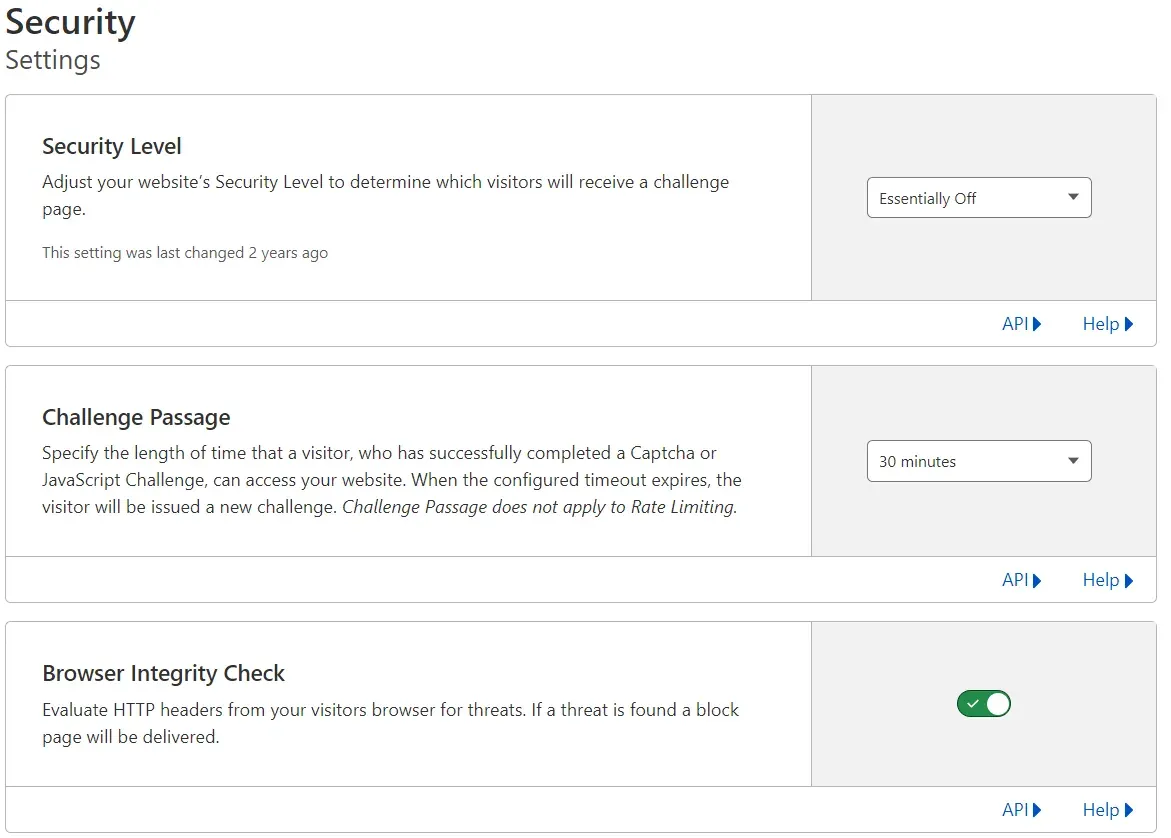
Security Level
The security level you choose determines which visitors get shown a Challenge Page. We recommend starting with Medium.
- Essentially Off: challenges only the most serious offenders
- Low: challenges only the most threatening visitors
- Medium: challenges both moderately threatening and highly threatening visitors
- High: challenges all visitors who have shown threatening behaviour in the last 14 days
- I'm Under Attack!: should only be used when your site is under a DDoS attack
Visitors will see a full-page interstitial while we analyse their traffic and behaviour to confirm they're legitimate people trying to access your site.
Challenge Passage
Set how long a visitor who has successfully completed a CAPTCHA or JavaScript challenge can access your site. Once the configured time limit expires, the visitor will get a new challenge. Challenge Passage doesn't apply to rate limiting.
Browser Integrity Check
Evaluate visitors' browser HTTP headers for threats. If a threat is found, a block page is served.
Browser Integrity Check looks for requests with HTTP headers commonly used by spammers, bots and crawlers, such as requests with a missing or non-standard user agent. If a threat is found, Cloudflare will show a block page.
Interested in Cloudflare configuration?
3. Speed
Speed tab
Overview
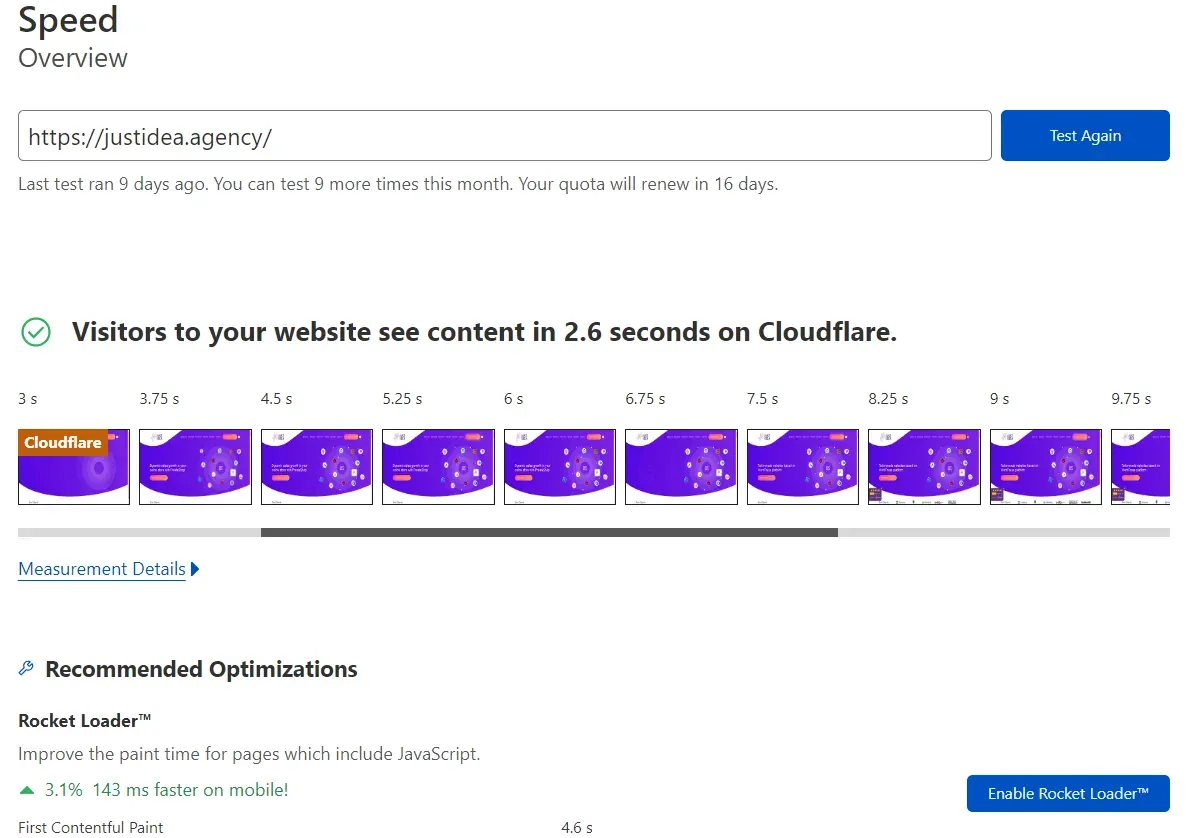
Here you can test your site's speed and see what recommendations Cloudflare has for improving how fast it runs.
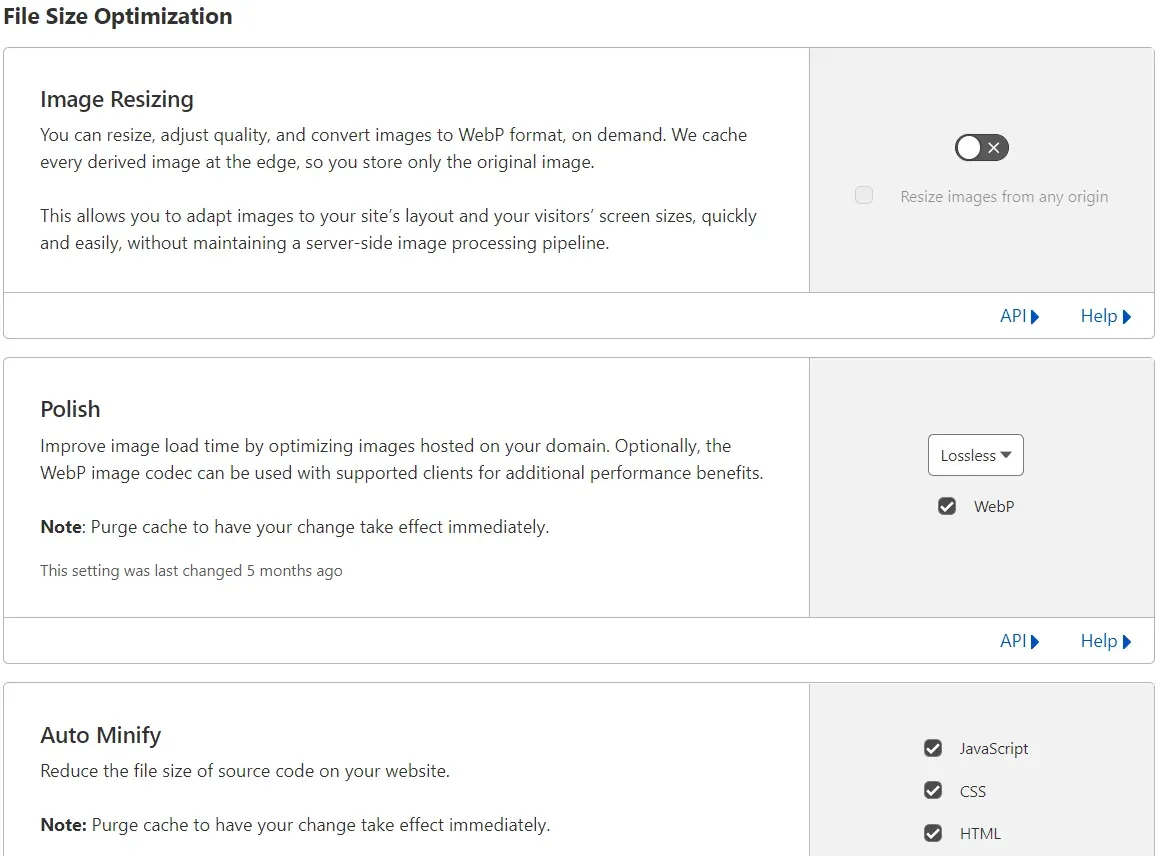
Image Resizing
On demand, you can resize, adjust quality and convert images to WebP format.
This lets you quickly and easily adapt images to your site's layout and visitors' screen sizes, without server-side image processing.
Image Resizing fetches the original image and caches it (following normal HTTP caching rules, Cache-Control and so on). Requests for many different image sizes are likely to reuse the cached original image, without needing extra transfers from your server.
Resized images follow the same caching rules as the original image, and their Cache-Control header is identical. Cloudflare doesn't purge resized variants separately. Purging the original image URL will also purge all its resized variants.
What does “Resize Images from Any Origin” do?
“Resize Images from Any Origin” lets you resize an image from any URI.
In other words, justidea.agency will serve resized images sourced from any URI, whether from justidea.agency or elsewhere.
By default, Image Resizing will only resize images sourced from that domain, e.g. justidea.agency.
Polish
Reduce image load time by optimising images hosted on your domain. Optionally, the WebP image codec can be used with supported clients for extra performance benefits.
Polish reduces image file size by stripping metadata (date and time, camera make and model and so on) and compressing images where possible. Smaller file sizes mean shorter load times for images and web pages.
Which setting should I use?
-
Off: the Polish feature is disabled
-
Lossless: reduce image file size without affecting visual quality
-
Strip metadata: PNG, GIF, JPEG
-
Lossless compression: GIF, PNG
-
Lossy: in addition to the features in the basic level, JPEG image file size is reduced using lossy compression, which may lower visual quality
-
Lossy compression: JPEG
-
Serve WebP images: when the client requesting an image supports the WebP image codec, Cloudflare will serve the WebP version of the image, because it offers a performance advantage over the original image format.
-
Lossy compression: JPEG
-
Lossless compression: GIF, PNG
Auto Minify
Reduce the file size of your site's source code.
Auto Minify strips unnecessary characters from source code (such as whitespace, comments and so on) without changing its functionality.
Minification can compress the source file size, which reduces the amount of data that needs to be sent to visitors, in turn improving page load time.
Why isn't Auto Minify working?
Cloudflare's Auto Minify feature may deliberately skip minifying certain scripts in specific circumstances, to make sure it doesn't create errors in your site's code.
In the cases listed below, code will be served unminified:
- If the file is served from an external service or domain not proxied through Cloudflare (for example Google, Facebook, Twitter, widgets and so on).
- If the file has .min in its filename
- If the file contains syntax errors and can't be parsed
- Inline CSS or JS embedded in HTML code won't be minified
- Auto Minify won't strip new lines from HTML code, but it will strip unnecessary whitespace
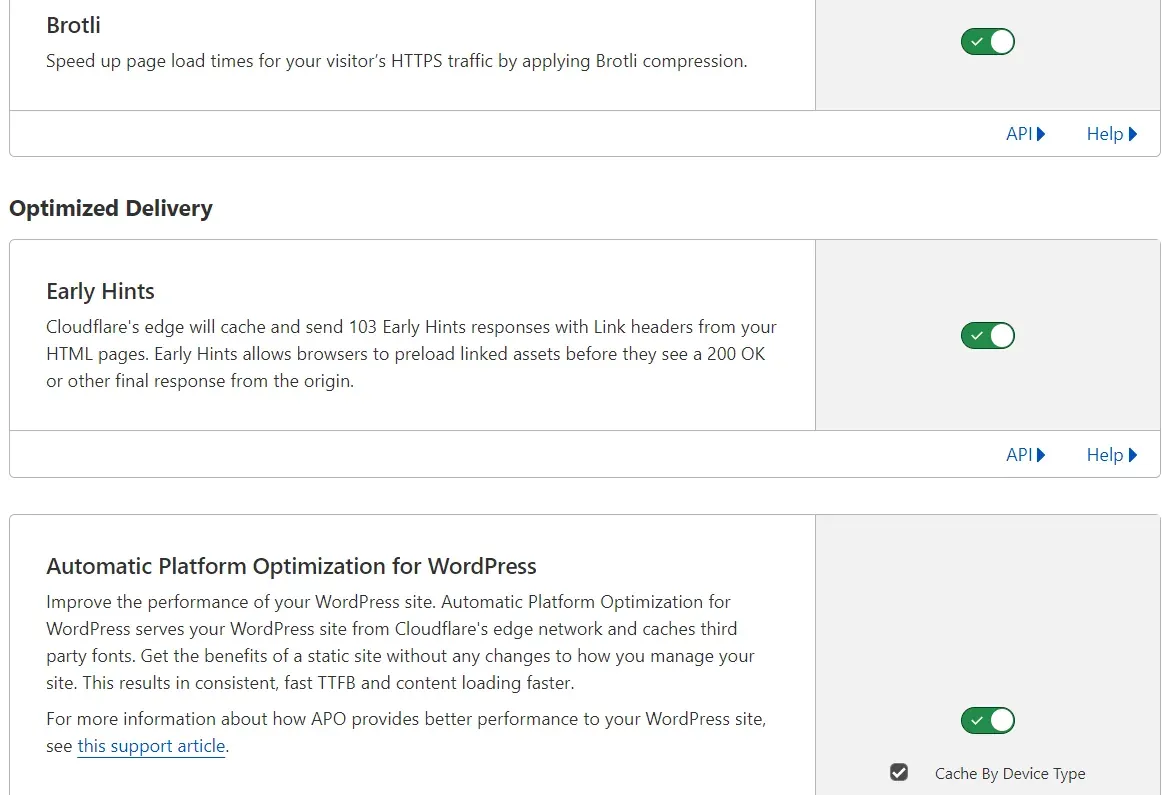
Brotli
Speed up page load time for visitors' HTTPS traffic by using Brotli compression.
Cloudflare uses Brotli compression to speed up page loading for visitors. Cloudflare will choose Brotli compression as the preferred content encoding method if the client supports multiple compression methods. If the client doesn't indicate that Brotli compression is supported, gzip compression will be used instead.
Early Hints
Cloudflare will cache and send 103 Early Hints responses with link headers from HTML pages. Early Hints let browsers preload linked resources before they see a 200 OK or other final response from the origin.
103 Early Hints is an HTTP status code designed to speed up content delivery. Once enabled, Cloudflare can cache link headers marked as preload and/or preconnect from HTML pages and serve them in a 103 Early Hints response before reaching the origin server. Browsers can use these hints to fetch linked resources while waiting for the origin's final response, which significantly speeds up page loading.
Automatic Platform Optimization for WordPress
Improve your WordPress site's performance. Automatic Platform Optimization for WordPress serves your WordPress site from the Cloudflare network and caches third-party fonts. You get the benefits of a static site without changing how you manage your site. This results in a consistent, fast TTFB and faster content loading.
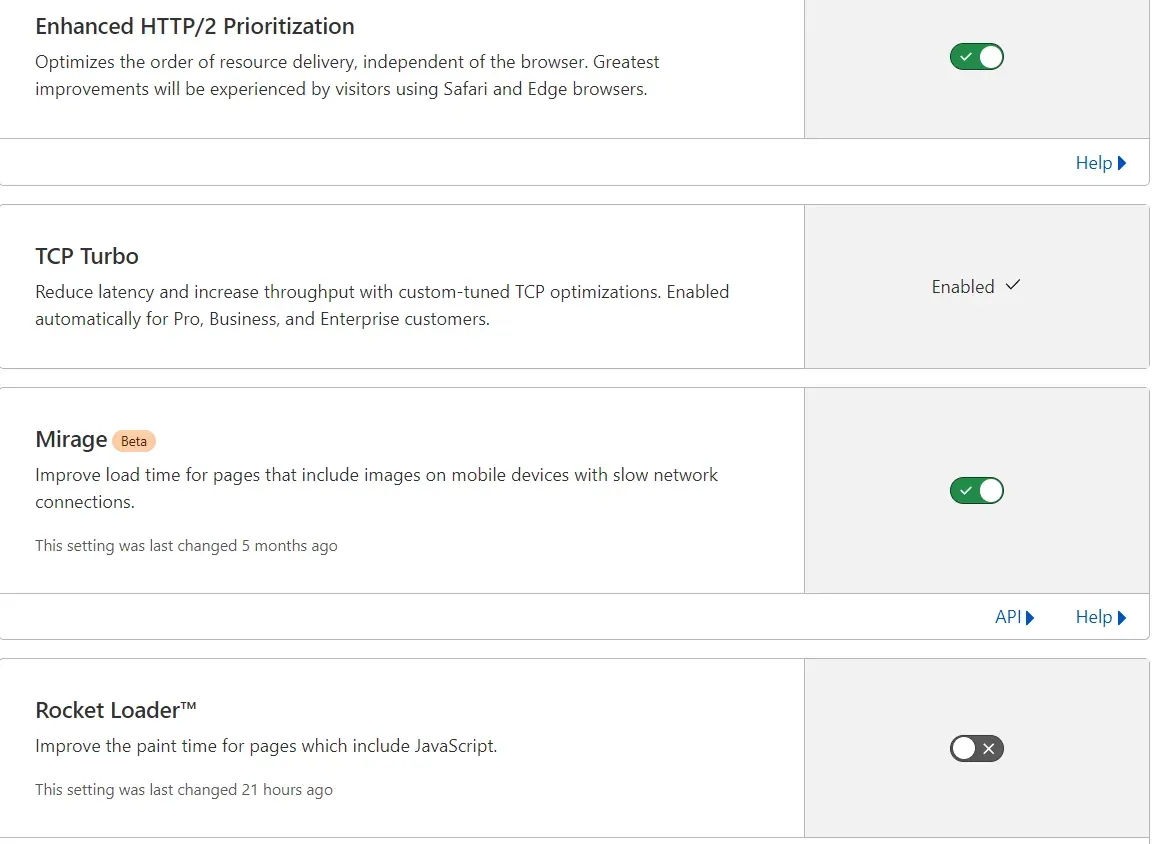
Enhanced HTTP/2 Prioritization
Optimises the order resources are delivered in, independently of the browser. Visitors using Safari and Edge will notice the biggest improvements.
From a user's perspective, how fast web content loads depends on the order resources load in. With HTTP/2, by default Cloudflare will follow the order requested by the browser. This order differs from browser to browser, causing a significant difference in performance.
TCP Turbo
Reduce latency and increase throughput with custom TCP optimisations. Enabled automatically for Pro, Business and Enterprise customers.
Mirage
Reduce load time for pages containing images on mobile devices with slow network connections.
Rocket Loader
Reduce load time for pages containing JavaScript.
Automatic Signed Exchanges (SXGs)
Improve your site's performance by serving cacheable resources on Google's Signed Exchange platforms. Let Chromium-based browsers prefetch your site on the Google search results page and speed up how your site runs. Improve Largest Contentful Paint (LCP), part of the Core Web Vitals, and boost your SEO ranking.
Signed HTTP Exchanges are an open, standard delivery mechanism that lets you authenticate a resource's origin, regardless of how it's delivered. This separation enables various use cases, such as prefetching, offline internet browsing and serving from third-party caches. It does this in a secure, privacy-preserving way.
Caching
Cloudflare will prefetch every URL contained in the prefetch HTTP header.
This feature lets Cloudflare make sure we have cached objects ready for your users when they make a request. Prefetch serves them straight away, instead of creating a separate request for each object.
We do this by prefetching the files listed in a manifest file. The manifest file is returned in an HTTP response header with the rel="prefetch" attribute. The manifest file tells Cloudflare what to load into our cache, so these files can be served as fast as possible. This can be useful if your page contains several large assets you want served from cache.
AMP Real URL
Show your site's real URL on AMP pages instead of the traditional Google AMP cache URL.
Caching Configuration tab
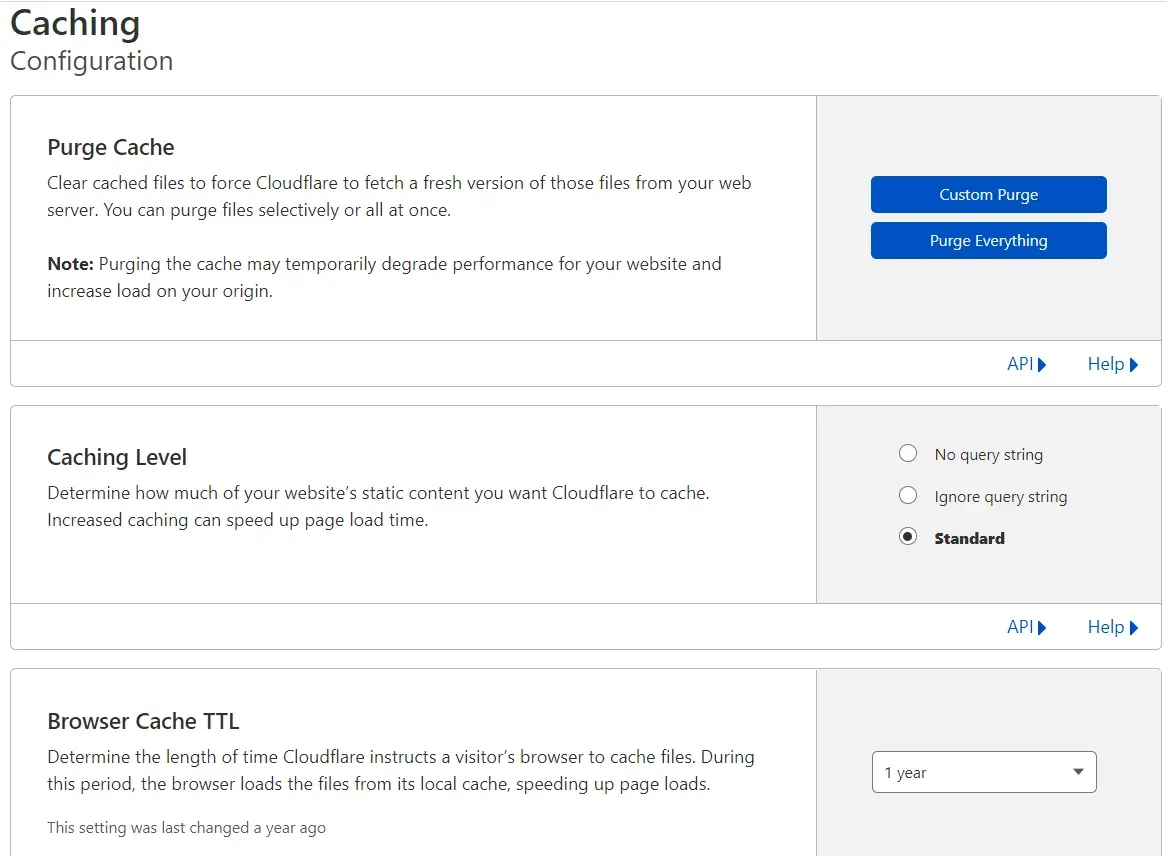
Purge Cache
Purge files from the cache to force Cloudflare to pull a fresh version of those files from your web server. You can purge files selectively or all at once.
A single purge removes one file from Cloudflare's cache, leaving the rest of the files in place. This option is recommended, to stop Cloudflare pulling all your content from the server every time you purge.
Caching Level
Set how much of your site's static content Cloudflare should cache. Increased caching can speed up page loading.
You can use the Cloudflare CDN to cache static content under these levels:
- No Query String: delivers files from the cache only when the URL has no query string.
- Ignore Query String: serves the same resource to everyone, regardless of the query string.
- Standard: serves a different resource every time the query string changes.
Browser Cache TTL
Set how long Cloudflare tells a visitor's browser to cache files for. During that time, the browser loads files from its local cache, speeding up page loading.
The browser cache TTL sets how long cached files stay in the user's browser cache.
A longer expiration time gives shorter load times for returning visitors. However, a longer expiration time also means slower update times if those files get modified.
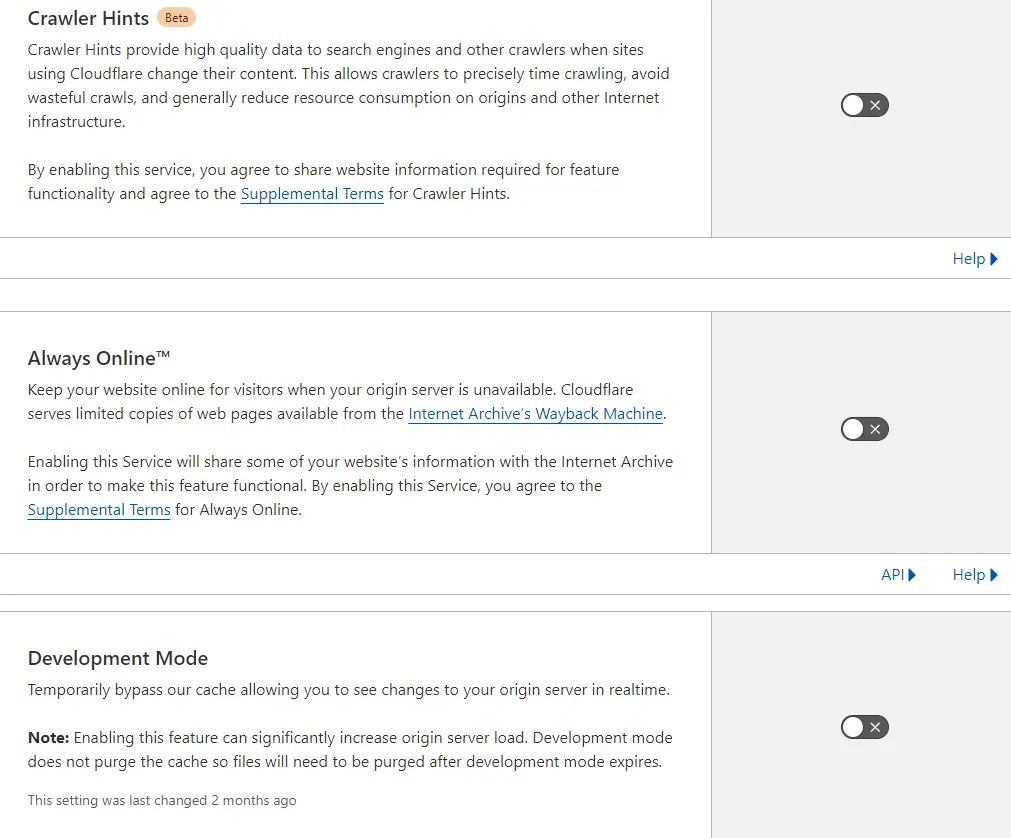
Crawler Hints
Crawler Hints give search engines and other bots high-quality data whenever sites using Cloudflare change their content. This lets crawlers index a page precisely, avoid unnecessary crawling and generally reduce resource use on origins and other web infrastructure.
Once enabled, Cloudflare sends signals to networks that run large-scale indexing operations, such as search engines, whenever we believe the content on your site has changed and needs reindexing.
Search engines index your site based on algorithms that vary by provider. Often, search engines index your site at regular intervals, or based on data about the site's previous updates, and these factors may not match the actual content changes. This approach to indexing can not only hurt a client's site ranking, but also hurt operating costs. The goal of Crawler Hints is to help crawlers make more informed decisions about when content has changed, to make the internet greener and more energy efficient.
Always Online
Keep your site online for visitors when your server is unavailable. Cloudflare serves limited copies of web pages available from the Wayback Machine.
If your server goes down, Cloudflare will serve your site's most popular pages from its cache. You can find more information here.
Visitors browsing a page from the cache will get a message letting them know they're in offline browsing mode. As soon as your server comes back online, Cloudflare will move users back to normal browsing.
Development Mode
Temporarily bypass Cloudflare's cache to see changes on your server in real time.
When Development Mode is enabled, all requests will be passed through to your server. This lets your site's requests temporarily bypass Cloudflare's cache, so you can verify changes made to cached content.
This is useful if you want to see changes right away. Once enabled, Development Mode lasts for three hours and then switches off automatically.
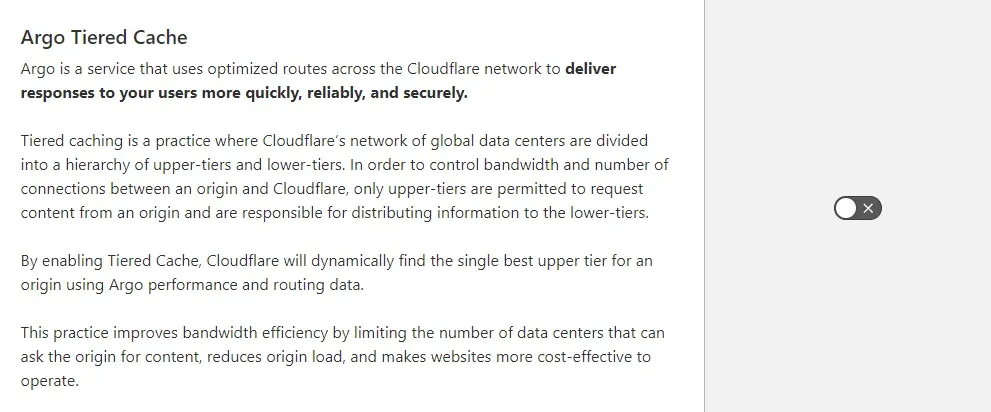
Argo Tiered Cache
Argo is a service that uses optimised routes across Cloudflare's network to deliver responses to users faster, more reliably and more securely.
Tiered Cache is the practice of splitting Cloudflare's network of global data centres into a hierarchy of upper and lower tiers. To control bandwidth and the number of connections between the origin and Cloudflare, only the upper tiers can request content from the origin, and they're responsible for distributing information to the lower tiers.
By enabling Tiered Cache, Cloudflare will dynamically find a single best upper tier for the origin, using Argo's performance and routing data.
This practice improves bandwidth efficiency by limiting the number of data centres that can request content from the origin, reduces load on the origin and makes websites more cost-effective to run.
Cloudflare summary
Cloudflare helps with many aspects of running a website, starting with security, going through SSL/TLS certificates and advanced analytics, and ending with better page speed. It should mainly give your site a boost in speed and security, so it's worth using and seeing the results for yourself.
Cloudflare doesn't have lazy loading in the form Google PageSpeed Insights expects. Cloudflare has the Mirage feature, which first loads images in a lower quality and then loads them in better quality, but this feature is only available on the PRO plan. More on the differences around lazy loading in this thread: https://community.cloudflare.com/t/mirage-not-resizing-or-lazy-loading/79000 And more on the feature itself: https://support.cloudflare.com/hc/en-us/articles/219178057-Configuring-Cloudflare-Mirage (P.S. The feature has been in beta for several years)
3 ways to cache pages:
- Page Cache / Server Cache
- Browser Cache
- Edge Cache
This video explains the differences between them: https://www.youtube.com/watch?v=Jh1qG9TB0mo
The first option, Page Cache / Server Cache, will always have the biggest impact on page speed, and its changes will be the most noticeable to the user.
Edge Cache, on the other hand, is often a matter of milliseconds, less noticeable to the user but important for Google PageSpeed Insights.
See also:
- What is a newsletter and how do you create one?
- How to write an effective business proposal? [Ready-made template]
- Cloudflare step by step
- Which e-commerce platform should you choose?
- How do you check your Google reviews?
- Hashtags: what are they, how do you use them and what do they mean?
- PrestaShop shop: ready-made template or a custom one?
- WordPress SEO: A Guide
- SEO for Shoper shops
- Google Business Profile SEO