












In short
- Google reviews are public, and anonymous reviews can't be published. You check your own reviews in Google Maps on the same Google account, and reviews of your business in your Google Business Profile, formerly Google My Business.
- An owner can't delete a review just because it's negative. Google removes reviews only when they breach its content policy, for example fake reviews, spam or a conflict of interest, and moderators usually take 3-7 working days to look at a report.
- You collect new reviews with a direct link from your Business Profile, sent by email or SMS or shown as a QR code right after a purchase. Rewards for reviews are against Google's policy, and replies to reviews are public and should be professional.
When potential customers look for information about your product or service online, Google reviews play a key role. When you search for information about reviews, you might mean two different things: entries you published yourself, or customer comments about your business. Below you'll find a simple, step-by-step guide to checking and editing your own reviews on Google Maps, and to efficiently managing your business's reviews in your Business Profile.
User area: how to check reviews published from your own account
If you want to see your own reviews, meaning reviews you've left for businesses and places, use Google Maps. Sign in to the same Google account you used to publish the review.
How to check your published Google reviews on a computer
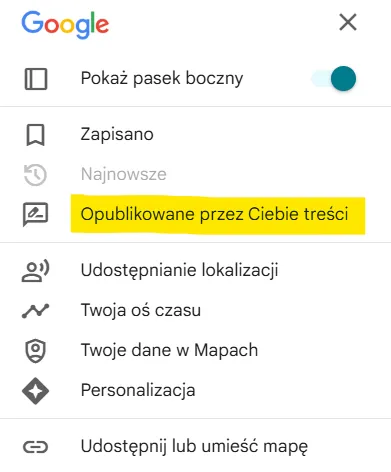
To find your published Google reviews on a computer:
- Open Google Maps.
- Sign in to the Google account you used to leave reviews.
- In the top-left corner of the screen, expand the menu (the three horizontal lines, known as the “hamburger menu”).
- Select “Content you've posted”.
How to see your reviews in Google Maps on your phone
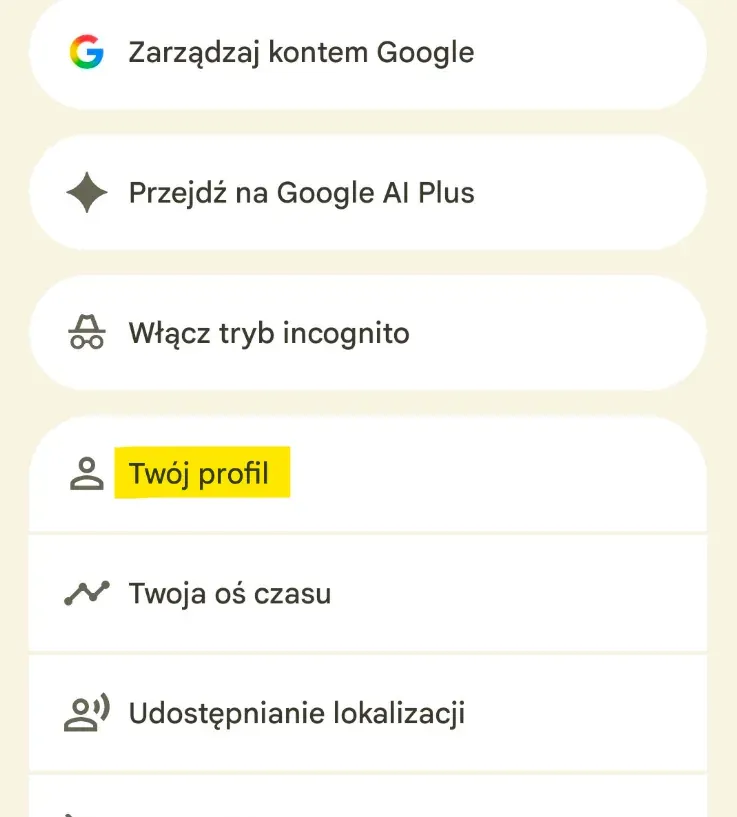
To find the reviews you've left in the Google Maps app:
- Open Google Maps.
- Tap your profile photo or initial in the top-right corner.
- Select “Your profile”.
How to edit or delete your Google review
If, after reading your review again, you want to change its content or rating, Google lets you edit or delete your review.
On a computer, go to “Reviews” in Google Maps, find the relevant review, and open the menu next to it. Then choose to edit or delete it.
On your phone, go to your published reviews in your Google Maps profile, find the review you want, and open the options next to it.
Are Google reviews public
Yes. Google reviews are public. You cannot publish anonymous reviews on Google Maps.
Other users can see the content of a published review, its rating, and the author information shared on their Google Maps profile. Before you publish a review, keep in mind that it isn't a private message sent only to the business owner.
For business owners: how to check your company's reviews in Google Business Profile
The Google My Business service now operates as Google Business Profile. The owner of a verified business manages the profile and can reply to reviews directly within Google's services.
How to find your business's reviews on a computer
- Sign in to the Google account linked to your Business Profile.
- Type your business name into Google Search, or search for “my business”.
- In the profile management panel, click “Read reviews”.
- Browse customer ratings and comments and reply to them directly on behalf of your business.
How to check your business's Google reviews on your phone
- Open the Google Maps app or Google Search on your phone.
- Make sure you're signed in to an account with permission to manage the listing.
- Tap the profile icon in the top-right corner and select “Your Business Profile” (or type “my business” into the search bar).
- In the management panel, select “Customers”, then go to the “Reviews” tab. From there, you can read new comments and post replies.
Where to turn on notifications for new reviews
To avoid missing new reviews, make sure you have alerts turned on. In the profile management panel, click the three dots (next to the profile name). Then select “Business Profile settings”, followed by “Notifications”. Make sure the “Reviews” option is ticked (for both email and push notifications on your phone).
How to generate a direct link for leaving reviews
The easiest way to get new ratings is to send customers a direct link.
- Go to your Google Business Profile management panel.
- Select the Ask for reviews button (or the plus icon).
- Copy the generated short link.
- Add it to emails, post-sale text messages, or turn it into a QR code for printed materials.
How to check competitors' reviews
Analysing your market rivals' reviews is a great way to spot their weak points.
- Open Google Maps and search for your competitor's business.
- Go to the Reviews tab.
- You can now freely browse reviews and filter them by rating, or select the Newest tab to see your competitor's latest reviews.
Removing and reporting reviews that violate the policy
As a business owner, you can't remove a customer's review yourself just because it's negative or you disagree with it.
When does Google remove reviews? Google only removes reviews when they violate its official content policy. This applies to situations such as:
- Fake reviews (e.g. written by competitors or bots),
- Hate speech, profanity, and threats,
- Spam and covert advertising,
- Conflicts of interest (e.g. a review left by a former employee),
- Reviews published in exchange for financial benefits.
How to report a fake review for verification?
- Find the unwanted review in your Business Profile management panel.
- Click the three vertical dots icon next to the comment.
- Select Report a policy violation.
- Indicate the reason for the report (e.g. Inappropriate content, Spam, Conflict of interest).
- Wait for Google's moderators to decide (usually 3 to 7 business days).
Why it's worth having a Google Maps listing
- Local SEO: your profile helps users find your business when searching for products or services in a specific location. Complete, up-to-date information makes it easier for Google and customers to understand what your company does.
- Building credibility: opening hours, address, photos, and Google reviews give customers the information they need before contacting or visiting you.
- Customer interaction: the profile provides access to contact features and information related to your business.
- Feedback: analysing ratings and comments helps you identify the strengths and weaknesses of your service, product, or offering.
Optimising your Google Maps listing and keeping it up to date helps you build a strong online presence and compete effectively in the local market.
Google reviews: what they are and what they consist of
Google reviews are public ratings and reviews that users publish about the places and businesses they've visited. They appear, among other places, alongside business profiles in Google Maps and Google Search.
A review conveys one person's experience and helps other users learn about a business before buying a product, making a booking, or getting in touch about a service.
For a business, Google reviews are a source of feedback. Analysing recurring comments helps you identify what customers rate well and which areas need improvement.
What does a Google review consist of?
- Star rating: shows the rating of a place or business on a scale of 1 to 5 stars.
- Written review: describes the user's experience and conveys more information than the star rating alone.
- Photos and videos: can show the place, product, service, or other elements related to the author's experience.
Interested in local SEO?
If so, send us an enquiry, and one of our specialists will talk to you and check how we can help boost your business's visibility in local search results.
How to analyse and respond to reviews
Analysing and responding to Google reviews is an essential part of managing your online reputation. When reviewing your business's ratings, pay attention not only to the overall star rating but also to the content of the comments. Analysing these details helps you better understand your customers' expectations and experiences.
How you respond to reviews matters just as much. Remember that replies are publicly visible and directly affect your company's image, so they should be professional, polite, and constructive. It's best to respond to positive comments with thanks, which strengthens brand credibility. For negative reviews, try to understand the problem and propose a solution, and for particularly complicated cases, contact the customer privately. This approach shows that your business cares about its customers and actively considers the feedback it receives.
Ready-to-use response templates:
Template 1: Positive review with text
“[Name], thank you so much for taking the time to leave such kind words. We're delighted that [service/product name] met your expectations. We look forward to welcoming you again!”
Template 2: Negative review (justified or critical)
“Hello [Name]. We're sorry about this situation: a high standard of service is a priority for us, and in this case something went wrong. Please get in touch at [email / phone number] so we can look into this and make things right.”
Template 3: Star rating with no text
“Thank you for your rating! If you have any further comments you'd like to share, feel free to reach out by email. We'd love to hear what we can improve.”
How to encourage customers to leave reviews
Encouraging customers to share their experiences through Google reviews is a key part of building your online reputation and increasing your business's visibility.
The moment right after a purchase or service is completed is a good time to ask. You can make the request in person, by email, by text message, or as part of post-sale communication.
Effective approaches include:
- a direct request after a purchase or service: the customer's experience with your business is still fresh,
- a follow-up message: a short email or text with a thank-you and a link leading straight to where they can leave a review,
- a QR code: can take the user straight to where they can leave a review,
- a review link: reduces the number of steps the customer has to take.
Remember: rewarding people for reviews goes against Google's policy and may breach unfair market practice regulations.
Learn more about managing Google reviews:
What to do if your reviews have disappeared on their own? If you notice a drop in the number of ratings, Google's moderation algorithm may have glitched and mistaken genuine reviews for spam. Check out our guide: Your Google Reviews Have Disappeared. Here's How to Get Them Back!, to learn how to submit a request to Google support.
How to remove negative reviews? Read our guide: How to Remove Negative Reviews from Google?, to learn how to effectively report fake reviews and protect your business's image.
Google Maps listing: the key to local visibility
A Google Maps listing, meaning your Google Business Profile, is a tool for every company, especially local ones. It's a free feature offered by Google that lets businesses manage how their information is presented. For many customers, this listing is their first contact with your company online.
JustReview: your business's reviews from multiple sites in one place
The JustReview tool lets you gather and display reviews from various sources, such as Google Maps, Facebook, and many other sites, directly on your website. With JustReview, you can easily collect, analyse, and present customer reviews in one consistent place.
This not only boosts trust in your brand, but also helps prospective customers decide whether to use your offer. Integrating JustReview with your website is simple, and its flexible configuration lets you tailor how reviews are displayed to your business's individual needs.
Summary: checklist, what to do now (action plan)
- [ ] Check your account: Sign in to your Google Business Profile and check the reviews section.
- [ ] Reply to unanswered reviews: Use our templates to respond to comments from recent weeks.
- [ ] Report violations: Check negative ratings for spam and report any that break the rules.
- [ ] Get your link: Generate a direct link for leaving reviews and add it to your email signature or post-sale messages.
- [ ] Turn on notifications: Make sure you get email alerts for every new comment.
FAQ: frequently asked questions about Google reviews
Do you need a Google account to leave a review
Yes. Users must have a Google account and be signed in to it to add a rating or review.
Can you leave a Google review without a comment
Yes. Users can leave just a star rating (1 to 5) without writing any text.
Does the business owner know who left a review
Business owners can see whatever author information is publicly available on that person's Google Maps profile. However, they don't receive the user's private data just because that person published a review.
Can you turn off reviews on a Google listing
A standard Google Business Profile doesn't give the owner the option to freely turn off customer reviews. Businesses should therefore focus on monitoring ratings, replying to comments, and reporting content that breaks the rules.
Can you see who liked a Google review
Google may show reactions or helpfulness information for a review, but neither the author nor the business owner gets a full list of everyone who found a particular review helpful.
Read also: