














In this guide, you'll build your first skill without coding, in four steps that take about 10 minutes. At the end, you'll have a working skill for creating blog briefs and a template for the next ones.
What are Claude Skills?
A skill is a folder with a SKILL.md file that describes how Claude should perform a specific task. Besides instructions, the folder can contain supporting files, such as document templates, examples, or scripts. Anthropic defines skills as folders of instructions, scripts, and resources that Claude loads dynamically (Claude Help Center).
"Dynamically" here means saving context. At the start of a conversation, Claude sees only the name and description of each enabled skill, which according to the documentation costs about 100 tokens per skill. It loads the full instructions only when it decides your request matches the description (Agent Skills documentation). So you can keep a dozen or so skills enabled, and the conversation doesn't bloat with instructions you don't need at the moment. If you're just getting to know this assistant, start with our overview of Claude AI features and use cases.
How is a skill different from a project, custom instructions, and MCP?
Claude has several ways to remember how you work, and they're easy to confuse. The table puts them side by side (as of November 2026, based on the Claude Help Center).
| Solution | What it is | When it works | What it's good for |
|---|---|---|---|
| Skill | a folder with instructions and files | when a request matches the skill's description | repeatable tasks with a clear procedure |
| Project | a space with files and instructions | always, in chats within that project | background knowledge about a client or topic |
| Personal preferences | general preferences | in every conversation | language, tone, and style of responses |
| MCP connector | a connection to an external service | when Claude needs data from an app | access to Notion, Gmail, or a CRM |
We covered projects separately in our post on Claude Projects. Skills and MCP complement each other. A connector gives Claude access to a tool, and a skill teaches it how to use that tool in your company.
What do you need before you start?
Skills are available on all Claude plans: Free, Pro, Max, Ultra, Team, and Enterprise. There is one requirement: code execution must be enabled. On individual plans, go to Settings → Capabilities and turn on the "Create and edit files" toggle (in the older layout it's called "Code execution and file creation"). On the Team plan, this setting is on by default for the whole organization, and on Enterprise the account owner has to enable it (Use skills in Claude, as of November 2026).
Beyond that, you need a plain text editor, such as Notepad or TextEdit, and one task you want to automate.
Step 1: pick a task for your first skill (minutes 0–2)
Your first skill should do one thing that you repeat at least once a week and explain from scratch every time. Tasks with a clear input and output work best: you turn a topic into a brief, campaign data into a report, a product sheet into a description. A skill like "help me with marketing" won't work, because Claude won't know when to reach for it.
In its guide to creating skills, Anthropic recommends a separate skill for each process. In this article, we build a skill that turns a post topic into a brief for a copywriter. You can swap it for your own task right away, as the pattern stays the same.
Step 2: write the SKILL.md file (minutes 2–6)
SKILL.md is a plain text file in Markdown format. At the top, it has a short header with metadata, known as frontmatter, in YAML format, enclosed between two lines of three hyphens. Below it are the instructions that Claude reads only after the skill is triggered.
The name and description decide whether the skill works
The frontmatter has two required fields. The name field is the skill's name, up to 64 characters. Use only lowercase letters, digits, and hyphens, with no accented characters and without the words "claude" and "anthropic," as required by the Agent Skills specification. The description field in Claude.ai can be up to 200 characters.
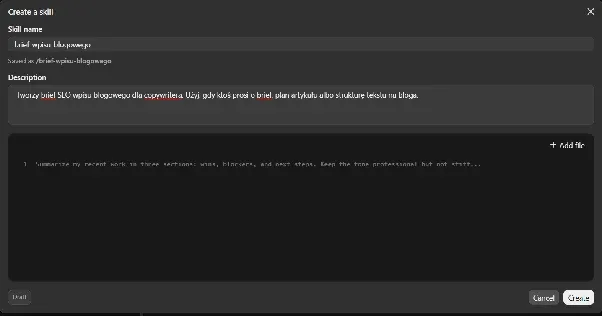
The description is the most important part of the whole skill. Claude reads it in every conversation and uses it to decide whether to load the rest. A good description says what the skill does and when to use it. "Helps with content" is too general. "Creates an SEO brief for a blog post for a copywriter. Use when someone asks for a brief, an article outline, or a structure for a blog text" gives Claude specific words it can use to recognize your request.
Write instructions as if for a new team member
Below the frontmatter, describe the steps in order, show what the output should look like, and add what Claude should not do. An example of a good result teaches more than a paragraph of description, so if you have a successful brief, paste it into the instructions. According to the documentation, the SKILL.md body usually takes up less than 5k tokens. Save longer materials, such as a brand book, as a separate file in the skill folder and refer to it in the instructions. Claude will open it only when it's needed.
A ready-to-copy template
Create a folder called blog-post-brief on your computer, and inside it a SKILL.md file with this content:
---
name: blog-post-brief
description: Creates an SEO brief for a blog post for a copywriter. Use when someone asks for a brief, an article outline, or a structure for a blog text.
---

# Blog post brief

## Steps
1. If the user hasn't provided the main keyword, target audience, and goal of the post, ask for them.
2. Propose an H1 with the main keyword and 5–8 H2 headings.
3. Under each H2, describe in 1–2 sentences what it should contain.
4. Add 3–5 questions for the FAQ section.
5. Propose a meta title up to 60 characters and a meta description up to 155 characters.

## Response format
A table: heading | what it contains | word count.
Below the table, the FAQ and meta data.

## What not to do
Don't make up numbers or sources. Whatever you don't know, write down as a question for the author.
Step 3: zip and upload the skill to Claude (minutes 6–8)
Claude.ai accepts skills as ZIP archives. Zip the whole blog-post-brief folder, not just the SKILL.md file. The skill folder must be at the very top of the archive, and its name should match the name field (How to create custom skills). On Windows, right-click the folder and choose "Compress to ZIP file" (in older versions, "Send to → Compressed (zipped) folder"). On a Mac, choose "Compress."
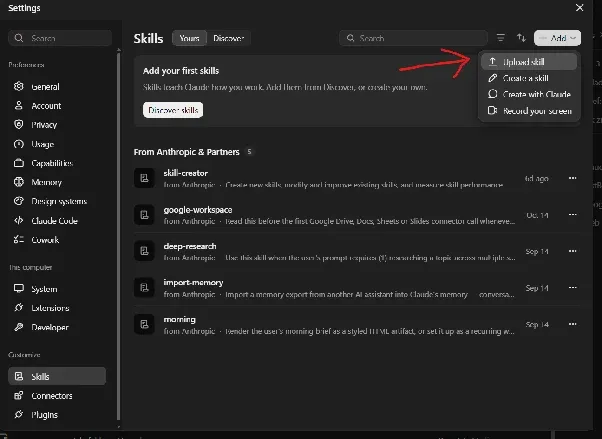
Next, in Claude.ai, go to Customize → Skills, click "+," choose "+ Create skill," then "Upload a skill," and select the ZIP file (Use skills in Claude, as of November 2026). The skill will appear on the list with a toggle, which must be on. Skills you upload are private until you share them.
Don't want to write the file by hand?
You can also build a skill in a conversation. Describe the task to Claude, paste an example of a good result, and write: "Turn this into a skill in SKILL.md format and package it as a ZIP." Claude will create a file to download, which you upload as described above. If you have a Pro, Max, Ultra, or Team plan and use Cowork in the Claude app for Mac, you can also use the "Record a skill" option. You record your screen while doing the task, and Claude proposes a ready skill based on it for you to approve (How to create custom skills, as of November 2026). You can read more about Cowork itself in our article on Claude Cowork.
Step 4: test the skill (minutes 8–10)
Open a new conversation and write a request that matches the description but doesn't name the skill directly, for example: "I need a brief for a post about how to choose running shoes." If the skill works, Claude will ask the questions from the first step of the instructions or immediately return a table in your format. After expanding the response steps, you'll see whether Claude loaded the skill.
Also try other phrasings: "article outline," "structure for a blog text," "brief for a copywriter." If Claude reacts to only one of them, add the missing words to the description and upload the skill again.
Skill not working? Check four things
The description is the most common culprit. When it sounds general or doesn't contain the words you use in your requests, Claude doesn't connect them to the skill and answers in its own way. Rewrite it so that it names specific situations.
The second reason is disabled code execution. Without it, skills don't work, even if you see them on the list. On a company account, besides your own toggle, the organization setting also matters, so if in doubt, ask your administrator.
The third is a wrong archive structure. An extra folder above the skill folder, or a folder name different from the name field, makes the upload fail or the skill not start. Zip the skill folder alone again.
The fourth is a skill that does too much. One file with instructions for briefs, reports, and social media posts has a blurry description, and Claude doesn't know when to use it. Split it into three smaller ones.
Claude Code skills: the version for developers
Claude Code, Anthropic's tool for working with code in the terminal, uses the same format but doesn't require a ZIP. A skill is a folder with a SKILL.md file saved in ~/.claude/skills/ (personal skills, available in all projects) or in .claude/skills/ inside a repository (project skills, which everyone working on that code gets). Skills don't sync between Claude.ai, Claude Code, and the API, so you add the same skill separately in each place (Agent Skills documentation).
The format isn't locked inside Anthropic's world. The Agent Skills specification is published as an open standard at agentskills.io, so a well-described skill can be moved to other AI tools that support it.
What skills should you build in marketing?
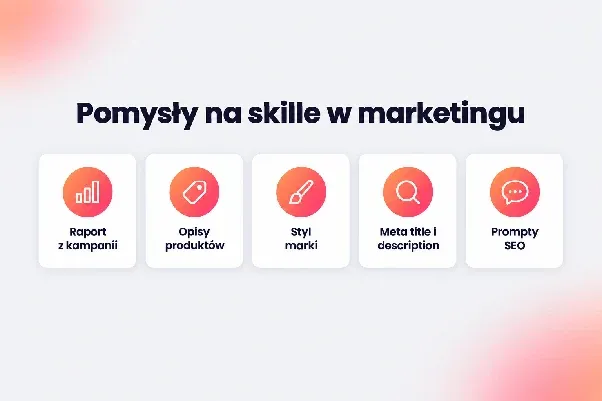
Once your first skill works, you build the next ones in a few minutes, because the pattern doesn't change. Here are ideas that work well in marketing teams:
- a campaign report that turns a data export into a summary, always in the same layout,
- product descriptions with the brand tone, target length, and a list of banned phrases,
- a style guardian with a brand book in a separate file that checks every text before publication,
- meta titles and descriptions with character limits and the keyword at the start,
- a set of proven SEO prompts that you no longer have to paste into every conversation.
A skill speeds up work, but a person who checks the content is still responsible for it. If you'd rather have blog posts prepared by a team that combines AI with editorial work and SEO every day, see how our company blog management works.
FAQ
Can I share a skill with my team?
Yes, on the Team and Enterprise plans, if the organization owner has enabled sharing in Organization settings → Plugins & skills. On the Team plan it's enabled by default, and the owner can also add a skill for all members of the organization at once (Use skills in Claude).
Can I use skills made by others?
Yes. In Customize → Skills, you'll find a directory of skills from Anthropic and partners, for example for Notion or Figma, and you can find community skills on GitHub. Anthropic recommends installing skills only from trusted sources and reviewing all files before enabling them, especially scripts (Agent Skills documentation). If you want to build more advanced skills, check out Anthropic's guide to building skills.
How do I turn off or delete a skill?
In Customize → Skills, you turn a skill off with the toggle. To delete it, open the skill, turn it off, click "…" next to the toggle, and choose "Delete."
How is a skill in Claude different from a Gem in Gemini?
You pick a Gem manually and talk to it like a separate assistant. A skill works in a regular conversation with Claude and turns on by itself when the request matches the description. We show how to build a Gem in our guide on how to create a Gem in Gemini.
Start with a task you do every week
Your first skill doesn't have to be perfect. It's enough if it saves you from repeating one explanation. After a week of use, you'll see what's missing from the instructions and fix it in a few minutes. If you want to structure content so that AI search engines can use it too, talk to us about an AI SEO strategy.