












In short
- A faulty GA4 configuration produces a report that looks reliable, on which it is easy to base a bad budget choice. The first test is to compare purchases and revenue from the last 30 days with your shop panel, check Referral traffic and review the data retention setting.
- The five mistakes are data retention of only 2 months (in a standard property you can set 14), a payment gateway showing up as Referral, purchases counted twice or without a value, key events that measure clicks instead of results, and Consent Mode v2 that exists only on paper.
- A purchase is checked in DebugView: purchase should fire once, with a unique, non-empty transaction_id, a value and a currency. In Consent Mode v2 the default consent state must be set before the tags, and the four signals should change in line with the user's decision.
This is the more dangerous scenario, because on a seemingly reliable report you can base a decision to raise a budget, switch off a campaign or move money to a channel that in reality does not sell best at all.
That is why a correct Google Analytics 4 configuration does not end with seeing a user in the Realtime report. You have to check whether GA4 correctly recognises purchases, sales sources, the most important events and user consents. Below you will find five mistakes that distort the picture of your business the most, each with a way to detect and fix it.
Before you start: a 10-minute test of whether GA4 tells the truth
Before changing any settings, compare GA4 with the system that stores the actual orders. In a shop that will be the e-commerce panel or ERP, and in a service business the CRM. You are not looking for a perfect match down to a single transaction. You are looking for anomalies that show the problem lies not in attribution but in the measurement itself.
| What to check | How to check it | Warning sign |
|---|---|---|
| Number of purchases and revenue | Compare the last 30 days in GA4 with the shop panel | GA4 shows more purchases than the backend, or the gap has grown sharply |
| Traffic sources | Open the “Traffic acquisition” report and check Referral traffic | You see a payment gateway or operator, or an unusual domain of your own |
| Data retention | Admin → Data settings → Data retention | It is set to 2 months although you analyse longer periods |
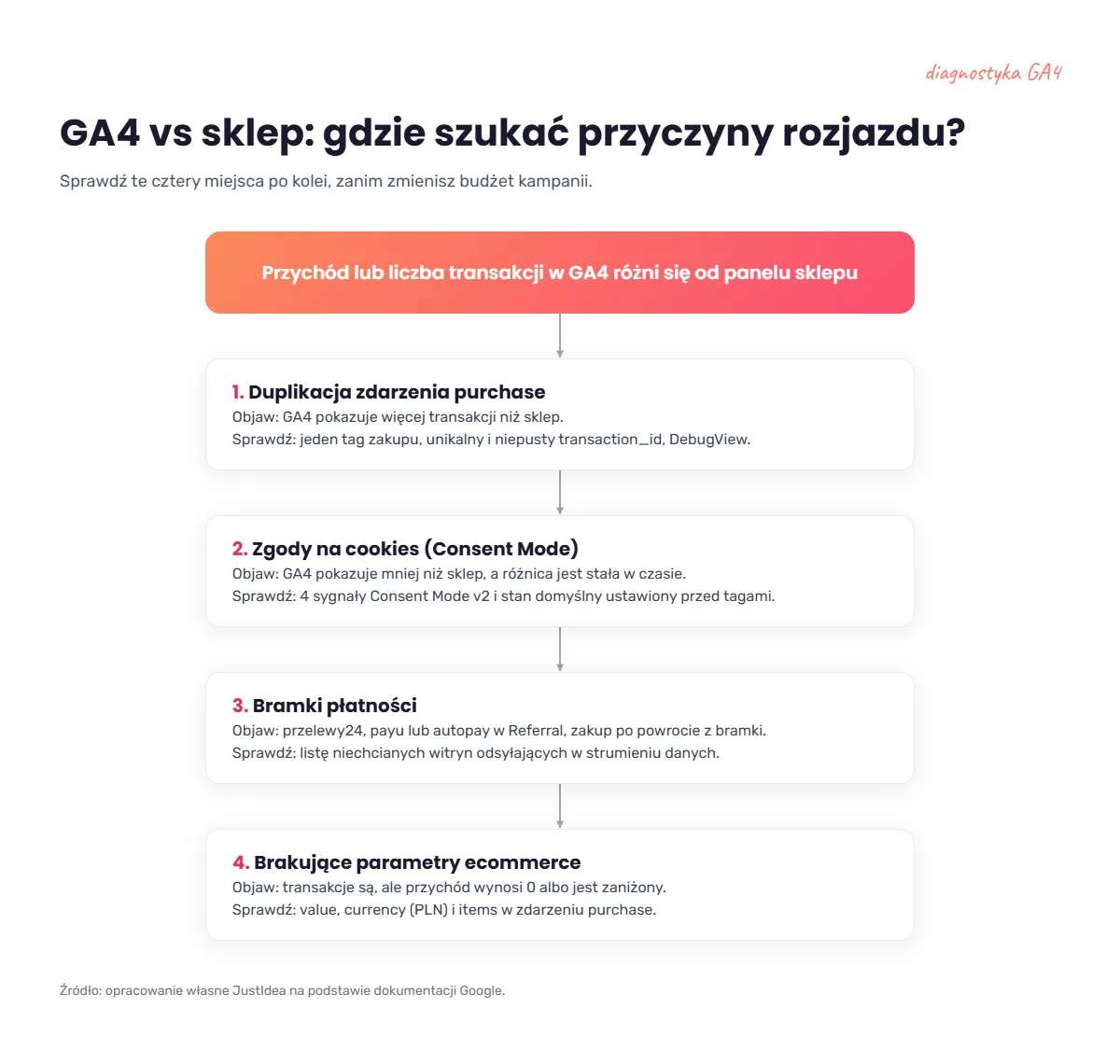
A gap between systems does not automatically mean a faulty configuration. User consents, ad blockers and differences in how data is processed mean GA4 will not be a copy of the order panel. If the difference is large, changed suddenly for no clear business reason, or GA4 shows more transactions than the shop, treat it as a signal for an audit.
Mistake 1. You keep data in GA4 for only 2 months
This is one of the simplest mistakes to fix, and at the same time one of those that may hurt only after many months. By default GA4 keeps the data available in Explorations for 2 months. In a standard property you can extend this period to 14 months. Analytics 360 also offers longer options, up to 50 months.
What does the mistake look like in reports?
Most often you will notice it when you want to build a custom exploration covering a longer period, check cohorts or analyse the user path year on year. Data from several months ago turns out to be unavailable and you cannot carry out the planned analysis.
Important: this does not mean “the whole of GA4 disappears” after 2 months. The retention setting does not affect standard aggregated reports. It concerns mainly user-level and event-level data used, among other places, in Explorations and path reports. This is a significant difference, because the popular claim that two-month retention wipes all historical reports is imprecise. Some data, including age, gender and interests, GA4 keeps for 2 months regardless of the setting.
What does this mistake spoil for the business?
The problem starts when you want to compare customer behaviour between seasons, analyse a long purchase path or check how traffic quality has changed. Without a long enough history in Explorations you will not find the answer to some questions.
This is not a mistake that will immediately inflate ROAS. It does limit your ability to understand why ROAS, the conversion rate or the basket value changed over time. In practice, it makes budget decisions harder.
How to fix data retention in GA4
Go to Admin → Data settings → Data retention and set the event data retention period to 14 months if you use the standard version of GA4.
There is one more detail. Google states that if you extend the retention period, the new setting also covers data already collected, as long as it has not been deleted earlier. So do not assume the change always works only “from today”, but do not count on recovering data that has already been permanently deleted.
If you need multi-year history at the level of raw events, turn on the export to BigQuery. The export works from the day of connection and does not backfill data, so the earlier you start it, the more history you keep.
Mistake 2. A payment gateway takes credit for your sales
A customer comes to the shop from a Google ad, adds a product to the basket, goes to payment and is redirected to the operator's page. After paying for the order, they return to the shop. If the referral configuration is wrong, GA4 may treat the return as a visit from a referring site.
The effect? In the report, revenue may appear against the payment operator instead of the channel that actually acquired the customer.
How do you recognise the problem?
Open the “Traffic acquisition” report and check the traffic sources labelled Referral. If you see domains connected with the payment process there and they have transactions or revenue assigned, the configuration needs checking.
Google lets you specify the domains you do not want to treat as referral sources. The path in the current panel: Admin → Data streams → select the web stream → Configure tag settings → Show all → List unwanted referrals.
Why does this cost money?
Imagine that a Google Ads campaign actually generated about €23k in sales, but GA4 attributed part of the transactions to the payment operator. The campaign looks weaker than it really is. Based on wrong data you cut its budget, even though it is the one acquiring valuable customers.
The problem also works the other way. If you compare channels based on the revenue reported in GA4, an artificially inflated Referral starts to look like an effective sales source, although the payment operator acquired no customer at all.
How to add a payment gateway to the list of unwanted referrals
Add to the list of unwanted referrals only those domains that actually appear in your purchase process. Do not copy a list of all Polish operators.
For implementations in Poland you may come across, among others, domains connected with Autopay, imoje, Paynow, Przelewy24, BLIK, PayPo or Stripe (mostly Polish payment operators and methods). The exact domain depends on the specific integration and the way the user is redirected, so first check the Referral report and the course of a test transaction.
If the purchase path moves between two domains that belong to your own ecosystem, excluding the referral alone is not enough. In that case check the configuration of measurement across multiple domains, that is, cross-domain. Thanks to it, transitions between your own domains do not create new referrals or sessions.
Mistake 3. You count purchases twice or send them without a value
This mistake directly changes the revenue reported by GA4. If the shop has 200 orders and Analytics shows 260, the difference is not cosmetic. Assuming a similar basket value, the reported revenue and the ROAS calculated from it may be overstated by about 30%.
A campaign that looks profitable may then get a bigger budget only because the system counted part of the sales twice.
Where do duplicate purchases come from?
A typical scenario is sending the same event at the same time through a shop plugin and Google Tag Manager, or through gtag.js and GTM. The second common problem appears when purchase fires again after the thank-you page is refreshed or visited again.
Every purchase must have a unique transaction_id
Every purchase should get a unique transaction_id, ideally linked to the order number in the shop. GA4 uses this parameter to limit duplicate purchases in web streams. If the same user sends two purchase events with the same identifier, Analytics will count the purchase once.
Do not send an empty transaction_id. Google's documentation states that with the value transaction_id="" all purchases with an empty identifier are treated as one. Do not set one fixed ID for all orders either, because that would understate the number of transactions.
How to check purchase parameters in DebugView
The mere appearance of a purchase event does not mean the e-commerce report is correct. If you send a transaction value, the currency parameter is required for revenue metrics to be calculated correctly.
The simplest test is through GTM preview mode and DebugView. Place one test order, check how many times the purchase event fired, and then open the event details and inspect transaction_id, value, currency and the products array. DebugView exists precisely to observe events and parameters while testing an implementation.
GA4 numbers do not match the shop? As part of an analytics audit we will check where the gap arises and which data you can safely use for budget decisions.
Mistake 4. Key events measure clicks, not business results
In GA4 you can mark any event as a key event. Technically, nothing stops a page scroll, a form opening or a click on the “Go to payment” button from becoming a key event.
The trouble is that such an action is easily treated on a par with a sale or a properly submitted lead.
Google has changed the terminology: actions important to the business that are reported in Analytics function as key events, while a conversion refers to an action used in the context of measuring and optimising ad campaigns. You can then use a key event from GA4 to create a conversion in Google Ads.
The most common mistake: the event fires too early
A form should not be counted as a successful lead just because the user clicked “Submit”. If the form returned a validation error, the system received no data, and GA4 recorded a success, a fictitious conversion appears in the reports.
In e-commerce the analogous mistake arises when you treat starting checkout as the main campaign goal instead of a confirmed purchase. Micro-conversions are valuable diagnostically, but they should not replace the business result in your bidding strategy without a reason.
What to check in GA4 and Google Ads
In GA4 open the key events configuration and ask yourself one question: does each of them mean real value for the company? For a shop, the basic event will usually be a correctly implemented purchase. In a lead-generation business it may be generate_lead, but only after the form has been successfully sent and accepted.
Then go to the ad account. The conversions used for bid optimisation must match the goals you actually want to optimise your Google Ads campaigns for. Also make sure the import is set as a primary conversion. A secondary conversion is reported but does not affect bidding.
If you set an easy micro-conversion as the main signal, the system will do exactly what it was asked to do: find more users inclined to perform that simple action. That does not automatically mean more orders.
Mistake 5. Consent Mode v2 works only on paper
The cookie banner is visible. The user can click “Accept” or “Reject”. Someone implemented the CMP, published the GTM container and the matter was considered closed.
Meanwhile, the presence of a banner alone does not prove that Consent Mode works. What counts is which signals Google tags actually receive before and after the user's decision.
Four signals matter in the current Consent Mode: analytics_storage, ad_storage, ad_user_data and ad_personalization. The ad_user_data signal defines consent to send user data to Google for advertising purposes and is required, among other things, for enhanced conversions to work, while ad_personalization controls consent to ad personalisation.
Since March 2024, Google has required advertisers handling data of users from the EEA to pass the relevant consent signals if they want to keep proper measurement features, ad personalisation and remarketing.
What most often breaks the implementation?
The most dangerous thing is the wrong order. The default consent state must be set before other tags start using that information. According to Google's documentation, setting the default state too late may cause consent mode not to work as expected.
In GTM, one thing used for this is the “Consent Initialization - All Pages” trigger, designed so that consent settings are handled before other triggers.
The second problem is adding extra consent requirements to tags without understanding the built-in mechanisms. As a result, a tag that should work in a limited mode is blocked completely and does not send the information needed for modelling.
How to check Consent Mode v2
Use GTM preview and Google Tag Assistant. Test separately entering without making a choice, refusal and full consent. Check whether the default state appears before the tags fire and whether, after a click on the banner, all four signals change in line with the user's decision. A first reading without access to the container is given by the free analytics scanner: it enters the site before consent, then clicks “Accept” and shows which tags fired at each of those moments.
The five GA4 mistakes in one view
| Mistake | Typical symptom | What it spoils | Where to start fixing it |
|---|---|---|---|
| 2-month retention | older data cut off in Explorations | seasonality, cohort and path analysis | Admin → Data settings → Data retention |
| Unwanted referrals | a payment operator appears as Referral | sales attribution and channel assessment | tag settings → List unwanted referrals |
Faulty purchase |
GA4 has more orders than the shop, or no revenue | ROAS, revenue, bidding strategies | GTM, dataLayer, DebugView |
| Wrong key events | lots of “successes”, few sales or leads | Google Ads optimisation | GA4 key events + Google Ads goals |
| Faulty Consent Mode v2 | data drop, remarketing problems | measurement and advertising features | GTM preview + Tag Assistant |
A quick look at other mistakes worth catching
- Internal traffic is not filtered effectively. Defining internal traffic is not enough if the data filter still works only in testing mode. Staff visits can then keep affecting reporting.
- UTM tags are inconsistent.
facebook,Facebookandfbcan split one channel into several variants and make analysis harder. Agree one naming standard before you start tagging campaigns in bulk. - The property's time zone or currency does not match the business. This is especially painful for daily reporting and in shops selling in several markets.
- The GA4 tag is missing on part of the site. After a change of template, checkout or app, some subpages may stop sending data even though the home page works correctly.
- Content Security Policy blocks tags. Google has separate diagnostics for situations where CSP prevents a tag from loading or sending data.
- You confuse cookie lifetime with data retention. These are two different settings. Retention decides the availability of certain data in GA4, while the cookie configuration affects how the user is identified in the browser.
- Comparison sites and partners land in a general Referral. If Ceneo (a Polish price comparison site), an affiliate programme or another partner matters for your business, make sure traffic is tagged and classified consistently instead of analysing everything as one bag of referrals.
Checklist: a full GA4 check in 15 minutes
- Compare the number of transactions and revenue from the last 30 days with the shop panel or CRM.
- Review the Referral report for payment operators and your own domains.
- Check that data retention is 14 months if you need longer Explorations.
- Place a test purchase and make sure
purchasefires only once. - Make sure every purchase has a unique, non-empty
transaction_id. - Verify
value,currencyand the product data in thepurchaseevent. - Review the key events and remove from the role of main goal any actions that do not mean a business result.
- Check the conversions in Google Ads and which of them are used to optimise campaigns.
- Test Consent Mode for no decision, refusal and consent.
- Repeat the check after a change of checkout, CMP, shop template, payment integration or GTM configuration.
FAQ: GA4 configuration mistakes
Will changing retention to 14 months restore older data?
It will not restore data that has already been deleted. Data that is still available will be covered by the new, longer period, so change the setting right away.
Why does GA4 show different revenue from the shop panel?
GA4 and the shop backend measure different things in different ways. The difference can be caused by consents, ad blockers, faulty or duplicate purchase events, missing e-commerce parameters and differences in data processing. If GA4 shows more orders than the backend, start by checking duplication and transaction_id.
What is the difference between a key event and a conversion in Google Ads?
A key event in GA4 means an action that matters to your business. If you want to use such an action to measure ad performance and optimise bids, you create a Google Ads conversion based on it. Google introduced this split so that the same names mean the same thing in Analytics and in Google Ads.
How do I check whether Consent Mode v2 works correctly?
Run Tag Assistant or GTM preview mode and go through the whole consent path. Check the default state and the change in the values of analytics_storage, ad_storage, ad_user_data and ad_personalization after consent and after refusal. The default state should be set before the tags that depend on consent.
How often should I audit the GA4 configuration?
Do not wait for an annual audit. Check measurement after every change of checkout, payment system, CMP, shop template, GTM deployment or forms. Apart from technical changes, it is worth running a short review every quarter and comparing key GA4 data with the source system.
The most expensive GA4 mistake is the one you cannot see
A badly configured Analytics does not have to show an error or a red message. For months it can deliver numbers that look logical but lead to bad decisions: cutting a good campaign, scaling a weak one, or optimising Google Ads for an event that brings the company no money.
That is why you should start a GA4 audit by comparing the data with the real business result, and only then move on to the next settings. A number in a report has value only when you know where it came from.
If revenue, the number of transactions or sales sources in GA4 do not match what you see in the shop or CRM, an analytics audit will point to the specific cause, the repair priority and the data you can trust for the next budget decision.
Check your GA4 configuration and find out which mistakes affect your results.