













Below you'll find step-by-step instructions, the capabilities and limits of each connector, and fixes for the most common problems.
What are Google Workspace connectors in Claude?
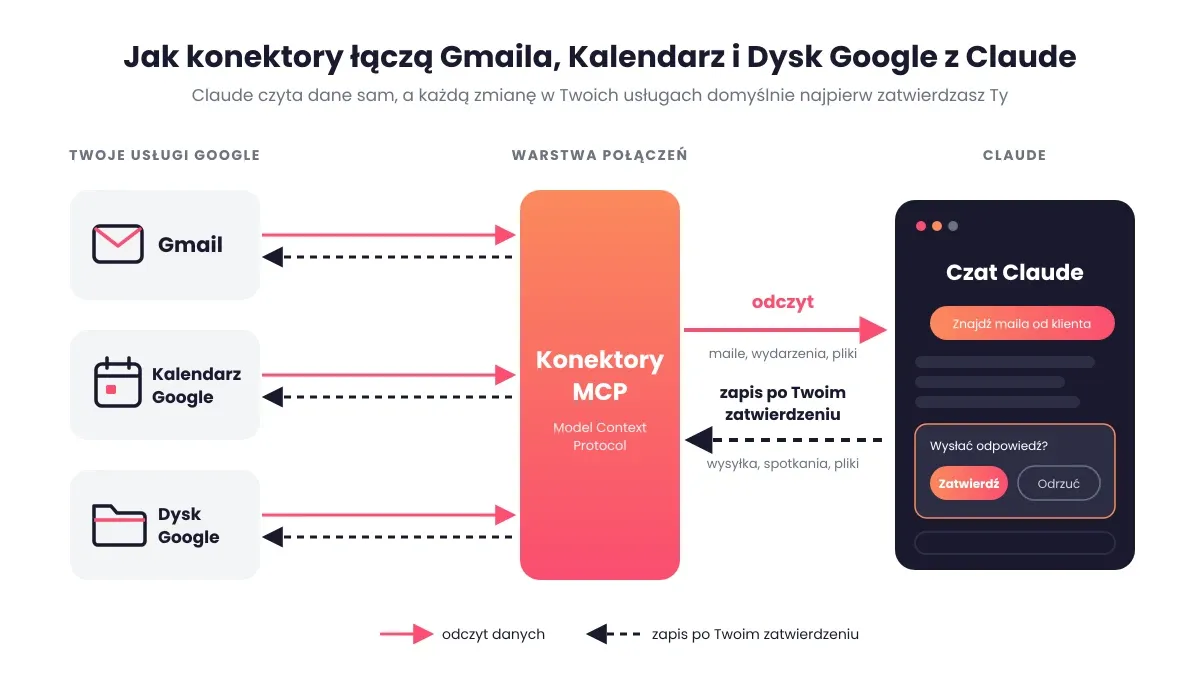
Connectors are native Claude AI integrations that give it access to data from other apps, from Gmail to Slack. They are built on the Model Context Protocol (MCP), an open standard developed by Anthropic for connecting AI models to tools. For Google Workspace you get three core connectors: Gmail, Google Calendar, and Google Drive. Google Docs, Sheets, and Slides are available separately for live file editing (Claude Help Center).
In day-to-day work, this means you no longer paste emails and notes into the chat. You write "find the latest message from the client and draft a reply," and Claude reaches into your inbox on its own. If you're just getting to know the tool, read Claude AI: features and use cases.
Who can connect Gmail to Claude?
The Gmail, Calendar, and Drive connectors are available to all Claude users in the browser and in the Claude Desktop app, including on the free plan. It works differently on the Team and Enterprise plans: there, the organization owner has to enable the connectors first, and only then does each team member sign in to their own Google account. Status as of November 2026, according to the Claude Help Center.
Before you start, check which Google account you're using in your browser. If you have separate personal and work inboxes, decide which one you want to connect. To save files to Drive, you also need code execution and file creation turned on in Claude's settings.
What are the ways to connect Claude to Gmail?
You have three options, and for most people the first is enough. You can set up the native Gmail connector in a few minutes in Claude AI in your browser or in the Claude Desktop app. Claude Cowork, which works on your files and apps, uses it too. This method requires no technical knowledge, and we describe it step by step below.
The second option is Claude Code, Claude in the terminal for developers, where you can add an MCP server to handle email.
The third is a custom MCP server built on the Gmail API, or an integration through Zapier. It makes sense when you need something the native connector doesn't offer, for example working with several Gmail accounts at once. Vet community servers before installing them: they get full access to your mail, and their security is the author's responsibility, not Anthropic's.
Connecting Google to Claude step by step
The whole setup works the same way for all three services. You can connect them at once or start with one, for example Gmail.
Step 1. Turn on the connector in the chat window
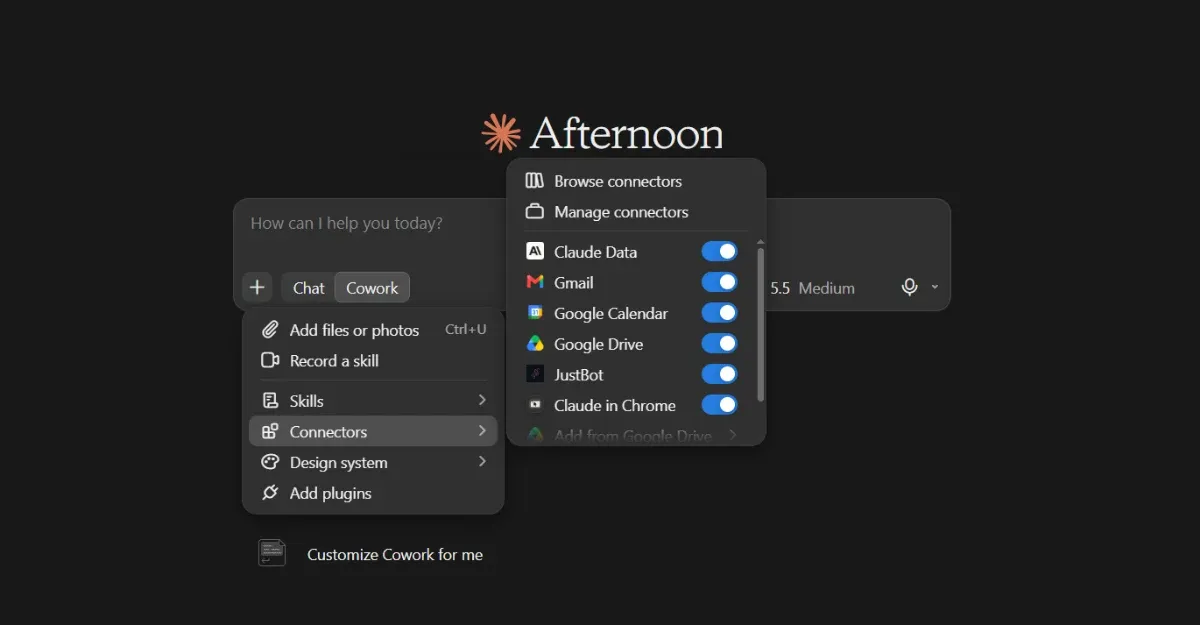
Open a new conversation on claude.ai or in the Claude Desktop app. In the message box, click the + icon, hover over Connectors, and turn on the toggle next to Gmail, Google Calendar, or Google Drive. You'll find the full list of connectors, including those from outside Google, in settings under Customize > Connectors.
Step 2. Set up authorization and permissions in your Google account
The first time you use a connector, Claude redirects you to Google. Authentication happens directly with Google (the OAuth protocol), so Claude never learns your password. On the consent screen you'll see a list of permissions: reading messages, managing events, accessing files. Read it and click Allow.
Step 3. Check that Claude can access Gmail
Go back to the chat and ask for something simple, for example "Show me the three latest emails from clients" or "What's on my calendar tomorrow?" If Claude returns specific messages and events, the integration works. The response also shows which tool it used, so you know right away where the data comes from.
What can Claude do in Gmail after connecting?
The native Gmail connector lets Claude search and read emails, whole threads, and the list of drafts in your inbox. It can summarize a long email exchange with a client, pull out agreements and deadlines, or draft a reply in your style. It can also apply labels, so organizing your inbox stops being manual work.
Since August 18, 2026, Claude no longer stops at a draft. It sends emails, replies to them, and forwards them (Antyweb). By default, before each such action it shows you the content and waits for your approval.
There is one thing Claude can't do in Gmail: read the contents of attachments. It sees only their names and metadata, so you have to upload a PDF contract to the chat or save it in Drive. The connector also doesn't replace mass-mailing tools. Email campaigns and CRM workflows are a job for marketing automation, not for an AI assistant in your inbox.
Google Calendar in Claude: planning without switching tabs
The Google Calendar connector reads your events, including from shared calendars, and checks participants' shared availability. Claude creates, moves, and deletes meetings, manages the guest list, responds to invitations, and sets up recurring events. The biggest difference shows when you look for a time slot for several people: instead of comparing calendars, you write "find an hour next week when Ann, Tom, and I are all free."
Google Drive in Claude: files, folders, and sharing
With the Google Drive connector, Claude searches your documents and reads Google Docs, Sheets, and Slides, PDF files, and Microsoft Office files. You can also add Drive files directly to a conversation or to a private project, which you can read more about in the article on Claude Projects.
The August update added write access. Claude uploads files, creates folders, saves documents it generated to Drive, and also shares, moves, and deletes files. For operations that change your Drive, it asks for permission by default. Keep in mind that it extracts text from documents and skips images embedded in files (Claude Help Center).
What can and can't Claude do in Gmail, Calendar, and Drive?
| Service | Read | Write and actions | Limitations |
|---|---|---|---|
| Gmail | messages, threads, drafts, attachment metadata | drafts, labels, sending, replies, forwarding (by default after approval) | no access to attachment contents, some advanced filters don't work |
| Google Calendar | events, shared calendars, participant availability | creating, editing, and deleting events, guests, responses to invitations | Google API limits with a large number of requests |
| Google Drive | Docs, Sheets, Slides, PDFs, Office files, permissions | uploading, folders, sharing, moving, deleting (by default after approval) | text only, no images in documents |
Status as of November 2026, source: Claude Help Center.
How to automate Gmail with Claude
You save the most time when you combine several services in a single prompt. Claude reads the email, checks the calendar, and looks for a file in Drive in one pass, and you get a finished result instead of three separate answers. Here are prompts worth starting with:
- "Go through unread emails from the last 24 hours, split them into urgent and later, and apply the label Needs reply to the urgent ones."
- "Find the latest message from client X, find their campaign brief in Drive, and draft a reply proposing two meeting times."
- "Check my calendar for next week and list the meetings for which I have no agenda in my email."
- "Summarize the thread about the quote for project Y and save the agreements as a new document in Drive in the Clients folder."
Once such a prompt has worked a few times, you can run it automatically, for example every morning. We explain how to set that up in the article on scheduled tasks in Claude. Always read drafts before sending, because the model can get facts wrong, which we cover in more detail in the article on AI hallucinations.
Is connecting Claude to Gmail safe?
Anthropic states that data retrieved through connectors is not used to train models. Content from Gmail, Calendar, and Drive is saved with the conversation, so you delete it along with the chat. Claude has access only to the Google account you connect it to, and it reaches into it only when you ask (Claude Help Center).
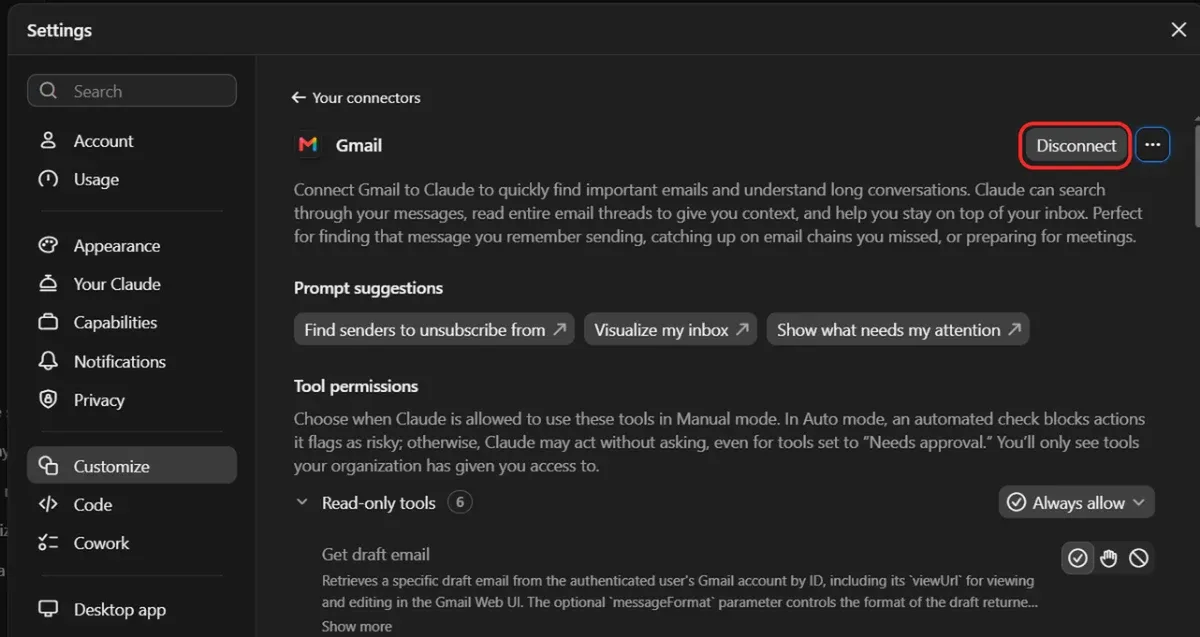
The bigger risk lies in the emails themselves. A message from a stranger can contain hidden instructions for AI, for example a request to forward a confidential thread. That's why you should keep approval turned on for sending emails and deleting files. In the connector settings, under Tool permissions, you can set each tool separately: always allow, ask for permission, or block. Keep in mind that in Auto mode Claude can act without asking and blocks only the actions it considers risky. So for sending emails, stay in manual mode. One extra click is a small cost compared with an email sent to the wrong person.
Company Google Workspace account: what does the administrator need to do?
On a work account, the connection often ends with an "Access blocked" message. This isn't a Claude error but a Google Workspace safeguard that blocks third-party apps. The administrator has to add Claude to trusted apps in the admin console: admin.google.com > Security > Access and data control > API controls > Manage Third-Party App Access, then Add app, search for "Claude," and set the status to Trusted. After about 15 minutes, you can connect again.
On the Claude side, on the Team and Enterprise plans, the organization owner enables connectors in Organization settings > Connectors and decides whether employees can send emails and manage files without confirming each action.
What to do when the Claude and Gmail connection doesn't work
When Claude asks you to reconnect or stops seeing your inbox, first disconnect the connector, then connect it again. This fixes most errors caused by expired authorization.
If Claude shows emails from a different inbox than you expect, a different Google account was selected at sign-in. Disconnect the connector, sign out of the wrong account in your browser, and repeat step 2.
With very large inboxes, responses can be slower, because Claude makes several requests to the Gmail API, and Google limits them. It helps to narrow the prompt to a sender, a label, or a specific week.
How to disconnect Gmail, Calendar, and Drive from Claude
You disconnect a connector in Claude: Customize > Connectors, choose the Google service, and click Disconnect. If you only want to turn off access for a moment in one conversation, the toggle in the + menu is enough. You can revoke permissions completely in your Google account settings at myaccount.google.com/connections, where you click Delete all connections next to Claude.
FAQ
Can I connect two Gmail accounts to Claude?
Not at the same time. The native connector supports one Google account at a time, so to switch to another inbox, disconnect the connector and add the account again.
Does Claude read all my emails?
No. Claude searches and opens messages only when your prompt requires it, and it doesn't browse your inbox in the background.
How does the Gmail connector in Claude differ from Gemini in Gmail?
Gemini works inside Gmail as part of Google Workspace. Claude works in its own chat window and combines Gmail data with other connectors, for example Drive and Calendar, or tools from outside Google. We describe how Gemini works in Gmail, Docs, and Sheets in the article on Gemini in Google Workspace.
Can Claude edit Google Docs and Sheets?
Yes, but through separate connectors for Google Docs, Sheets, and Slides. They let you create files and edit them live in a panel next to the chat, while Drive itself handles searching, uploading, and sharing.
Start with one inbox and one repeatable task
It's best to start small: a morning inbox review or finding meeting times. Once you see how much time a single prompt saves you, adding Drive and Calendar will come naturally. Want to roll out Claude across your whole marketing team and don't know which process to start with? Let's talk about your processes.