













In this guide, you'll learn what Gemini can do in each app, which license gives you access to which features, how an administrator can configure it, and how company data stays protected. You'll also find prompts you can copy and try right away.
What Is Gemini in Google Workspace and What Does It Do for Your Company?
Google Workspace is Google's suite of business apps, including Gmail, Docs, Sheets, Drive, Meet, and Calendar, running on your company domain. Gemini is a family of large language models (LLM) developed by Google, as well as an AI assistant built on those models. In the business version, it works in two places. The first is the Gemini app at gemini.google.com, where you talk to the model like in a classic chat. The second is the side panel and features built directly into Google Workspace apps: Gmail, Docs, Sheets, Slides, Google Drive, Google Meet, Google Chat, and Google Calendar.
This second form matters most. Gemini in Workspace works with the context you have in front of you: an email thread, an open document, or files in Drive, always within the limits of your permissions. You don't copy content into an outside tool or describe the situation from scratch.
In practice, Google Workspace with Gemini can boost productivity in three areas: writing and editing text, finding information scattered across your inbox and drive, and analyzing data in spreadsheets. On top of that come meeting notes and AI-based automations. If you want to learn more about the model itself, see our guide to Gemini AI.
Google Workspace Licenses: Which Business and Enterprise Plans Include Gemini?
As of January 2025, Google no longer sells a separate add-on called Gemini Business or Gemini Enterprise for Workspace. AI features moved into the standard plans, and subscription prices went up. What you can do depends on the license assigned to your account.
| Plan | Price (annual plan, per user/month) | What you get with Gemini |
|---|---|---|
| Business Starter | about €7.20 | Gemini in Gmail, the Gemini app, Workspace Studio, NotebookLM (basic limits) |
| Business Standard | about €14.40 | Gemini in Gmail, Docs, Sheets, Slides, Meet, Chat, and Drive, NotebookLM with higher limits, AI experts (Gems) |
| Business Plus | about €22.63 | Everything in Business Standard plus extended security and Google Vault |
| Enterprise | custom quote | Full range of AI features and the broadest security and compliance tools |
Pricing: Google Workspace, as of October 2026
With a flexible plan billed monthly, you pay 20% more. The gap between Business Starter and the higher plans is big: in the cheapest option, AI helps you only in email and in a separate app, with no integration with Docs or Sheets. If Gemini is meant to be a tool for your whole team, Business Standard is a sensible minimum.
Gemini Advanced, Google AI Pro, and Gemini Enterprise: What's the Difference?
Google's naming can be confusing. Gemini Advanced is the former name of the paid plan for individual customers. In 2025, it was replaced by the Google AI Pro subscription (and the more expensive Google AI Ultra). This is an offer for a personal Google account, not a company domain, so it gives you no admin panel and no company-level data protection guarantees.
Gemini Enterprise, on the other hand, is a separate product from Google Cloud: a platform for building and running AI agents connected to company systems, including ones outside the Google ecosystem. In October 2026, Google Cloud introduced the Gemini agent, a universal work assistant that plans tasks, uses tools, and delivers results in documents and your inbox. For most small and midsize companies, though, the starting point remains Gemini included in a regular Workspace license.
Education has its own path. Schools and universities can add Google AI Pro for Education, which expands Gemini features and limits for student and teacher accounts.
Managing Gemini in the Google Admin Console
The administrator has full control over who uses AI and to what extent. In the Google Admin console, under Generative AI, you can turn the Gemini app on or off for the whole company or for selected organizational units and groups. In Enterprise plans, you can also control Gemini separately in each service, for example only in Gmail or only in Meet. This lets you start with a pilot in one department before rolling Gemini out to the whole organization. That's also where you set how long conversation history is kept: for features in Workspace, from 90 days to indefinite retention, and in the Gemini app, up to 36 months.
When Gemini doesn't work despite the right plan, the cause is usually in one of three places: the service is turned off for your organizational unit, smart features are turned off in Gmail settings, or the account has no license assigned.
Gemini in Gmail: Writing, Summarizing, and Searching Your Inbox
Gmail is where the time savings show up from day one, which is why most people start here. Gemini in Gmail is available even in the cheapest plan, Business Starter.
The Help me write feature drafts a message from a short prompt or improves what you already have in a draft: it shortens the text, makes it more formal, or changes the tone. For long threads, a summary of the key points appears at the top. In the side panel, you ask questions about your whole inbox, and Gemini searches messages and attachments, then points to the emails the answer comes from.
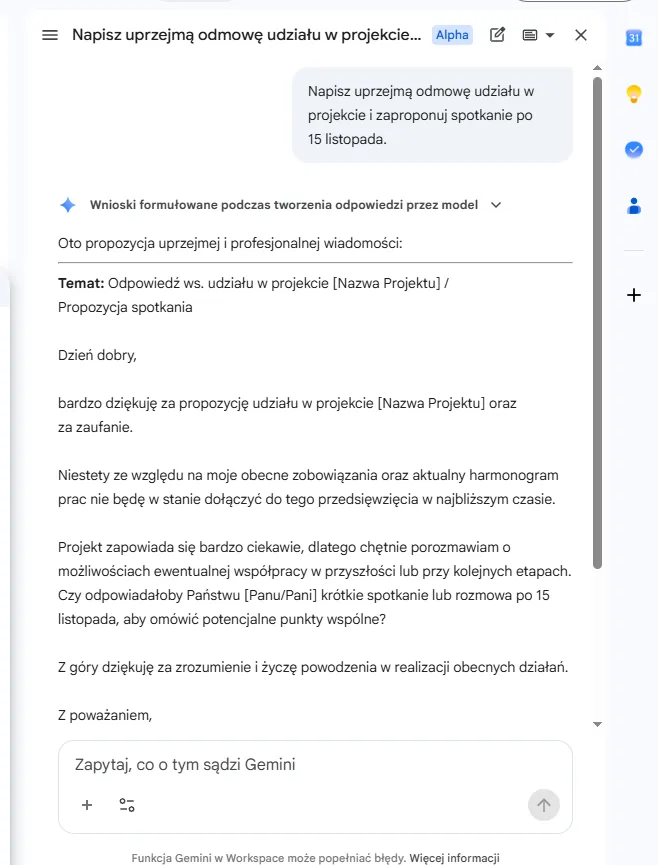
A few prompts that work well in daily use:
- "Write a polite refusal to join the project and suggest a meeting after November 15."
- "Summarize this thread in three points and list who needs to do what."
- "Find the latest invoice from [supplier name] and give me the amount and payment due date."
- "Prepare a reply to the complaint in this message. Keep the tone factual, without excessive apologies."
A draft from Gemini is a starting point, not a finished message. The assistant doesn't know about agreements made over the phone or in the hallway, so read the text and fill in the details before sending.
Gemini in Google Docs: From Draft to Finished Proposal
In Google Docs, the assistant works in two ways. The first is creating content from scratch: you choose Help me create, describe what you need, and Gemini prepares a structure with headings and text. As a source, you can point to files in Google Drive, for example meeting notes and a price list. Based on them, Gemini builds a draft of a proposal, procedure, or brief.
The second way is working on existing text. You select a passage and ask to shorten it, expand it, change the tone, or turn a paragraph into a few bullet points. The side panel also answers questions about the whole document, such as "What deadlines are mentioned in this contract?" or "Which sections require a board decision?" For a 40-page report, this is much faster than reading from page one.
If you often create similar materials, set up an AI expert, that is, a Gem with custom instructions: your brand tone, your proposal structure, words you avoid in communication. You can then call it up in the side panel of Docs and Gmail, without repeating the guidelines every time.
Docs can also generate graphics for your content and an audio summary that you listen to like a short podcast. Keep in mind that the model can make mistakes, especially with numbers, dates, and proper names. You can learn where such errors come from in our article on AI hallucinations.
Gemini in Google Sheets: Data Analysis Without Knowing Formulas
Sheets is the app where Gemini has changed the most over the past year. In the side panel, you describe in plain language what you want to calculate, and the assistant suggests a formula, explains how it works, and inserts it into a cell. When a formula returns an error, Gemini points out the cause, for example dates stored as text or mismatched ranges.
The =AI() function (also available as =GEMINI()) opens up a lot of possibilities. You type it directly in a cell and pass a prompt and data, for example: =AI("Assign the review to a category: positive, negative, neutral", A2). This way you can categorize hundreds of customer comments, extract company names from email addresses, or prepare short product descriptions. One run generates results for up to 350 cells, and you can start the next batch in the next run. Test the prompt on a few rows first, and paste the final results as values so they don't change on the next recalculation.
The side panel can also analyze data for an entire table. It points out trends and outliers, suggests a chart or pivot table, and on request builds a spreadsheet from scratch with a ready structure, such as a project schedule or a campaign budget.
At the Google Cloud Next '26 conference, the company announced interactive visualizations in Sheets (dashboards, heat maps, and kanban boards) and data import from external systems such as HubSpot and Salesforce. If you report sales or campaign results in spreadsheets, that means less manual exporting and stitching data together.
Google Chat, Meet, and NotebookLM: Integration with Other Google Workspace Services
Gemini doesn't stop at the three apps in the title. In Google Meet, the Take notes for me feature records the course of the conversation and, after the meeting, sends participants a document with a summary and a task list. In 2026, Google began extending it to in-person meetings and those held on Zoom and Microsoft Teams.
In Google Chat, Gemini summarizes a long conversation in a team space and helps you catch up after vacation. In Google Calendar, it makes it easier to find a meeting time for several people.
A separate tool is NotebookLM, available in all Business plans, and with higher limits from Business Standard. You upload materials such as reports, transcripts, or product documentation, and chat based only on them, with references to specific passages. It works well for onboarding new employees and preparing bids. For tips on how to use it, see the article NotebookLM: What It Is and How It Works.
Workspace Studio: Google's AI Agents Without Coding
Workspace Studio is a tool for building AI agents that take over repetitive work. You don't need code: you describe the task in plain language, and Gemini turns it into a ready workflow. Since March 2026, Studio has been available to users of all Business and Enterprise plans.
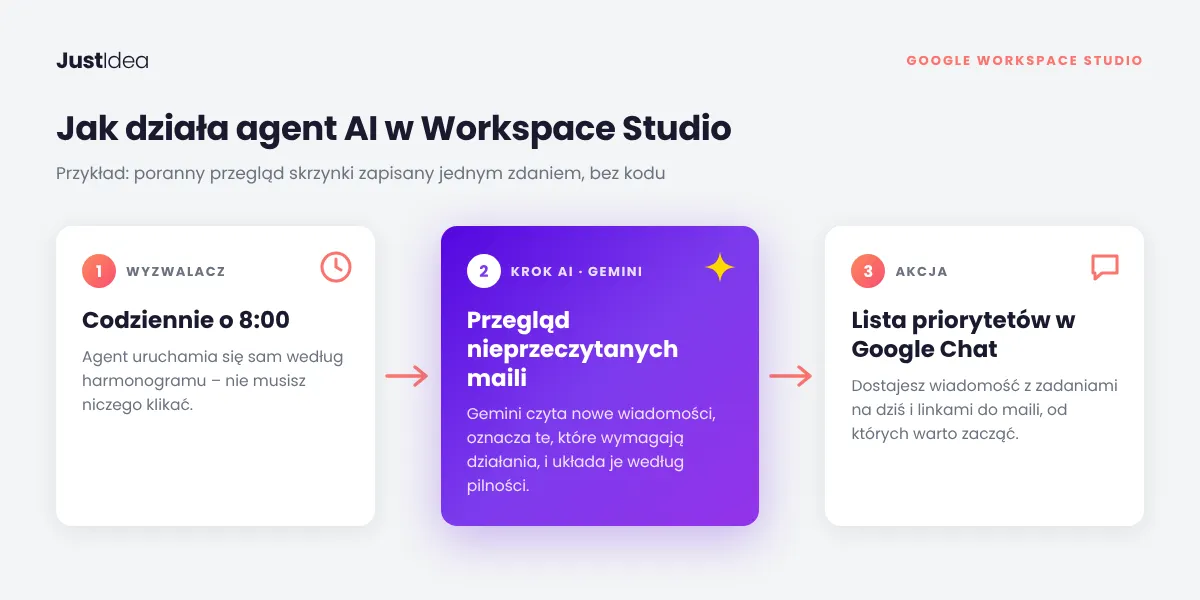
An example? Every day at 8:00 AM, an agent goes through unread emails, flags the ones that need action, and sends you a priority list in Google Chat. Another drafts a project status update every Friday based on a task spreadsheet. Agents connect to Gmail, Drive, and Sheets, as well as to outside tools: Asana, Jira, Salesforce, or Mailchimp.
After Google Cloud Next '26, Studio also got skills, which are more complex processes, such as verifying a new invoice by comparing it with earlier ones in your inbox. You share them with your team and call them directly from Gemini. If your company already has automations in another tool, check which of them are worth moving closer to your data. You can find a comparison of approaches in the article on automating work in your company with n8n.
Data Security in Google Workspace with Gemini
When companies roll out AI, the question that comes up most often is whether Google trains models on company data. According to Google's documentation on generative AI privacy in Workspace, the answer is no. Your organization's content is not used to train models without your permission, and humans don't review your conversations with Gemini.
Gemini also respects the permissions that already apply in your organization. If you don't have access to a file in Drive, the assistant won't see it either. Information rights management restrictions (blocking downloading, copying, and printing) and client-side encryption further cut AI off from the most sensitive documents.
Google holds certifications for this, including SOC 1/2/3 and ISO 27001, 27701, and 42001. The last standard covers artificial intelligence management systems. Google has also announced the option to limit data processing and storage to the European Union. Before rolling it out, read the privacy policy and data processing terms, especially if you operate in a regulated industry, such as healthcare or finance.
Gemini, ChatGPT, or Microsoft Copilot: Which AI Assistant Should You Choose?
When choosing between Gemini, ChatGPT, and Copilot, the quality of the model itself rarely decides, because all three handle writing and analysis well. The ecosystem is what counts. If your company runs on Google Workspace, Gemini has the integration advantage: it sees your emails, files, and calendar without extra connectors and is already included in the license.
Microsoft 365 Copilot is a natural choice for organizations built on the Microsoft suite, although its full version requires a separate license. ChatGPT in the Business or Enterprise version works where a team needs an assistant independent of the office suite, at the cost of another subscription and the need to connect company data.
How to Roll Out Gemini in Workspace So Your Team Actually Uses It
A license alone isn't enough. In many companies, Gemini has been active for months, and only a few people use it. AI rollouts succeed when, instead of general training, you show people specific uses in their own work. A proven plan looks like this:
- Check in the admin console which accounts have a license with full Gemini and whether the service is turned on.
- Choose one department for a pilot, such as customer service or sales, and collect three to four time-consuming tasks.
- Prepare a library of prompts and Gems tailored to those tasks.
- Write down the rules: what data we don't paste in, and who verifies texts sent to customers.
- After a month, measure the results and expand the rollout to other teams.
The biggest barrier isn't technology, it's habit. Once an employee sees they get a summary of an hour-long meeting in a few minutes, they start looking for further uses on their own. If you want to speed up the rollout, bring people into the pilot who can build prompts and automations around your processes.
FAQ: Common Questions About Google Gemini in Workspace
How do I turn on Gemini in Google Workspace?
An administrator turns Gemini on in the Google Admin console. Choose Menu → Generative AI → Gemini app → Service status, select "On for everyone" or pick a specific organizational unit or group, and then click Save. The change may take effect only after 24 hours. Users must also have smart features and personalization turned on in their account settings.
Is Gemini in Google Workspace free?
You don't pay for it separately, but it isn't free, because the cost of AI is built into the license price. Some features, such as help writing emails, also work in free, personal Gmail, but without company data guarantees and without administrator control.
Does Gemini understand Polish?
Yes. You can write prompts in Polish and get answers in that language. Google often releases new features in English first, so some of them reach Polish users with a delay of several weeks or months.
Can I turn on Gemini only for selected employees?
Yes. An administrator can turn on the Gemini app only for selected organizational units or groups, which makes it easy to run a pilot in one team.
Does Google Workspace have a trial period?
Yes, new companies can test Workspace for 14 days at no charge, including the AI features available in the chosen plan. It's a good time to try Gemini on your own emails and spreadsheets before you decide how many licenses to get.
The AI Assistant Is Already in Your Inbox: Start with One Process
Gemini in Google Workspace doesn't require new software or a revolution in your company. All you need to do is pick one repeatable process, such as replies to quote requests, a weekly report, or meeting notes, and run it with AI help for two weeks. After that time, you'll see how many hours you really save and where it's worth going next: toward data analysis in Sheets, agents in Workspace Studio, or custom Gems for the whole team.