














In short
- Indexing is one of several stages: discovery, crawling, rendering, indexing and serving. Simply discovering or crawling a URL doesn't guarantee it is in the index, and indexing is a necessary but not sufficient condition for high positions.
- The most common causes of non-indexing are noindex, a block in robots.txt, an incorrect canonical, HTTP errors (404, 500), duplicate or low-value content, and blocked JS and CSS resources. Diagnosis starts with the URL Inspection tool in Search Console.
- Indexing time isn't fixed: from a few days to a few weeks. “Request Indexing” and sitemap.xml help, but guarantee nothing. Google doesn't support IndexNow, and the Indexing API is intended only for pages with JobPosting and BroadcastEvent.
How to Fix Website Indexing Problems in Google
Have you ever wondered why your website doesn't appear in Google's search results, even though you've spent a lot of time optimising it? The problem can affect both a new website and a site that was previously visible in Google but started losing indexed URLs after a migration, technical changes or a content update.
If Google isn't indexing important pages, simply adding more keywords or links won't solve the problem. First, you need to determine whether the bot can discover the page, fetch its content, render the page, and whether Google considers it suitable for inclusion in its index.
In this article, we'll look at the main causes of indexing problems and present proven methods to help you improve your website's indexing in Google. You'll also learn how to check whether your website is indexed, how to use Google Search Console, and what to do to speed up indexing of your website in Google.
What Is Website Indexing in Google
What indexing is. It's worth starting by separating a few processes that are often mistakenly treated as a single action.
Indexing is the process in which Google analyses the fetched content and stores information about it in its index. Simply having Google discover a URL doesn't mean it has been indexed, just as a page being crawled by Googlebot doesn't guarantee its presence in search results.
In simple terms, the indexing process for your website can be broken down into five stages:
- Discovery: finding new content. Google learns that a page exists from internal links, external links and sitemap.xml, among other sources.
- Crawling : scanning. The bot fetches the available resource and the files needed for analysis.
- Rendering: producing the page. For websites using JavaScript, Google may execute the code and generate the final version of the document.
- Indexing: indexing the page. Google analyses the page's content, its main body, signals about the choice of canonical URL, metadata and other elements, then determines how to store and represent the page in the index. Not every crawled URL ends up indexed.
- Serving and ranking. Only an indexed page can then be used as a result for relevant queries. Indexing alone, however, does not mean a high position in Google.
Google describes crawling, indexing and the subsequent display of results as separate stages in how the search engine works.
Search engine bots crawl the internet looking for new URLs and changes to already known pages. They can analyse text content, HTML structure, structured data, links, images and the resources needed to render the page.
This doesn't mean, however, that Google's bots check every existing URL with the same frequency. Crawl frequency depends, among other things, on Google's need to revisit a given URL, changes to the content, the site's structure and the host's technical capabilities.
Why does indexing matter so much? Without a presence in the index, a given page cannot normally gain organic visibility for related queries. Indexing is therefore a necessary, but not sufficient, condition for achieving high rankings.
How to Check Whether Your Website Is Indexed
Confirming whether your website is being indexed by Google is the first step in diagnosing visibility problems. The easiest way to check this is with the site: operator, the indexing report in Google Search Console, and the URL Inspection tool.
The site: operator is useful for a quick check, but don't treat it as an exact count of all indexed pages. If you want to check a specific URL, the most practical solution is GSC.
How Long Does It Take to Index a Website in Google
One of the most common questions website owners ask is how long it takes for Google to index a new or updated page. The answer isn't clear-cut: indexing time depends on many factors, such as how easy the page is to discover, the internal linking structure, how often the content changes, the quality and usefulness of the page, and the server's technical capabilities.
In practice, new pages can be indexed relatively quickly, but the process can just as easily take several days or weeks. In some cases, Google may also decide that certain content shouldn't be indexed at all.
What Affects Indexing Time
Googlebot visits pages with varying frequency. Factors that matter include, among others, the internal linking structure, the presence of a link in sitemap.xml, the quality and freshness of the content, server stability, and how easy the page is to find within the website.
Pages that are regularly updated and well linked to the rest of the site may be crawled more often by Google's bots, but more frequent crawling doesn't automatically mean faster addition to the index.
If the process is taking an unusually long time, use Google Search Console and check the URL status, the robots.txt configuration, noindex directives, canonical tags and the sitemap.xml. The “Request Indexing” option can draw Google's attention to a given URL, but it doesn't guarantee that it will be added to the index.
Why Isn't My Website Being Indexed
A lack of indexing in Google can stem from many different factors. The causes of indexing problems can be technical, quality-related, or simply down to Google knowing about a URL but not yet having decided to crawl or index it.
In practice, pay attention to two situations visible in Search Console. The status “Discovered - currently not indexed” means Google knows the URL but hasn't crawled it yet. This can happen, among other things, when a page is poorly linked, sits deep within the site structure, or the website generates a very large number of low-value URLs.
On the other hand, “Crawled - currently not indexed” means Google has visited the URL but currently isn't storing it in the index. In that case, check the quality and uniqueness of the content, the canonical tag, duplication, the HTTP response, and whether the content is rendering correctly.
Mobile-First Indexing is also an important factor. Google uses the mobile version of a page's content for indexing and ranking, which is why key content, internal linking, structured data, meta tags and other important SEO elements should also be available to Googlebot when it uses the mobile version.
The way content is generated also matters. In the CSR model, or Client-Side Rendering, part of the content may only appear after JavaScript has run. Google can render JavaScript, but errors in scripts, resources or API connections can mean the bot sees less content than a user does. With SSR, or Server-Side Rendering, the key content is usually already available in the HTML code returned by the server.
Indexing Status: Checking Your Website with the “site:domain.com” Operator
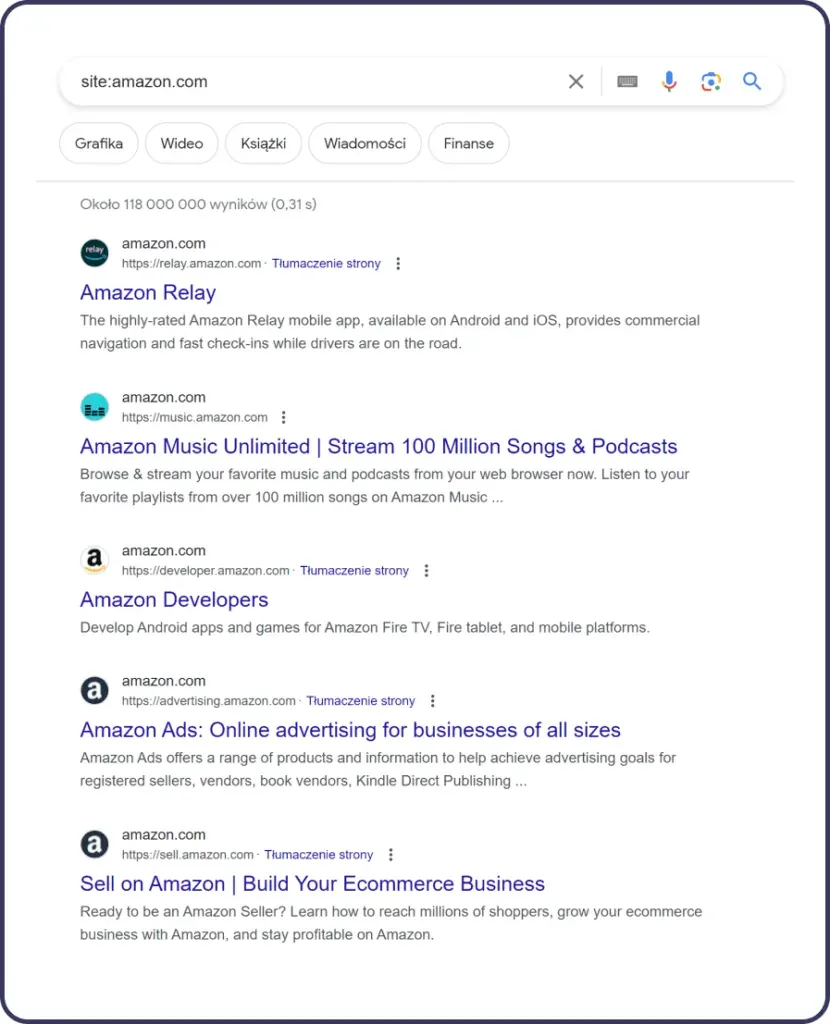
One of the simplest ways to check whether your website is indexed by Google is to use the “site:” operator. This method lets you quickly verify which pages from your website have already been added to Google's index. To do this, type the following query into Google:
site:yourdomain.com
Replace “yourdomain.com” with your website's actual URL. After entering this query, Google may display pages from your website that are in the index, but you shouldn't treat the results as a complete list of all indexed URLs. Google officially states that the site: operator doesn't always return every URL in the index, especially for larger websites. If results do appear, it's a signal that at least part of the website is in Google. If there's no result for a specific URL, verify it instead in the URL Inspection tool in Google Search Console.
Why does this matter? Using this operator is a quick way to check the basic indexing status of your website. The site: operator can also help with rough diagnostics of specific URLs and detecting unusual pages present in the index, but it shouldn't be used to measure the exact number of indexed pages or the indexing pace of the entire website. For that, use the Page Indexing report and the URL Inspection tool in Google Search Console.
Google Search Console: Page Indexing Report
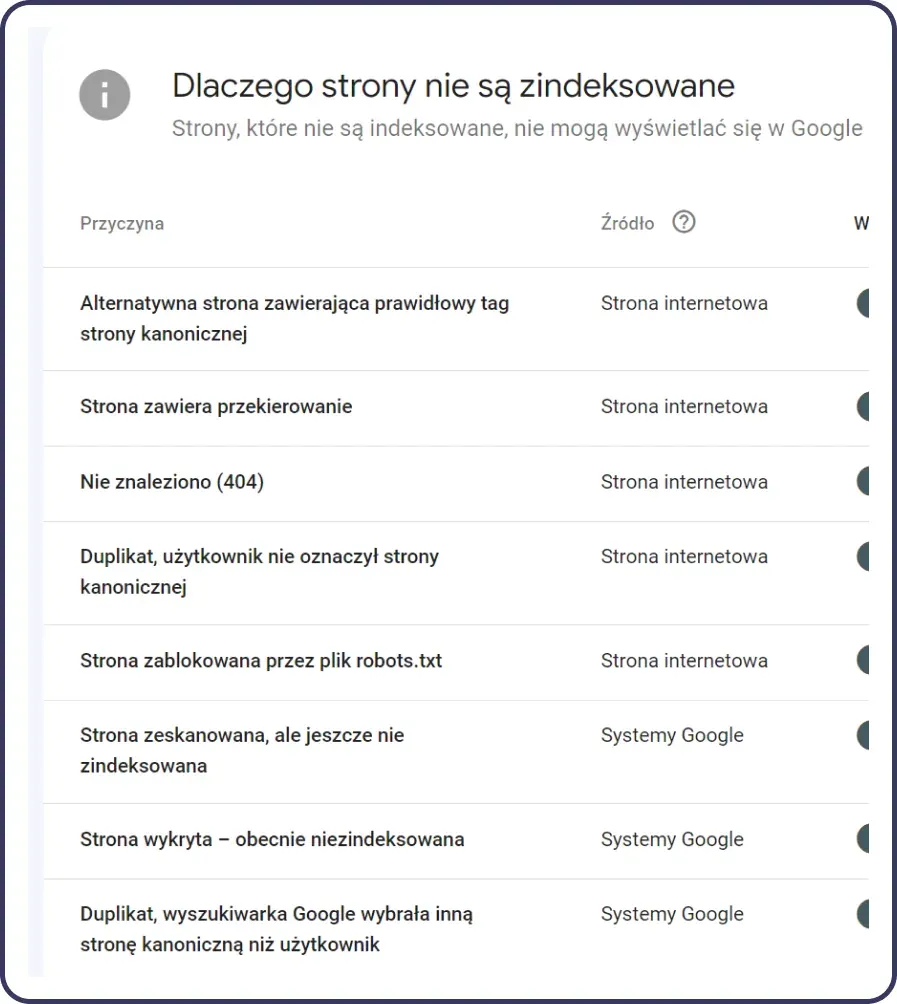
Google Search Console (GSC) is one of the most important tools for monitoring how Google sees and indexes your website. This tool offers a rich set of features that help you monitor and improve your website's visibility in search results. One of its key features is the ability to check your website's index status.
To access the data, first add and verify your website in Google Search Console. Then go to the Page Indexing report and check which URLs have been indexed and which haven't. Not every unindexed URL is a problem. Duplicates, redirects or pages deliberately marked noindex can be correctly excluded.
Situations that need particular attention are when important pages start disappearing from the index, or when the number of URLs that should, in theory, be available in Google suddenly increases.
Pay attention not only to the number of unindexed pages, but above all to the reason for exclusion and the type of URLs affected by the problem. Google explicitly states that the goal shouldn't be to achieve 100% indexed URLs. A website can correctly contain unindexed duplicates, redirects, filter pages or URLs marked noindex. The problem starts when canonical pages that are meant to generate organic traffic aren't indexed.
Google Search Console → URL Inspection Tab
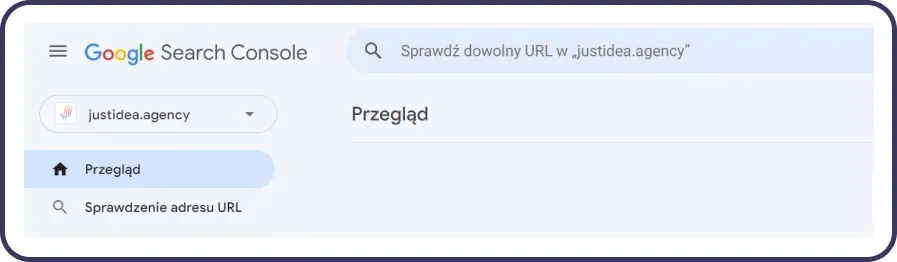
The “URL Inspection” tool available in GSC is a powerful tool that lets website owners examine in detail how Google sees individual pages of their site. With this tool, you can check whether specific pages are indexed and get detailed information about any problems that may be affecting indexing and visibility in search results. Here's how you can use this feature to improve your website's visibility:
How to Use the “URL Inspection” Tab
- Choose the page to analyse: After logging into GSC, use the “Inspect any URL in your domain” field at the top of the home page. Enter the URL of the page you want to check and press Enter.
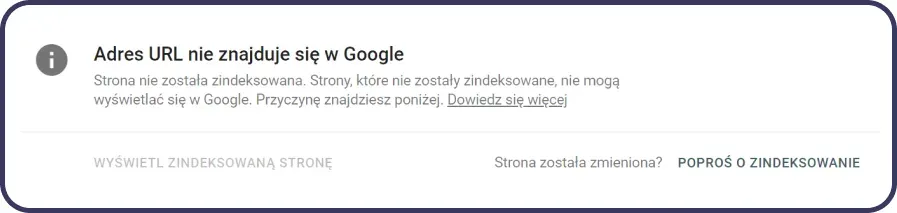
- Analyse the results: The tool will run an analysis and show detailed information about the page's indexing status. You'll be told whether the page is indexed, whether there are any indexing problems, and you'll also get information about the last crawl date and the selected canonical version.
- Identify and fix problems: If the tool detects problems such as indexing errors, blocked resources or redirect issues, use the available data to determine the cause and fix it.
- Request indexing: If you've made changes to the page or are checking its status for the first time, you can use the “Request Indexing” option.
Screaming Frog in Website Indexing Analysis
Screaming Frog is a key tool in the SEO specialist's arsenal, enabling in-depth analysis and diagnostics of technical issues on your website that may affect its indexing by Google. Using Screaming Frog to analyse website indexing gives you a detailed understanding of how search engines see your website and helps identify potential obstacles that could hinder its correct indexing and ranking.
How Screaming Frog Helps With Website Indexing Analysis
Screaming Frog is one of the most important tools in an SEO specialist's arsenal. It allows for in-depth technical diagnostics of a website and identification of issues that may block correct indexing by Google.
It's worth distinguishing between technical indexability and a page actually being indexed by Google. Screaming Frog may show that a page is technically available for indexing, but that doesn't yet mean it's present in Google's index. The actual status should be verified using Google Search Console data or the URL Inspection API.
Discovering Unindexed Pages
Screaming Frog itself doesn't have a full copy of Google's index. Once connected to the Google Search Console URL Inspection API, however, it can retrieve indexing status information for the URLs you control.
In the configuration:
Configuration → API Access → Google Search Console
you can connect your account and enable URL Inspection. Screaming Frog allows you to retrieve indexing status data for up to 2,000 URLs per property per day.
Analysing robots.txt Directives and Meta Robots Tags
The tool checks whether the page has any incorrectly set directives that block indexing. Screaming Frog analyses both the robots.txt file and meta robots tags, making it possible to identify and correct configuration errors.
Detecting Duplicate Content
Screaming Frog detects duplicate page titles, meta descriptions and content that can negatively affect indexing and ranking. Quickly locating duplicates lets you remove or consolidate them using canonical tags.
Checking Redirect Paths
The tool identifies complex or broken 301/302 redirects and analyses redirect chains. This lets you optimise the paths to your content and make it easier for bots to correctly index your website.
Optimising Internal Linking
Screaming Frog gives you a comprehensive view of your website's internal linking structure, which is key to distributing link value (PageRank). It lets you identify and eliminate weak points in your link network.
Orphan Pages
An orphan page is a URL that no internal link discoverable by Googlebot points to.
It may exist in sitemap.xml or appear in GSC data, but a standard crawler starting from the homepage won't discover it.
After connecting Screaming Frog to GSC and enabling crawling of new URLs found in the API, you can use the differences between the data sources to identify orphan pages.
Using Noindex as a Website Indexing Problem
Noindex is a tag that instructs search engine bots not to index a given page. While it has legitimate uses, using it incorrectly can accidentally hide important content from users and significantly reduce organic traffic.
Why Incorrect Use of Noindex Is a Problem
Accidentally adding a noindex meta tag to important pages can lead to their removal from search results. Pages with noindex that remain accessible to the crawler may still be periodically visited by Googlebot, because Google has to fetch the page to see the noindex directive. This matters particularly on very large websites, where managing crawl budget is important. However, individual noindex pages shouldn't be presented as a crawl budget problem for every website. Google states that crawl budget is primarily a concern for very large or very frequently updated websites.
How to Identify and Fix Unwanted Use of Noindex
Regularly scan your website with SEO tools (e.g. Screaming Frog) that identify all pages with a noindex meta tag. In GSC, use the “URL Inspection” feature to verify the status of a specific page. Once you've identified incorrectly tagged pages, remove the noindex tag and make sure the correct URL is included in the current sitemap.xml.
You don't need to resubmit the same sitemap every time its content changes. Google periodically refetches known sitemaps. For an important, corrected page, you can additionally use the “Request Indexing” option.
Regular SEO audits and mindful management of meta tags are the foundation of an effective indexing strategy.
Robots.txt Settings and Indexing Problems
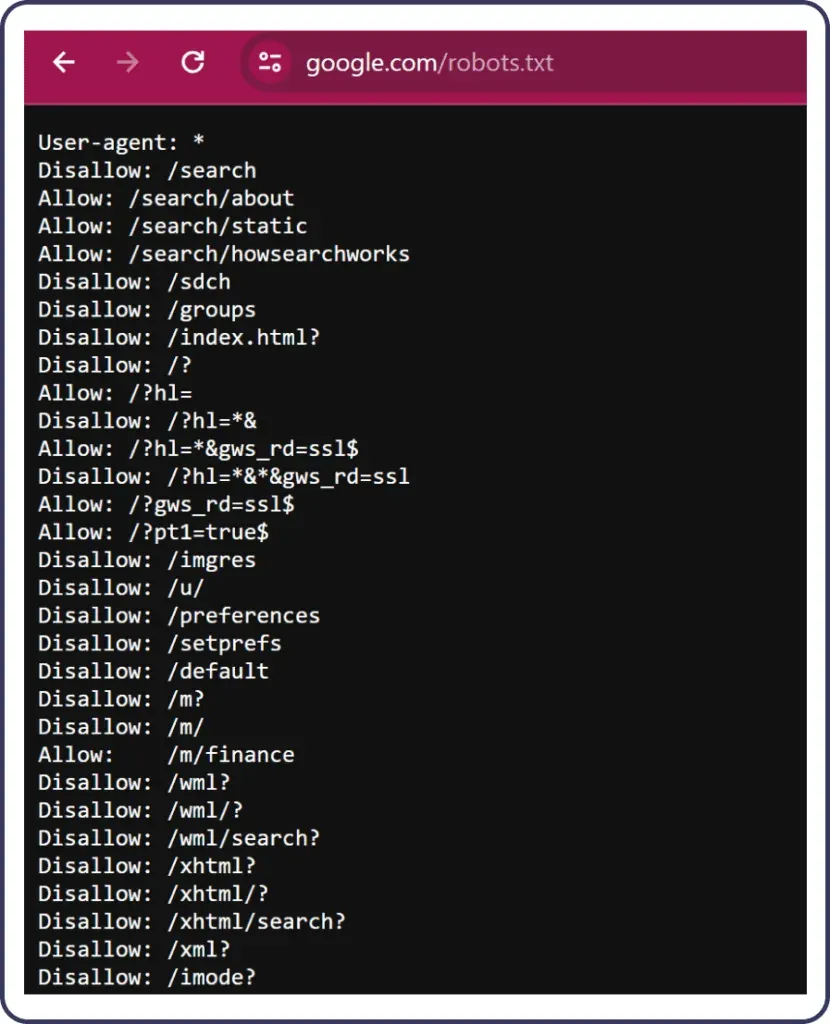
Google explicitly states that robots.txt shouldn't be used as a mechanism for removing an ordinary web page from the results. A page blocked in robots.txt can still be found via other sources and, in some situations, may appear in Google without the full content and snippet.
The Most Common robots.txt Configuration Errors
Overly restrictive Disallow directives are one of the more common problems. Blocking entire directories, for example /wp-content/ or /assets/, can cut Googlebot off from the JS, CSS and image files needed to render the page correctly. The result can be a situation where Google isn't able to see the page the same way a user does, or can't properly process part of its content. Google recommends giving the crawler access to important CSS and JavaScript resources.
The second problem is syntax errors. Incorrectly prepared rules can make robots.txt behave differently from what the website owner intended.
How to Correctly Configure robots.txt
Use Disallow directives precisely, for resources that Google genuinely shouldn't crawl, for example selected technical spaces that generate a huge number of unnecessary variants. Disallow on its own, however, isn't a directive for removing pages from the index. If you want to prevent a page from being indexed, use noindex and at the same time let Googlebot fetch the URL so it can read that directive.
Once you've deployed robots.txt, it's worth monitoring it in the robots.txt report in Google Search Console. The report shows the files Google has found, the date they were last fetched, and any warnings or errors detected. When diagnosing a specific page, it's also worth checking in the URL Inspection tool whether crawling it is allowed.
It's good practice to add a Sitemap: directive to the file, pointing to the sitemap's address. This makes it easier for search engines to find sitemap.xml and the URLs it contains, although including a URL in the sitemap alone doesn't guarantee it will be crawled or indexed.
Password Protection as an Indexing Problem
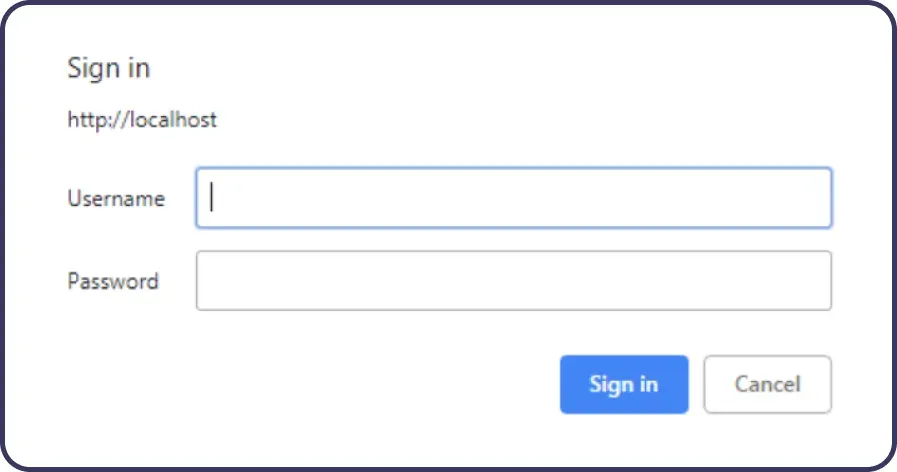
Password-protecting a website or part of it is a common practice, especially when you want to restrict access to certain content to selected users only. However, this method of privacy and security protection can be a significant obstacle in the indexing process for search engines. When a website or its section is password-protected, search engine bots such as Googlebot can't access that content, which results in its absence from search results.
How Password Protection Affects Indexing
- No access to content: When a search engine bot encounters a password-protected page, it can't analyse its content, which prevents indexing and ranking in search results.
- Limited visibility: Password-protected pages are invisible in search engines, which limits their potential audience reach and reduces organic traffic to the website.
- Loss of SEO value: Important content locked behind a password may contain keywords and other elements valuable for SEO that search engines can't use to evaluate and classify the page.
Errors in the .htaccess File and Website Indexing
The .htaccess file is a powerful tool on Apache-based servers that lets you manage server configuration at the directory level. It enables you to carry out many tasks, such as page redirects, security configuration and URL manipulation. However, incorrect configuration of this file can lead to serious problems with indexing pages in search engines.
Common .htaccess Errors That Affect Indexing:
- Incorrect redirects: Misconfigured redirects can cause redirect loops or 404 errors (Not Found), which makes it harder for search engine bots to access content.
- Incorrect access or URL rewriting rules: Misconfigured
RewriteRule,RewriteCondrules or access restrictions can prevent Googlebot from fetching important pages. - Incorrect cache settings: Improperly configured cache directives can affect how content is served to search engine bots, potentially misleading them about how up to date the content is.
- Use of security directives: Overly restrictive security rules can unintentionally block access to the page for search engine bots.
- Syntax errors: Incorrect syntax in the
.htaccessfile can cause the rules to malfunction, and in some cases even trigger a500 Internal Server Errorresponse, meaning Googlebot won't be able to fetch the page correctly.
How to Avoid Errors in the .htaccess File
- Thorough testing: Before making changes live, thoroughly test the configuration in a test environment. This lets you detect and fix potential problems without affecting the website's availability.
- Using validation tools: There are online tools that can help validate .htaccess file syntax, which is especially useful for detecting subtle errors.
- Rolling out changes gradually: Introduce changes gradually rather than making many modifications at once. This makes it easier to identify the cause of potential problems.
- Documentation and comments: Keep documentation of changes made in the .htaccess file and use comments in the file to explain the purpose of individual directives. This will make managing the configuration easier in the future.
- Education and experience: Build your knowledge and experience in configuring Apache servers. Understanding the capabilities and limitations of the .htaccess file is key to managing a website effectively.
Correct .htaccess configuration is crucial for ensuring that a website is accessible and can be indexed effectively by search engines. Avoiding the errors above will help maintain your site's SEO health and ensure its content remains visible in search results.
Server-Level Blocking as an Indexing Problem
Server-level blocking is one of the less obvious, but equally significant, problems that can prevent a website from being indexed by search engines. This form of blocking can occur for various reasons and can be an unintended effect of measures designed to protect a website or server against attacks, excessive traffic or unauthorised access.
Causes of Server-Level Blocking:
-
DDoS attack protection: Servers are often configured to limit the number of requests from a single source within a given period. Search engine bots, especially when crawling large websites, can be mistakenly identified as a source of a DDoS attack.
-
Geographic IP blocking: Some websites use geographic blocking to restrict access to content for users from specific regions. If search engines' servers are located in those regions, this can prevent indexing.
-
IP blocks for security reasons: Servers can be configured to block IP addresses considered a threat. Incorrect configuration or overly aggressive security measures can lead to search engine bots being blocked.
-
Incorrect firewall configuration: If you configure a firewall too restrictively, it may block unknown or untrusted requests to the server, which can also include traffic from search engines.
How to Manage Server-Level Blocking
- Monitoring server logs: Regularly review server logs to quickly detect whether search engine bot requests are being blocked.
- Careful security configuration: Configure security measures so they distinguish between dangerous traffic and legitimate requests from search engine bots.
- Using the robots.txt file: The robots.txt file lets you communicate with search engine bots and should be used to manage their access, instead of applying hard blocks at the server level.
- Allowing requests from known search engine bots: Security mechanisms should allow proper access for Googlebot, but you shouldn't unconditionally trust the User-Agent alone, since it can be spoofed. When configuring an allowlist, use official methods for verifying Google crawlers.
- Consulting your hosting provider: In some cases, consult your hosting provider to make sure the server configuration isn't negatively affecting your website's indexing.
Managing server-level blocking requires a balance between ensuring security and allowing search engines access to your website's content. Thoughtful configuration and ongoing verification of settings are key to ensuring your website remains visible and indexed by search engines.
HTTP Response Codes and Website Indexing
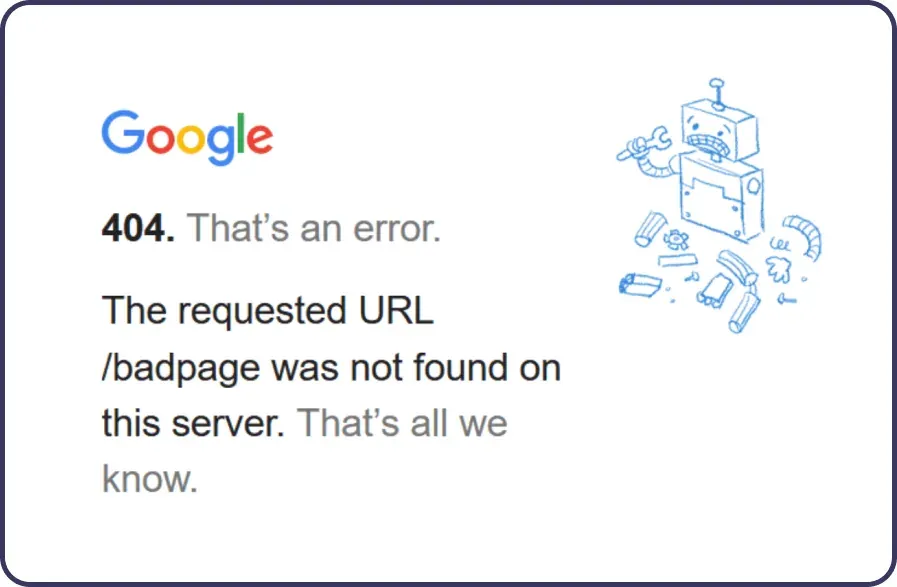
HTTP response codes are an important part of communication between a server and a client (e.g. a web browser or a search engine bot), indicating the status of a request. Incorrect HTTP response codes can significantly affect a website's ability to be indexed by Google and other search engines. Below, we explain how incorrect response codes can affect indexing and how to manage potential problems.
The Most Common Error Response Codes and Their Impact:
- 404 Not Found: Means the page wasn't found. A large number of legitimate 404 errors alone doesn't lower the quality or ranking of the entire website. Google states that 404 errors are a normal part of how the internet works and can be left as they are if the given URL genuinely shouldn't exist. The problem needs fixing when 404 is returned for an important page that should be working, or when the error results from incorrect internal linking.
- 500 Internal Server Error: Indicates a server-side problem preventing the content from being returned correctly. Recurring 5xx errors can limit crawling of the website, and if they persist for a longer period, previously indexed URLs may eventually drop out of the index.
- 302 Found / 307 Temporary Redirect: These are the correct solution when a redirect is temporary in nature. If the move is permanent, it's better to use 301 or 308, since permanent redirects act as a signal to Google that the destination URL should be treated as canonical.
- 503 Service Unavailable: This code is used when the server is temporarily unavailable, for example during maintenance. If it's used for a long time or too often, it can affect indexing.
How to Manage Incorrect HTTP Response Codes:
- Monitoring server logs and Google Search Console reports: Regularly checking server logs and using Google Search Console will let you quickly detect HTTP response errors.
- Optimising server configuration: Making sure the server is properly configured to handle requests can reduce the risk of 500 errors and other problems.
- Using 301 redirects instead of 302/307: Permanent redirects (301) should be used to move content to new URLs, ensuring that SEO value is passed on to the new address.
- Properly managing 404 error pages: Prepare a useful 404 error page with links to the most important parts of your website, to help users continue navigating.
Managing incorrect HTTP response codes requires ongoing attention and a proactive approach, to make sure they don't negatively affect your website's visibility in search engines.
A Google Penalty as an Indexing Problem
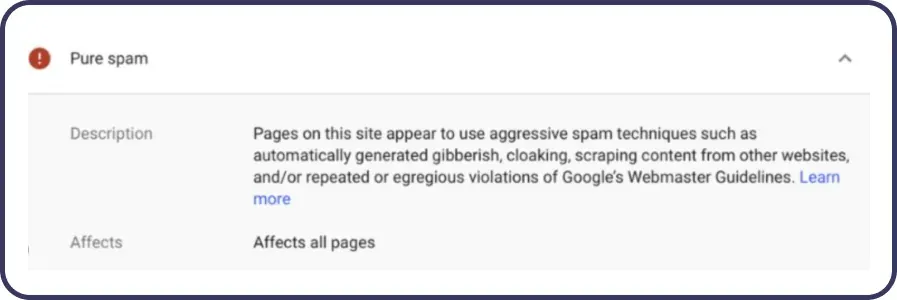
Google's goal is to deliver the most valuable and relevant search results to its users. To achieve this, it applies a set of guidelines that website owners need to follow. Violating these guidelines can result in a penalty being applied to the website, which directly affects its visibility and indexing.
Manual Actions
Google may apply a manual action if, during a review, it detects practices that violate its spam policies. You'll find information about such an action in Google Search Console.
Automatic Ranking Systems and Spam Detection Systems
A drop in visibility can also result from Google's automatic ranking systems or spam detection systems. However, this isn't an “algorithmic penalty” applied to a website in the same way as a manual action. In such a case, Google Search Console usually doesn't show a penalty notification, and diagnosing the issue requires analysing changes in visibility, content quality, compliance with Google's policies, and any updates to the ranking systems.
Analysing and Identifying the Problem
The first step is understanding why the penalty was applied. Google Search Console provides information about manual actions and points to the problems that need resolving.
Fixing the Problems
Once you've identified the problem, take appropriate corrective action, such as removing low-quality content, fixing incoming link issues, or removing hidden text and excessive optimisation.
Reconsideration Request
In the case of a manual action, once you've resolved the problems, submit a reconsideration request in Google Search Console. The request should include a detailed description of the corrective actions taken.
Monitoring and Prevention
After resolving the issue, monitor the website for compliance with Google's guidelines and put in place measures to prevent similar problems in the future.
It's worth remembering that, as of 30 August 2026, Google changed the way it enforces its site reputation abuse policy in the European Economic Area (1). For users searching from within the EEA, the impact of a manual action related to this policy isn't applied directly to search results, but the section of the website covered by it may be separated within Google's systems and, over time, assessed independently from the rest of the site. The website owner still receives notification of the manual action in Google Search Console.
A Hacking Attack as a Website Indexing Problem
Hacking attacks on websites can have serious consequences for the visibility and indexing of a website in search engines. Hackers may “inject” malicious software, alter the page's content, add unwanted links, or even redirect users to other websites. All these actions can negatively affect a page's ranking in Google's search results and damage its reputation.
The Effects of a Hacking Attack on Indexing
Unauthorised content changes can cause a page to be indexed with irrelevant keywords, which affects its visibility. Google actively identifies pages that may pose a risk to users and can remove them from search results or flag them as unsafe. Attacks can also reduce user and search engine trust in a website, which affects its ranking and visibility.
How to Manage the Effects of a Hacking Attack
The key is to quickly identify the attack and take steps to secure the website, such as changing passwords, updating software and removing malicious code. Google Search Console is an invaluable tool for identifying security-related problems and can notify website owners of potential threats.
Once the website is secured, it's important to thoroughly remove all traces of the attack, including malicious software and unauthorised content changes. Then ask Google to recrawl the website using Google Search Console, to make sure it's accessible again and safe for users.
To reduce the risk of further attacks, implement solid security measures: regularly update your software, use strong passwords, use a firewall, and monitor your website for unauthorised changes.
Content Problems on Your Website: Duplicate Content and Thin Content
Duplicate and low-value content are two separate problems that can affect how pages are indexed and their visibility in search results. It's worth knowing how to recognise them and when they genuinely need addressing.
What Duplicate Content Is and Why It's Harmful
Duplicate content occurs when the same or very similar content is available at multiple URLs, whether within a single website or across different domains. Duplication alone doesn't automatically mean a penalty from Google. If a search engine detects several very similar pages, it may group them together and designate a main version of the page as canonical. The problem arises when Google chooses a different version than the one you want to show in search results.
An additional problem can arise when several very similar pages address the same search intent and compete for similar queries. However, not every case of duplicate content automatically means keyword cannibalisation.
How to Fix Duplicate Content Problems
The basic tool is the canonical tag, which points to the preferred version of the page for indexing. If the duplicate results from a change in URL structure or content being moved, a 301 redirect will be more effective, as it permanently directs traffic and link value to the correct address. In both cases, check in Google Search Console which version of the page Google actually treats as canonical.
What Thin Content Is and Why It Lowers Rankings
Thin content is content that provides the user with little or no additional value. This can include automatically generated filter pages, empty or nearly empty templates, mass-generated content answering almost identical queries, or content copied from other sources without your own analysis, experience or added value. However, a low word count alone doesn't mean a page is thin content: short content can be very valuable if it fully answers the user's need.
Low-value content can struggle to gain visibility, and Google may decide that some very similar or barely useful URLs shouldn't be included in the index. On large websites, a large number of such pages can also unnecessarily increase the number of URLs Googlebot has to discover and crawl.
In an age when generative AI is widespread, Google places particular emphasis on its E-E-A-T guidelines (Experience, Expertise, Authoritativeness, Trustworthiness). Shallow content, lacking a unique point of view, or mass-replicated AI patterns, is classified as thin content and increasingly ends up with a “Crawled - currently not indexed” status.
How to Fix Thin Content Problems
The first step is a content audit, ideally using Screaming Frog and data from Google Search Console. However, don't judge a page solely on word count or lack of organic traffic. First, check whether the page fulfils a specific user intent, brings unique value, and genuinely deserves to exist as a separate URL. If the topic needs broader coverage, expand the content with helpful information, examples and your own experience. If several pages serve the same function, consider consolidating them, and use noindex when a page should remain accessible to users but doesn't need to appear in search results.
Interested in improving your website's indexing and visibility?
If so, send us an enquiry. Our specialist will talk to you and, during a short conversation, work out how we can help.
Canonical: Incorrect Implementation or Its Absence as an Indexing Problem
The canonical tag is a signal that tells Google the preferred version among identical or very similar URLs. Its absence doesn't automatically mean a problem, since Google is able to choose a canonical address on its own. Incorrect or inconsistent implementation, however, can cause the search engine to choose a different URL version than the one you want to present in search results.
How an Incorrect Canonical Affects Rankings
When several links point to similar content without indicating a canonical version, the search engine doesn't know which one to promote. External links may point to different versions of the page, meaning the signals associated with those addresses aren't concentrated on a single URL. Pages can also start competing with each other for the same keywords, which lowers the ranking of each of them.
How to Correctly Implement the Canonical Tag
If you use the canonical tag, place it in the <head> section of the HTML document and consistently point it to the preferred URL version. Make sure it always points to the canonical version, even if the content is available at several addresses, for example with UTM parameters or category filters. Keep it consistent across the whole website: ambiguous signals, such as a canonical pointing to page A but a 301 redirect to page B, can confuse Googlebot.
Regularly check your canonical tag configuration after every major change to your website's structure. The URL Inspection tool in Google Search Console lets you check which version of the page Google treats as canonical and whether it matches your intent.
URL Parameters and Faceted Navigation as an Indexing Problem
Parameters in links and faceted navigation can cause indexing problems, especially on online shops and large websites. Filtering and sorting can generate many URLs leading to identical or very similar content, for example for different colours, sizes, prices or sorting methods.
However, not every URL created by filters should be blocked. Some combinations may answer real user queries and have value as separate pages to be indexed. So determine which addresses should be available to Google and which are merely technical variants. On large websites, an excessive number of them can affect indexing, since Googlebot spends resources crawling low-value URLs.
Blocking Key JS Scripts, CSS and Graphic Elements as an Indexing Problem
JavaScript scripts, CSS stylesheets and graphic elements play a key role in how modern websites work. If search engine bots don't have access to the resources needed to render the page, they may see an incomplete version of it, which can make it harder to properly process and index the content.
How Blocking Resources Affects Indexing
Googlebot renders pages using browser technologies and executes JavaScript. If important JS is unavailable, the bot may not be able to access dynamically generated content. Blocking key CSS resources, meanwhile, can make it harder for Google to render the page correctly.
How to Fix Resource Blocking Problems
Check your robots.txt file and make sure it doesn't block access to the JS, CSS and other elements needed to render the page correctly. Use the URL Inspection tool in Google Search Console to see how Google views a specific page.
301 Redirects and Indexing
301 redirects, also known as permanent redirects, are the standard method for telling web browsers and search engine bots that a given page or resource has permanently moved to a new URL. Although 301 redirects are a useful tool for managing content and website structure, using them incorrectly or excessively can lead to indexing problems and, as a result, to problems with a website's visibility in search results.
Problems Caused by Incorrect Use of 301 Redirects:
- Chains and unnecessary redirects: Long redirect chains, where one address leads to the next, and that one to another, can make it harder for both bots and users to reach the right content quickly. The problem isn't the correct use of a 301 redirect itself, but creating unnecessary steps between the old and the destination URL. Point the old link directly to the correct destination page.
- Outdated links and bookmarks: Users and other websites may have old URLs saved that have since been moved. If redirects aren't managed properly, this can lead to user frustration and lost traffic.
- Content duplication problem: If 301 redirects aren't applied consistently (for example, when both the old and new URLs remain accessible and indexed), this can lead to content duplication problems in the eyes of search engines.
How to Manage 301 Redirects to Avoid Indexing Problems:
Use 301 or 308 redirects when an address has been permanently moved. There's no need to avoid 301 redirects just because they're redirects: this is a correct SEO tool when changing a URL, migrating a domain or consolidating content.
Try to make sure every redirect leads directly to the final URL, without unnecessary intermediate redirects. Once you've set up your redirects, update the internal links on your website so they point directly to the new URLs.
Regularly check the state of your website with tools such as Google Search Console and an SEO crawler, to identify loops, chains and redirects leading to incorrect URLs.
301 redirects are an important tool for managing a website, but they need a careful and strategic approach so that they support, rather than hinder, correct indexing.
Pay particular attention to redirects during a domain migration or URL structure change. Google recommends keeping redirects in place for at least a year after a migration, and from a user's point of view, you can leave them for even longer. At the same time, it's worth updating your internal linking and sitemap as soon as possible so they already point to the new addresses.
Errors in the sitemap.xml File as an Indexing Problem
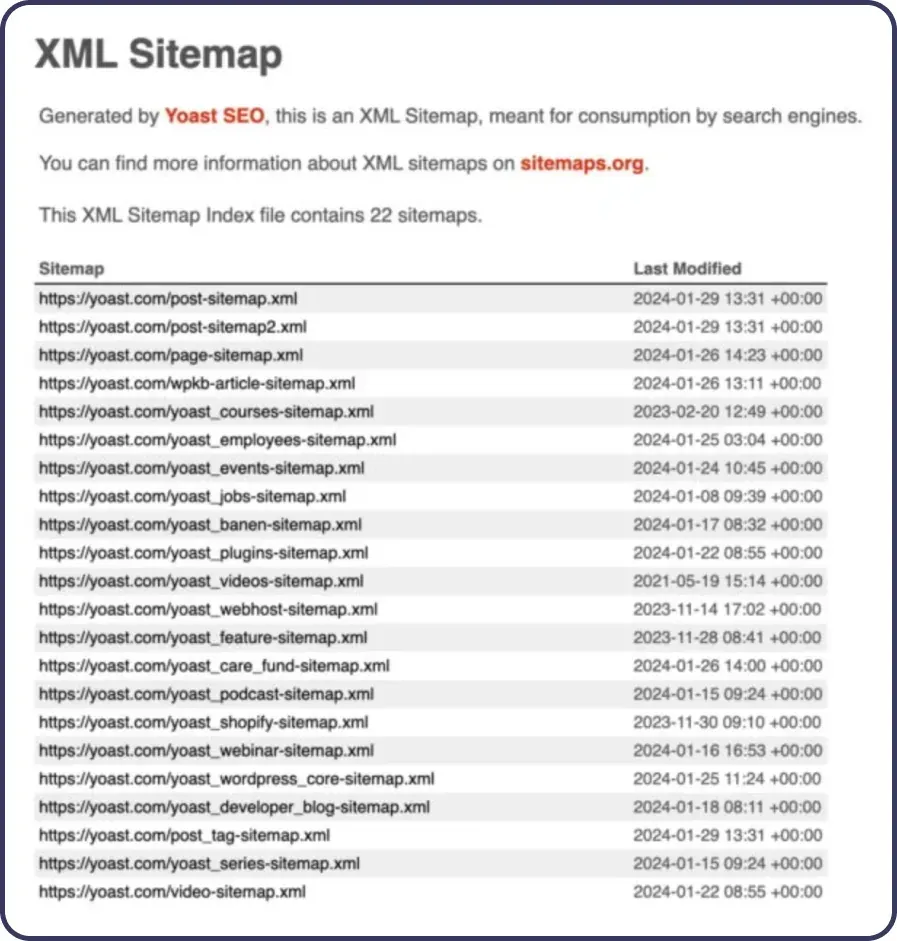
The sitemap.xml file helps Google discover the URLs on your website by giving bots information about the pages you want to point out to the search engine.
The Most Common sitemap.xml Errors
Outdated URLs are one of the most common problems. Addresses for pages that no longer exist, or that have been moved without 301 redirects, mislead search engine bots. On large websites, duplicate pages and unnecessary links with parameters can increase the number of pages crawled unnecessarily. It's also a serious error to include resources blocked in robots.txt in sitemap.xml, as this creates conflicting signals for Googlebot. XML syntax errors, meanwhile, can make it completely impossible for bots to process the file.
How to Correctly Manage sitemap.xml
Regularly update the file, removing outdated addresses and adding new pages. Before publishing, validate the file with XML syntax checking tools. For large websites, consider splitting it into several smaller sitemap files grouped by topic or content type. A single sitemap file can contain up to 50,000 URLs and be up to 50 MB when uncompressed. If you're managing a large website, use several sitemaps and, optionally, a sitemap index. If your sitemap.xml has already been submitted in Google Search Console and its address hasn't changed, you don't need to resubmit it after every update. Instead, keep its contents up to date and monitor the reports in Search Console.
Crawl Budget: When It's Actually a Problem
Crawl budget determines how many resources Google devotes to crawling your website, but optimising it mainly matters for very large or frequently updated websites. A problem can also arise when Google discovers many new pages but doesn't crawl them, which can show up in Google Search Console as “Page discovered - currently not indexed”.
In large websites, crawl budget can be unnecessarily consumed by, among other things, URL parameters, filter combinations, duplicates and other technical addresses. For a small company website or blog, it's better to first check noindex, robots.txt, canonical tags, HTTP responses, internal linking, sitemap.xml and content quality.
IndexNow: How to Speed Up Indexing by Reporting Changes Instantly
IndexNow is a protocol developed by Microsoft and Yandex that lets website owners instantly notify search engines about new or updated content. Instead of waiting for a search engine bot to discover changes on its own during regular crawling, IndexNow sends a signal directly to the search engine the moment a page is published or updated.
Does Google Support IndexNow
Google doesn't support IndexNow as a standard mechanism for submitting pages to its search engine. The protocol is used by other search engines, so it can be useful if you also care about visibility beyond Google.
How to Implement IndexNow
Implementing IndexNow requires generating a key and configuring a mechanism for submitting changed URLs. If you use a popular CMS such as WordPress, you can use a plugin or another solution that supports IndexNow.
IndexNow and Google Search Console
IndexNow and the “Request Indexing” option in Google Search Console work independently. If you also care about visibility in search engines that support IndexNow, you can use both solutions in parallel. GSC remains the main communication channel with Google, while IndexNow speeds up indexing in other search engines.
Does the Google Indexing API Speed Up Indexing of Ordinary Pages
The Google Indexing API isn't a general tool for speeding up the indexing of articles, categories, products or service pages. According to Google's documentation, the API is intended for pages containing a JobPosting or a BroadcastEvent embedded in a VideoObject. For ordinary pages, rely primarily on internal linking, sitemap.xml and the URL Inspection tool in Google Search Console.
How to Submit a Website for Indexing
Submitting a URL can help Google learn about a new or updated page more quickly, but it doesn't guarantee that it will be crawled, indexed, or appear in search results. Here's how you can submit your website for indexing:
1. Use Google Search Console
Google Search Console (GSC) is the most direct way to submit a page to Google. If you haven't already, you first need to verify your ownership in GSC. Once verified, follow these steps:
- Log in to Google Search Console and select the correct property (website).
- Go to the “URL Inspection” tab and enter the full URL of the page you want to submit for indexing in the search field at the top of the page.
- Press Enter to check the URL in Google. The tool will check whether the page is already indexed and whether there are any problems.
- If the page isn't indexed, the “Request Indexing” option will appear. Click this button to submit the page to Google for indexing.
2. Create and Update Your sitemap.xml File
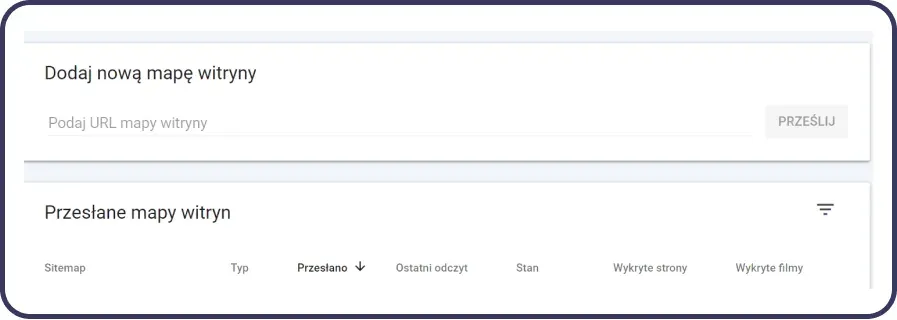
Sitemap.xml is a file that contains information about the pages on your website you want search engines to index. Make sure your sitemap file is up to date and includes all the relevant pages, then submit or update it in Google Search Console:
- In Google Search Console, go to the “Sitemaps” section.
- If the sitemap hasn't been submitted yet or its address has changed, add the path to the sitemap file and click “Submit”. However, don't remove the old sitemap and resubmit it after every content change if the sitemap's URL stays the same.
3. Keep Your Internal and External Linking Healthy
Well-planned internal linking and valuable external links can also help new pages get discovered faster. Search engines use links to discover new pages, so make sure new or updated pages are well linked to the rest of your website.
Remember that, although submitting a page for indexing can speed up its recognition by search engines, the final decisions about indexing and ranking are made by the search engine's systems based on many signals, including content quality and uniqueness.
Effective Website Indexing in Google: What to Do So Google Doesn't Skip You
If you want to build visibility in Google, make sure your website can be correctly crawled and indexed. Indexing problems can stem from various causes, including incorrect canonical tag implementation, errors in the sitemap.xml file, incorrect redirects, blocking of key resources such as JavaScript and CSS, or server availability problems.
On larger websites, it's also worth analysing URL parameters, faceted navigation, orphan pages, server logs and crawl budget. For a single unindexed page, on the other hand, start your diagnosis with URL Inspection in Search Console and answer the following questions in turn: does Google know the URL, can it fetch it, can it render it, does the page lack noindex, which canonical was chosen, and does the content give a good enough reason to index it.
Get in touch with our SEO team or use the tools available, such as Google Search Console, to diagnose and fix indexing problems. Remember that effective indexing is the foundation of online visibility and the key to your website's success online.
Don't wait until your website is skipped by search engines. Taking action today can significantly affect your online presence and bring more valuable traffic to your website.
FAQ: Website Indexing in Google
Why Doesn't My Website Appear in Google
The most common causes are: a block in robots.txt, a noindex tag, an incorrect canonical, HTTP code problems (404, 500), low-value or duplicate content, a Google penalty, or a hacking attack. Check the page's status in Google Search Console using the “URL Inspection” tool.
How to Check Whether My Website Is Indexed
Type site:yourdomain.com into Google. If results appear, it means Google is showing at least some of the addresses from that domain. You'll find more detailed data in Google Search Console in the “Page Indexing” report.
How Long Does It Take to Index a Website in Google
There's no fixed time for indexing a website in Google. Discovering and recrawling a URL can take anywhere from a few days to a few weeks, and crawling alone doesn't yet guarantee that the URL will be added to the index. The time depends, among other things, on how easily the page can be discovered, internal linking, how often it changes, content quality, and the website's technical capabilities.
What Is Crawl Budget and Does It Apply to My Website
Crawl budget is the number of pages Googlebot can crawl within a given time. For small websites, it's rarely a problem. It mainly affects large websites with thousands of pages and online shops with parameterised URLs.
How to Speed Up Website Indexing
Use the “Request Indexing” option in Google Search Console, keep your sitemap.xml up to date, improve your internal linking, and make sure the page isn't blocked by robots.txt, noindex, an incorrect canonical, or server problems.
What Is the Noindex Tag and Can It Harm a Website
Noindex is a meta tag that tells Google not to index a given page. Used intentionally (for example, on internal search results pages), it's correct. Accidentally added to important pages, it excludes them from Google's results entirely.
What's the Difference Between a Manual Action and Google's Automatic Systems
A manual action is applied by Google after it finds a violation of its spam policies, and it's visible in Google Search Console. Separately from this, automatic ranking systems and spam detection systems can affect a website's visibility without a separate “algorithmic penalty” notification in GSC.
What Does “Page Discovered - Currently Not Indexed” Mean
This means Google knows the URL but hasn't crawled it yet. If you have a large number of such pages, it's worth checking your internal linking, sitemap.xml, the number of URLs being generated, server performance and crawl budget. Google identifies this status as one of the cases where analysing your indexing budget may be worthwhile.
What Does “Page Crawled - Currently Not Indexed” Mean
This means Google has visited the page but hasn't currently placed it in the index. This doesn't necessarily mean a technical error. It's worth checking, among other things, content quality and uniqueness, similarity to other URLs, the canonical tag, rendering, and whether the page genuinely adds value as a separate search result.
(1) https://developers.google.com/search/blog/2026/08/update-site-reputation-policy
See Also:
- What Is a Newsletter and How Do You Create One?
- Which E-Commerce Platform Should You Choose?
- How to Check Your Reviews in Google?
- WordPress SEO: A Guide
- Shoper Store SEO
- PrestaShop SEO: A Complete Guide for Your Store
- How to Check Your Website's Position in Google?
- Cookiebot, Consent Mode
- Google Business Profile SEO