













In short
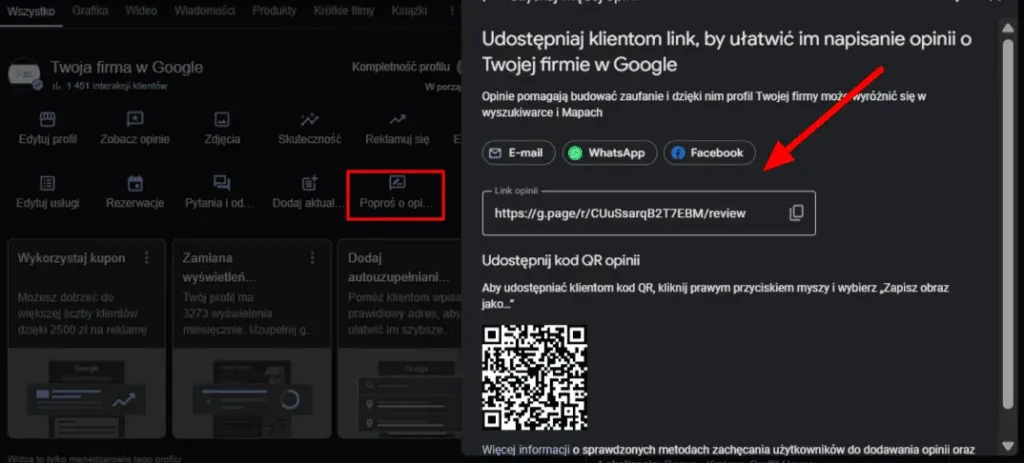
- You generate a Google reviews link in your Business Profile: Read reviews, Get more reviews, then Copy. A QR code also appears. The link takes people straight to the review form, while the Profile link opens the whole business profile.
- You send the link once the customer has had a chance to assess the service: by email, by SMS, on a "Thank you" page or on printed materials with a QR code. Before printing, test the code on several phones.
- Google prohibits discounts and gifts in exchange for reviews and encouraging only positive ratings, so a request like "Leave us 5 stars" shouldn't appear. The link alone doesn't improve your position in local results, it only makes collecting reviews easier.

Google reviews can influence whether a user chooses your business over several similar search results. Instead of asking a customer to search for your Google Business Profile themselves and navigate to the reviews section, it's better to send them a Google reviews link or a QR code that takes them straight there.
Generating the Link Step by Step
The easiest way to generate the link is directly from your Google Business Profile. There's no need to use an external generator or create the address manually.
- Log in to the Google account you use to manage your Google Business Profile.
- Open your business profile.
- Click “Read reviews”, then “Get more reviews”.
- The screen will show a ready-made link for leaving a Google review, along with a QR code.
- Click “Copy” to copy the address and share it with your customers.
After clicking it, the customer lands directly on the form where they can leave a review of your business. They don't need to type your company name into Google Maps or hunt for the right option on your profile.
Google Reviews Link vs. Google Business Profile Link
These two addresses serve different purposes. A link to your Google Business Profile opens the profile with your address, opening hours, photos and directions. A Google reviews link takes the user straight to the review form.
If your goal is to collect reviews, it's worth sharing the link to the form. The Google Business Profile link comes in handy when you want to show the customer your full business information or make it easier for them to find your location.
How to Generate a QR Code for Google Reviews
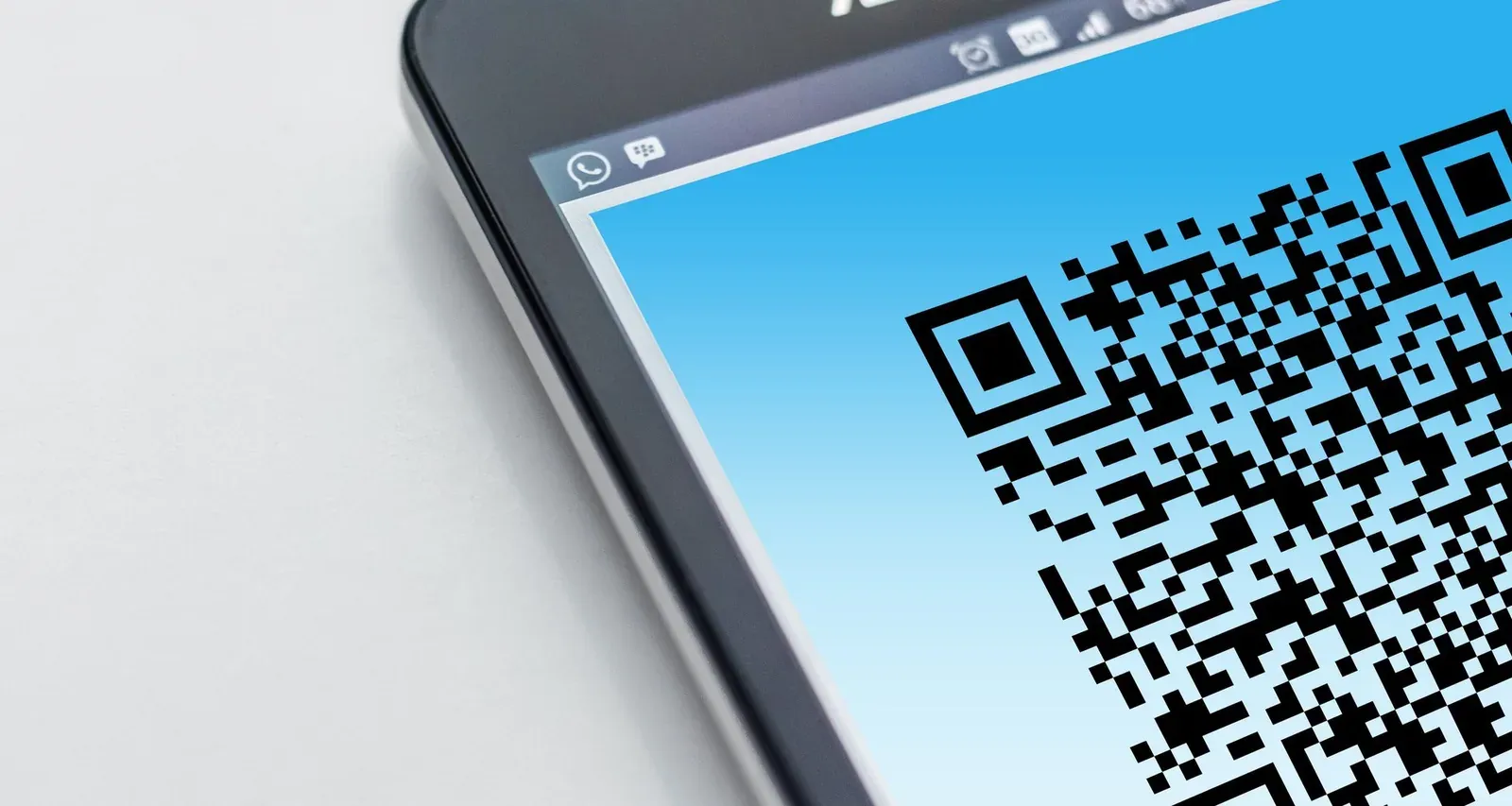
Google provides the QR code in the same place where you can find the reviews link. You can generate the code in a browser on your computer. Just save the QR code as an image and add it to your printed materials.
A QR code works well on a receipt, a flyer, a business card, a stand at reception, or an insert in a parcel. It's worth adding a neutral message next to it, such as “Share your review on Google”. Before printing, check that the code scans correctly with several phones and leads to the right business profile.
Where to Share Your Google Reviews Link
It's best to send the ready-made link once the customer has had a chance to try the service or the product they bought. This could be right after a visit, after they receive their order, or once contact with customer service has ended.
The most effective channels are usually:
- email after a purchase or completed service,
- SMS after a visit,
- a message at the end of a chat conversation,
- a “Thank you” page,
- the message footer,
- printed materials with a QR code.
The message doesn't need to be long: “Thank you for using our services. If you'd like to share your experience, you can leave a review here: link”. A message like this doesn't suggest what rating the customer should give.
What Not to Do When Asking for Google Reviews
Google allows you to ask customers for genuine reviews, but it prohibits manipulating ratings. Don't offer discounts, gifts or other perks in exchange for leaving, changing or deleting a review. Don't encourage only positive reviews either, or discourage dissatisfied customers from leaving one.
That's why a request like “Leave us 5 stars” should never appear at all. It's better to ask for an honest review without indicating the rating you expect.
What to Do If Your Google Reviews Link Doesn't Work
First, check that the Google reviews link leads to the right business and opens the review form, not just the Google Business Profile. If your business has several locations, use the link from each location's own profile.
Test the link on both your phone and your computer. Also check any printed QR code for legibility.
Does a Google Reviews Link Help with SEO?
The link itself doesn't improve your business's position in local search results. Its job is to make it easier for customers to leave reviews. Reviews are, however, an important part of your Google Business Profile, since they help users judge a business's credibility and compare it with competitors visible in local search results.
From an SEO perspective, it's worth taking a broader view: keep your Google Business Profile up to date, maintain data consistency, reply to reviews, and build a credible online presence.
A Shorter Path to Reviews Means Less Work for the Customer
Generating the link takes a moment and shortens the review process by several steps. The easiest option is to use the feature available directly in your Business Profile and download the QR code straight away. After that, all you need to do is choose the right channel: email, SMS, a web page or printed material.
The most important thing is that the request stays neutral and the review reflects the customer's genuine experience. When that's the case, a Google reviews link becomes a convenient part of customer service and supports the systematic collection of reviews.
If you want to make better use of your Google Business Profile, increase its visibility and organise your local SEO activities, get in touch with us. We'll help you plan solutions tailored to your business.
Also Check Out: